To move photos off your phone without losing them, start with the least disruptive setting tied directly to that feature, test it, then move to the next step only if the original action still fails.
Photo copy and cloud-sync behavior depends on the source and destination service. Verify files from an independent device before removing originals.
Before you start
Choose the destination first and confirm it has enough free space. Copy a small sample before moving a whole library, and keep the phone's original files until the copy is checked.
Step-by-step
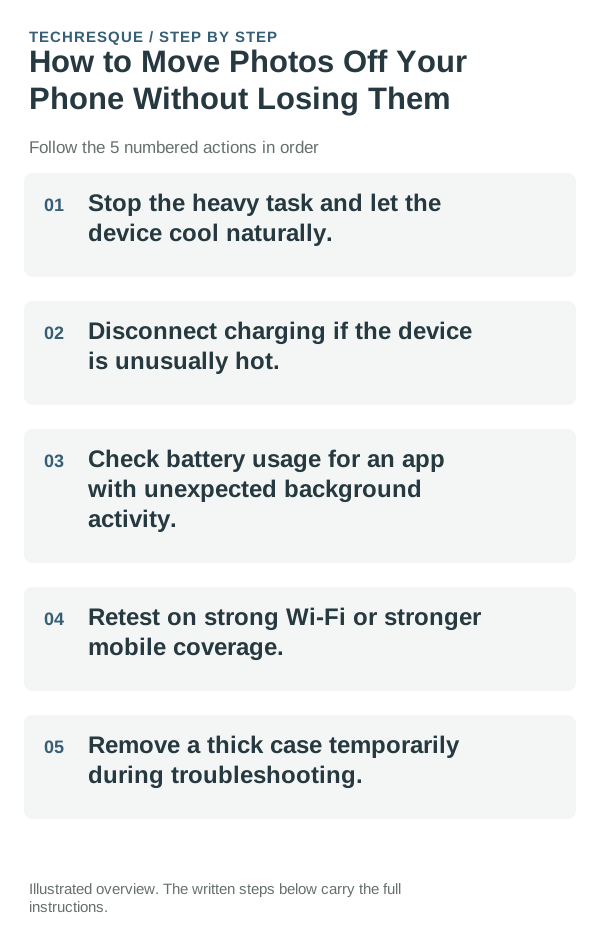
- Stop the heavy task and let the device cool naturally.
- Disconnect charging if the device is unusually hot.
- Check battery usage for an app with unexpected background activity.
- Retest on strong Wi-Fi or stronger mobile coverage.
- Remove a thick case temporarily during troubleshooting.
How to check the result
Open several copied photos and videos from the destination, including an older and a recent item. Compare count, file size, and dates before deleting originals.
If the option is missing
Cloud sync, device transfer, and local file copy behave differently. Check the account, backup status, and destination folder; a thumbnail may be a cloud placeholder rather than a full local copy.
Keep the change easy to undo
Copy before deleting, keep an independent second copy of irreplaceable photos, and do not empty Trash until you verify the destination on another device or account.
What to do if it still fails
If dates or quality differ, compare the original and copied file details and confirm whether the service compressed or converted the media. Repeat with a small sample before the full move.
Verify the copy before deleting the original
When possible, copy photos first and leave the phone originals in place until the destination has been checked. A cloud backup, a USB transfer to a computer, and an external-drive copy have different failure points, so confirm which account or folder received the files.
Open several transferred photos and videos from the destination, including older and newer items, and make sure the video plays and the image quality is suitable. For cloud backup, confirm the correct account reports completion and can show the files from another device before using a cleanup or free-space action.
| Transfer route | Verify this | Keep in mind |
|---|---|---|
| Cloud photos service | Correct account, completed backup, and files visible on another device | Cloud copies and phone storage are separate; deletion may sync |
| USB to a computer | Files open from the destination folder and the copy count looks right | Use a data-capable cable and keep the phone unlocked if requested |
| External drive | Drive remains connected and several files open after the transfer | Do not treat a transfer progress bar alone as a verified backup |
Frequently asked questions
Can I delete the phone copies after upload?
Only after opening the cloud copies from another device/account and confirming the expected photos and videos are present. Some upload queues are still pending.
Why do photo dates or quality look different?
Transfer tools may preserve, convert, or recompress files differently. Compare the original and destination file details and use an unmodified copy if quality matters.
How many photos should I verify?
Check a small sample across recent and older dates, plus videos if included. For an important library, verify the item count and a separate backup before deleting originals.
Official sources and further reading
Cloud quota and local storage are separate. Confirm whether the warning appears in the provider account or on the device before deleting files.