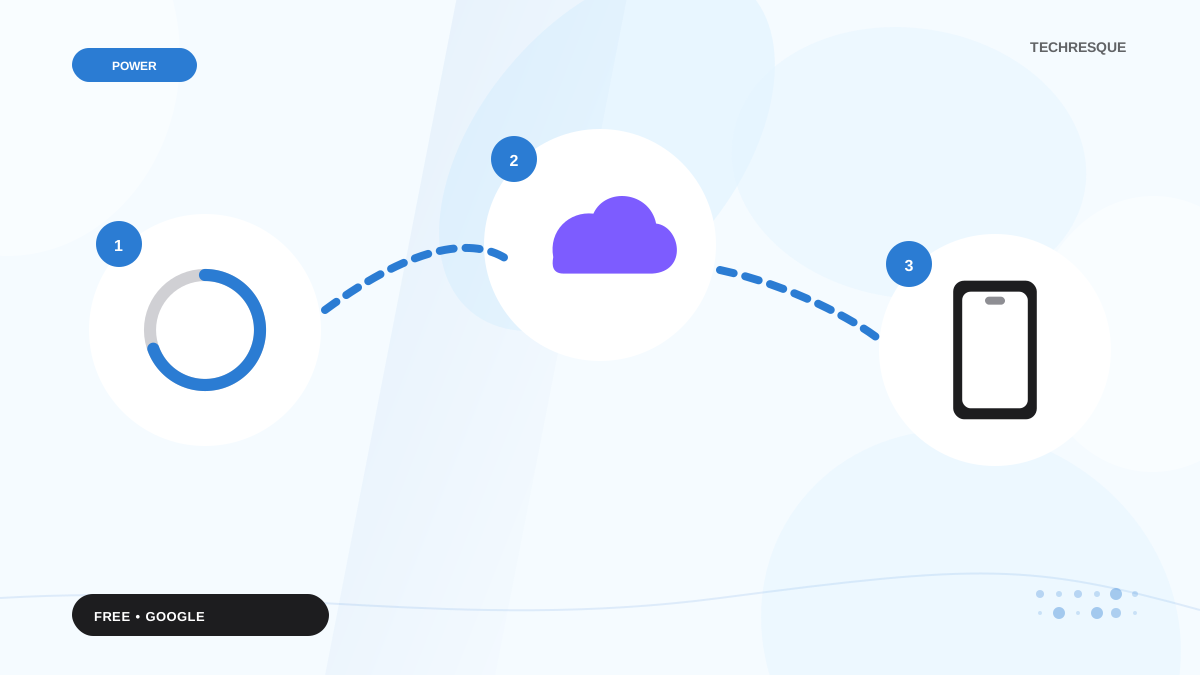
Start in Google One storage management and confirm the account. Review large files, Gmail attachments, Photos backups, and trash; archive or download important content before removing it.
Local device storage, cloud quota, and app storage are separate. Check the exact account and category shown before deleting or moving files.
Before you start
Google Account storage is shared across Drive, Gmail, and Photos. A phone's local free space is a separate limit, and a file in Drive may be owned by another account or shared with you.
A reversible workflow
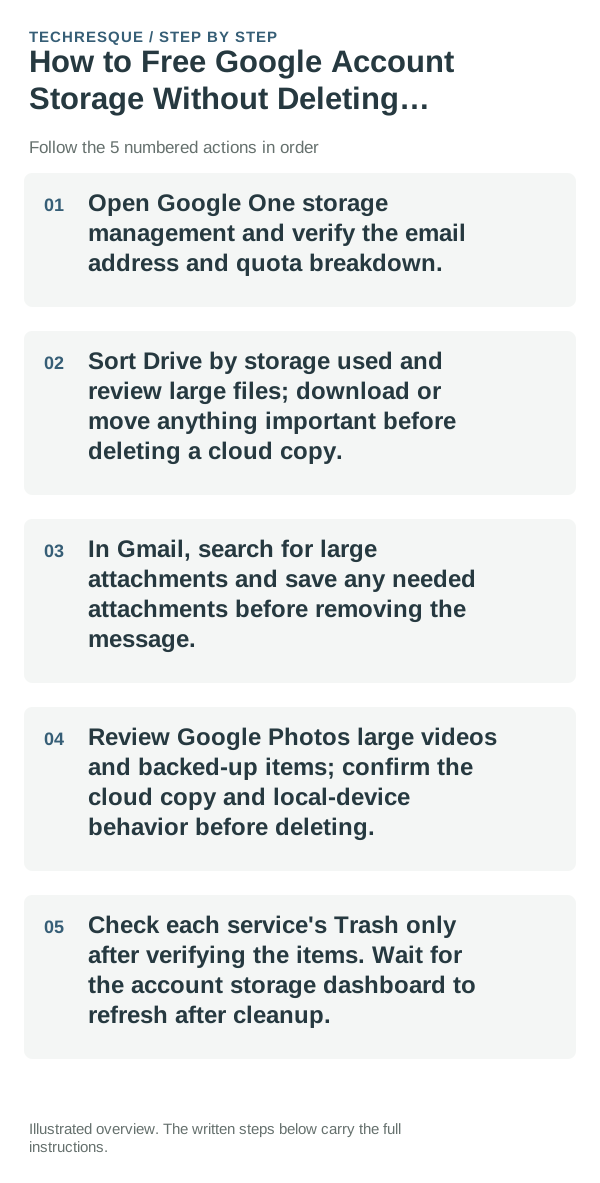
- Open Google One storage management and verify the email address and quota breakdown.
- Sort Drive by storage used and review large files; download or move anything important before deleting a cloud copy.
- In Gmail, search for large attachments and save any needed attachments before removing the message.
- Review Google Photos large videos and backed-up items; confirm the cloud copy and local-device behavior before deleting.
- Check each service's Trash only after verifying the items. Wait for the account storage dashboard to refresh after cleanup.
How to check the result
A Drive-heavy total suggests reviewing large files; Gmail-heavy storage points to attachments; Photos-heavy storage points to videos and backup quality. The dashboard shows which service to address first.
If the option is missing
Do not empty every trash folder or delete cloud photos merely to make the warning disappear. Download a copy first and confirm it opens outside the account.
Keep the change easy to undo
Reopen the same Google One dashboard and confirm available quota increased. Check that representative files still open from the intended account.
What to do if it still fails
If the dashboard lists unexpected usage or does not update after verified cleanup, contact Google One or Workspace support with the account type and service breakdown.
Know whether the problem is local storage, cloud state or sync
Sync is not the same as backup. Confirm which account is active, whether the item exists locally, and whether the service reports it as uploaded before deleting the original copy.
When a transfer is stuck, test one small file first. A small successful upload points away from authentication and toward file size, format, naming or network stability.
Local free space and cloud quota are separate limits. A device can have plenty of storage while a cloud account is full, or the cloud can have room while the phone is too full to create temporary files for an upload.
| What you observe | What it points to | Best next check |
|---|---|---|
| Account says full | Cloud quota or retained items | Check service storage breakdown |
| File exists locally but not online | Sync paused, account mismatch or upload failure | Verify active account and sync status |
| Small files sync, large files do not | Size, timeout or connection stability | Test a smaller sample and another network |
Before you make a bigger change
Before mass deletion, verify the account, backup date, and a sample restore. Keep important photos and documents in a second location you can open independently.
Frequently asked questions
Can I delete files to free space safely?
Only after you verify what the item is, which account stores it, and whether a separate copy opens. Cloud deletion may sync across devices and Trash may have a limited recovery period.
Is phone storage the same as Google storage?
No. Phone storage holds local apps and files; Google Account storage is shared across Google services. Identify the exact warning before removing anything.
How can I confirm a backup exists?
Check the account and last-backup timestamp, then open a sample copied file or photo from the destination. A backup switch alone does not prove every file is included.