Phone storage is space on the device; cloud storage is space in an online account such as Google Drive, iCloud or OneDrive. They can sync, but they are different limits: a phone can be full while cloud quota remains, or a cloud account can be full while the phone still has room.
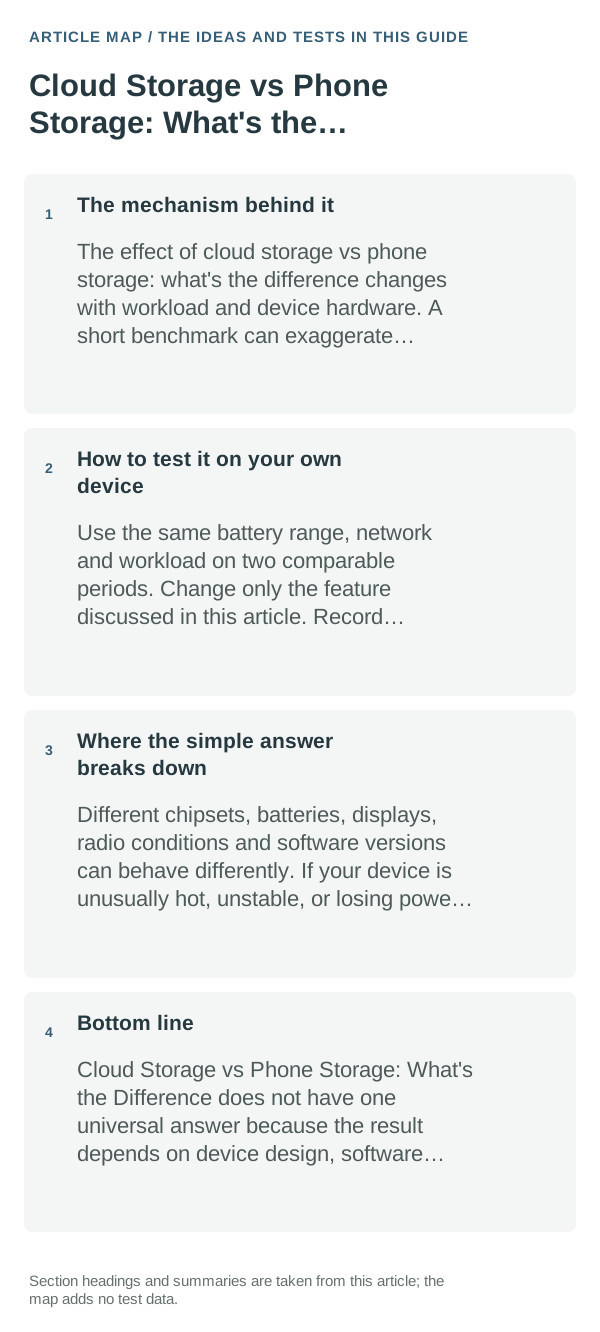
The mechanism behind it
A sync service copies or reflects changes between places; a backup is a separate recoverable copy. Depending on the service, deleting a synced item may also delete it elsewhere. “Online” files may not be available offline unless the service marks them for local use.
How to apply this without overthinking it
- Check device storage in the phone’s Settings, then check quota in the specific cloud provider account. Do not use one number to infer the other.
- Open the affected file in airplane mode if offline access matters. A visible thumbnail or filename alone does not prove the full file is stored locally.
- Before deleting or moving data, confirm which account is signed in, where the original file lives, and whether the provider reports a completed upload or backup.
- Test one nonessential file: upload it, confirm it opens from another device or browser, then verify the intended local/cloud copy before cleaning up.
How to test it on your own device
Use a small, non-sensitive file to check the complete path: local save, cloud upload status, access from a second session, and offline opening if needed. Keep the original until each step succeeds.
Where the simple answer breaks down
Exact sync and offline controls depend on the provider, app, account and file type. Trash retention and storage calculations also vary; check that service’s current help page before permanently removing items.
Bottom line
Treat phone capacity, cloud quota, sync and backup as four related but different things. Check each one in its own settings and verify a recoverable copy before deleting the original.
Know whether the problem is local storage, cloud state or sync
Local free space and cloud quota are separate limits. A device can have plenty of storage while a cloud account is full, or the cloud can have room while the phone is too full to create temporary files for an upload.
Sync is not the same as backup. Confirm which account is active, whether the item exists locally, and whether the service reports it as uploaded before deleting the original copy.
When a transfer is stuck, test one small file first. A small successful upload points away from authentication and toward file size, format, naming or network stability.
| What you observe | What it points to | Best next check |
|---|---|---|
| Account says full | Cloud quota or retained items | Check service storage breakdown |
| File exists locally but not online | Sync paused, account mismatch or upload failure | Verify active account and sync status |
| Small files sync, large files do not | Size, timeout or connection stability | Test a smaller sample and another network |
Frequently asked questions
If I delete a phone file, does the cloud copy disappear too?
It depends on the app’s sync and deletion rules. Check its help page and trash behavior, then test with a nonessential file before removing anything important.
Can I open a cloud file without internet?
Only if the service has downloaded or marked it for offline use. A filename or thumbnail alone does not prove the full file is stored on the phone.
Official sources and further reading
- Google Account Help — How your Google storage works
- Google Photos Help — Free up space on your device
The Google links below are examples of Google storage behavior. Other cloud services use different quota, sync, trash and offline rules.