Read the backup status details and check quota, connection, account, and pending-item count. Keep Photos open on a reliable connection while it prepares a small batch before resetting app data.
On Android, menu names vary by maker, so use Settings search when a path in a guide does not match your phone exactly.
Likely causes to check first
Preparing backup can be a startup or library-scan state rather than a stalled transfer. A large new library, low storage, an account mismatch, or paused background work can keep the message visible while Photos checks local items.
Troubleshoot from low-risk to high-risk
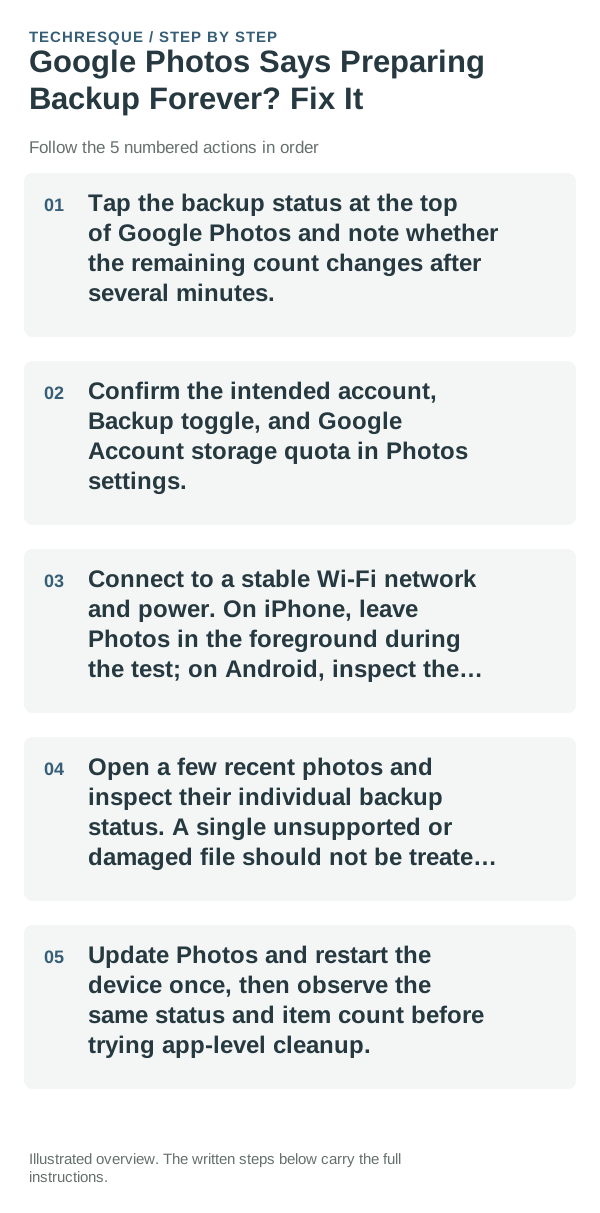
- Tap the backup status at the top of Google Photos and note whether the remaining count changes after several minutes.
- Confirm the intended account, Backup toggle, and Google Account storage quota in Photos settings.
- Connect to a stable Wi-Fi network and power. On iPhone, leave Photos in the foreground during the test; on Android, inspect the app's battery restriction only if progress stops when the screen locks.
- Open a few recent photos and inspect their individual backup status. A single unsupported or damaged file should not be treated like a whole-library failure.
- Update Photos and restart the device once, then observe the same status and item count before trying app-level cleanup.
Use a clean A/B test
A changing remaining count means the app is still working. A fixed count with a Waiting for Wi-Fi or storage message points to that stated requirement. If the count is fixed but no reason appears, test one recent photo and compare its details.
Shortcuts that usually waste time
Do not repeatedly force-stop Photos, clear its storage, or delete local files while the library is being scanned. These changes can interrupt progress and make it harder to tell whether the originals remain.
Confirm that the problem is actually gone
Success is a Backup complete status and a confirmed cloud copy of a recent photo in the correct account. If only older items remain, compare their file types and folder locations rather than restarting the whole library.
When to use support or repair
If the same count and status remain after the checks, send feedback through Photos with the app version, OS version, account quota state, and status text. Keep local originals until cloud copies are verified.
Frequently asked questions
Should I reset the whole device immediately?
Usually not. Check which quota is full and confirm a backup before removing originals; clearing the wrong storage can lose files.
How do I know when the fix is real?
Success is a Backup complete status and a confirmed cloud copy of a recent photo in the correct account. If only older items remain, compare their file types and folder locations rather than restarting the whole library.