Check the missing item's backup badge, the selected Google Account, and whether its device folder is included. Photos from messaging, downloads, or other apps may need their folder enabled separately.
On Android, menu names vary by maker, so use Settings search when a path in a guide does not match your phone exactly.
Where this problem usually comes from
Google Photos can back up the camera folder while leaving screenshots or app-created folders out. It can also show different libraries when the wrong account is selected, or pause files that are unsupported, queued, or waiting for a connection.
Use this order so you can identify the cause
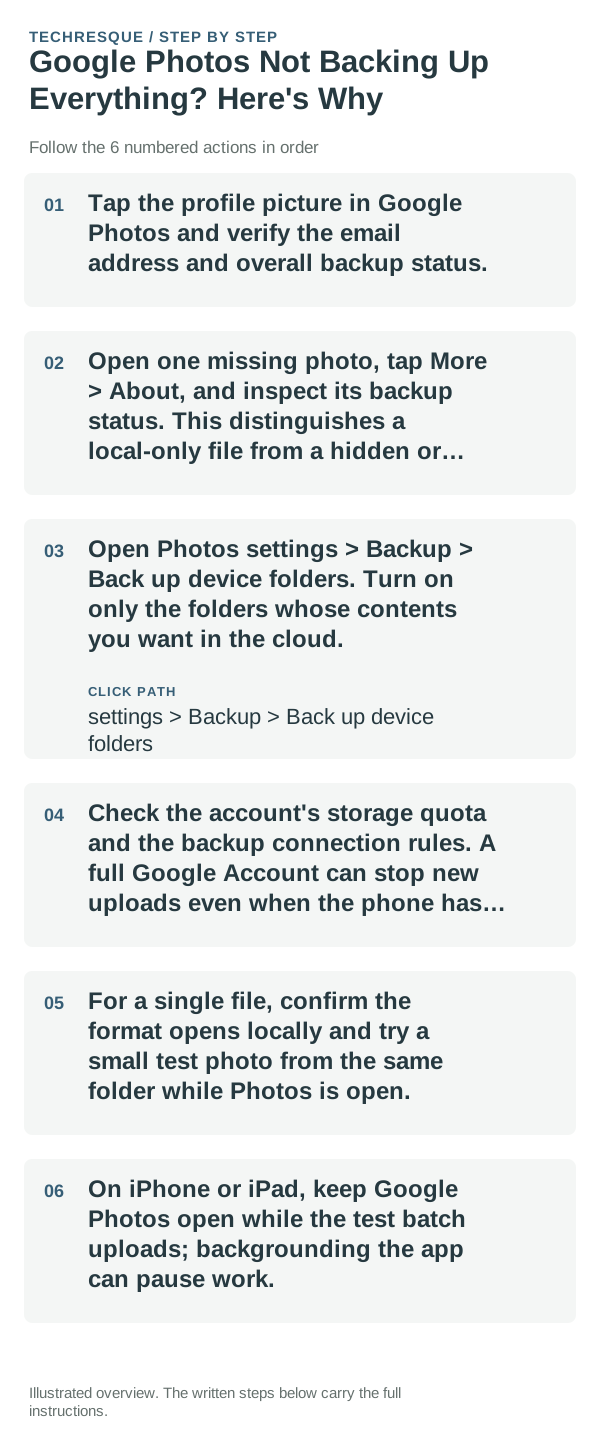
- Tap the profile picture in Google Photos and verify the email address and overall backup status.
- Open one missing photo, tap More > About, and inspect its backup status. This distinguishes a local-only file from a hidden or delayed item.
- Open Photos settings > Backup > Back up device folders. Turn on only the folders whose contents you want in the cloud.
- Check the account's storage quota and the backup connection rules. A full Google Account can stop new uploads even when the phone has room.
- For a single file, confirm the format opens locally and try a small test photo from the same folder while Photos is open.
- On iPhone or iPad, keep Google Photos open while the test batch uploads; backgrounding the app can pause work.
What each result tells you
If all files from one folder are missing, inspect that folder's backup switch. If only recent files are absent, read the status and connection rule. If a photo appears on the web under another account, the issue is account selection rather than upload.
Shortcuts that usually waste time
Avoid deleting or moving the missing files while testing. Do not turn on every device folder automatically if it contains private app media you do not want in the Google Account.
How to confirm the fix
Choose one missing item and confirm its details show Backed up; then find it in the correct account at photos.google.com. Repeat with one item from each folder you intentionally selected.
When to use support or repair
If a supported file remains unbacked after its folder, account, quota, and connection are correct, use Google Photos feedback and include its file type, folder, and displayed status.
Frequently asked questions
Should I reset the whole device immediately?
Usually not. Check which quota is full and confirm a backup before removing originals; clearing the wrong storage can lose files.
How do I know when the fix is real?
Choose one missing item and confirm its details show Backed up; then find it in the correct account at photos.google.com. Repeat with one item from each folder you intentionally selected.