Open Google Photos and read the exact backup status, then check the selected Google Account, backup setting, connection, and account storage. Keep the app open for a small test batch before changing battery settings.
On Android, menu names vary by maker, so use Settings search when a path in a guide does not match your phone exactly.
Likely causes to check first
A backup can pause because it is waiting for Wi-Fi, mobile-data permission, power, storage quota, or a selected account. A long progress label alone does not prove the app is frozen; the remaining-item count and per-photo status are better clues.
Fix it in this order
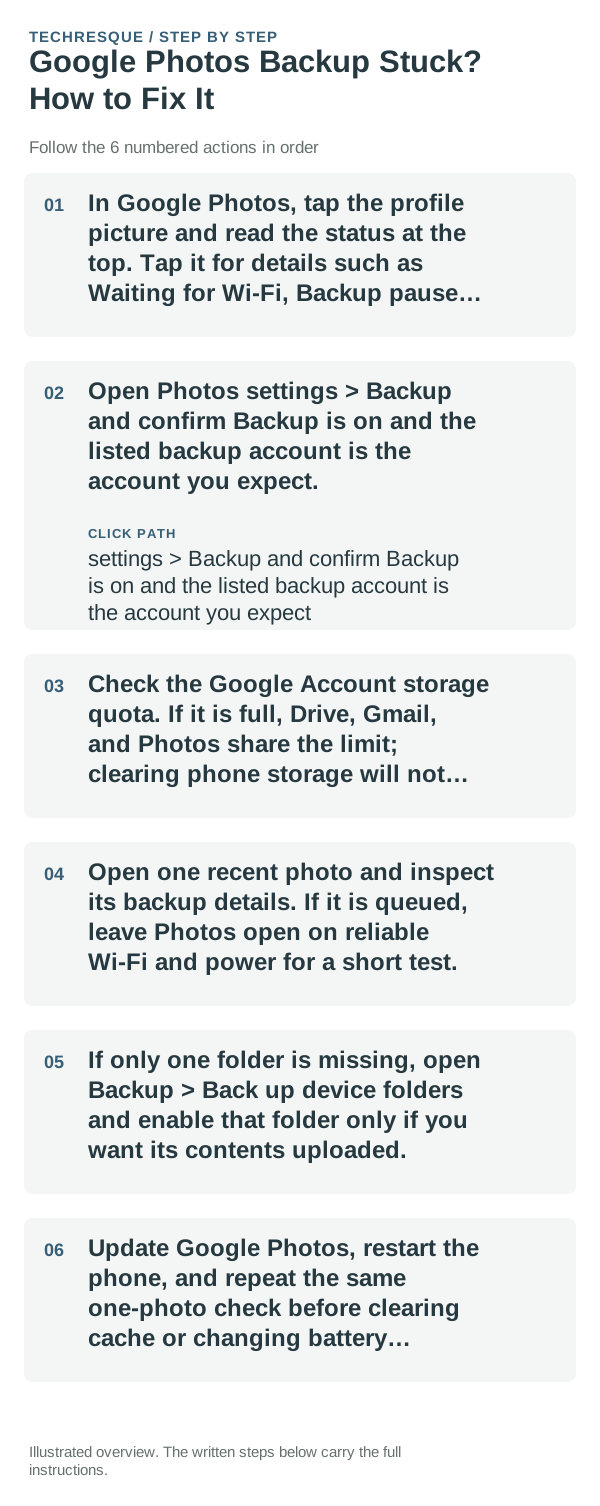
- In Google Photos, tap the profile picture and read the status at the top. Tap it for details such as Waiting for Wi-Fi, Backup paused, or Preparing backup.
- Open Photos settings > Backup and confirm Backup is on and the listed backup account is the account you expect.
- Check the Google Account storage quota. If it is full, Drive, Gmail, and Photos share the limit; clearing phone storage will not create cloud quota.
- Open one recent photo and inspect its backup details. If it is queued, leave Photos open on reliable Wi-Fi and power for a short test.
- If only one folder is missing, open Backup > Back up device folders and enable that folder only if you want its contents uploaded.
- Update Google Photos, restart the phone, and repeat the same one-photo check before clearing cache or changing battery optimization.
Use a clean A/B test
If the status says Waiting for Wi-Fi, fix the connection or the backup's mobile-data setting. If it says storage is full, address the Google Account quota. If only one device folder is missing, its folder backup switch is the likely cause.
Changes to avoid until you know the cause
Do not delete local photos to make a cloud backup proceed, and do not clear Photos app storage before confirming the account and backup status. A sync pause is not proof that the originals are safely backed up.
What success should look like
Open a photo's details and confirm it says Backed up, then check that the same item appears at photos.google.com in the intended account. Do not remove the local original until that cloud copy is confirmed.
When to use support or repair
If a single item remains queued after the account, quota, connection, and folder settings are correct, send feedback from Google Photos with the status text and app version. For a whole-library pause, contact Google Photos support.
Frequently asked questions
Should I reset the whole device immediately?
Usually not. Check which quota is full and confirm a backup before removing originals; clearing the wrong storage can lose files.
How do I know when the fix is real?
Open a photo's details and confirm it says Backed up, then check that the same item appears at photos.google.com in the intended account. Do not remove the local original until that cloud copy is confirmed.