Watch whether the tab reloads only after being inactive or while you are using it.
Where this problem usually comes from
- one extension or profile is misbehaving
- cached site data is stale
- memory pressure is forcing tabs to reload
- DNS/network problems affect only some sites
- security software or a proxy is intercepting connections
Fix it in this order
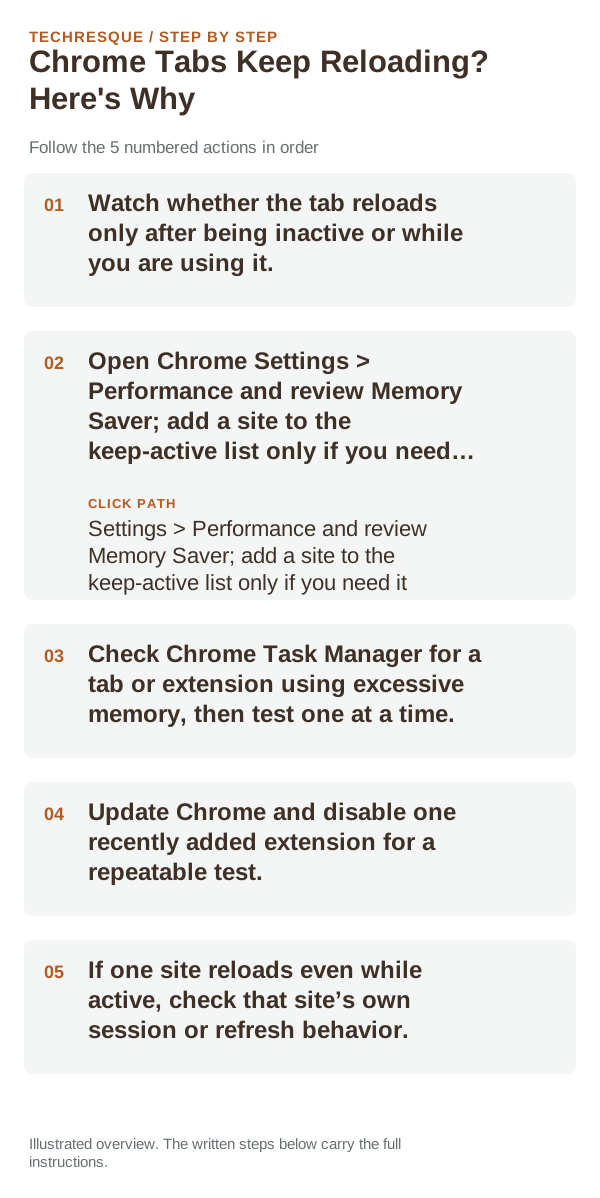
- Watch whether the tab reloads only after being inactive or while you are using it.
- Open Chrome Settings > Performance and review Memory Saver; add a site to the keep-active list only if you need it.
- Check Chrome Task Manager for a tab or extension using excessive memory, then test one at a time.
- Update Chrome and disable one recently added extension for a repeatable test.
- If one site reloads even while active, check that site’s own session or refresh behavior.
What each result tells you
A tab reloading only after you leave it may be Memory Saver reclaiming memory. Reloads during active use point more toward the site, an extension, or a browser crash. Keep only essential sites active so Chrome can still manage available memory.
What not to change first
Verify before you move on
Leave the same set of tabs open and note whether only a memory-heavy page reloads or every tab does. Repeat after closing one tab or extension to identify the resource pressure.
When to use support or repair
If the same page fails in another browser, contact the site or network owner; if only Chrome fails, report its version and reproduction steps.
Record Chrome version, device/OS, profile and extension state, and the affected page without private tokens or account data.
Frequently asked questions
Should I reset the whole device immediately?
Usually not. Compare a private window and another browser first. Reset Chrome only after checking the profile, extensions and sync.
How do I know when the fix is real?
Leave the same set of tabs open and note whether only a memory-heavy page reloads or every tab does. Repeat after closing one tab or extension to identify the resource pressure.
Official sources and further reading
Chrome menu labels can change with releases. Search Settings for the named control if its location differs.