Open Chrome’s three-dot menu and see whether New Incognito Window is absent or disabled.
Why this can happen
- one extension or profile is misbehaving
- cached site data is stale
- memory pressure is forcing tabs to reload
- DNS/network problems affect only some sites
- security software or a proxy is intercepting connections
Work through these checks
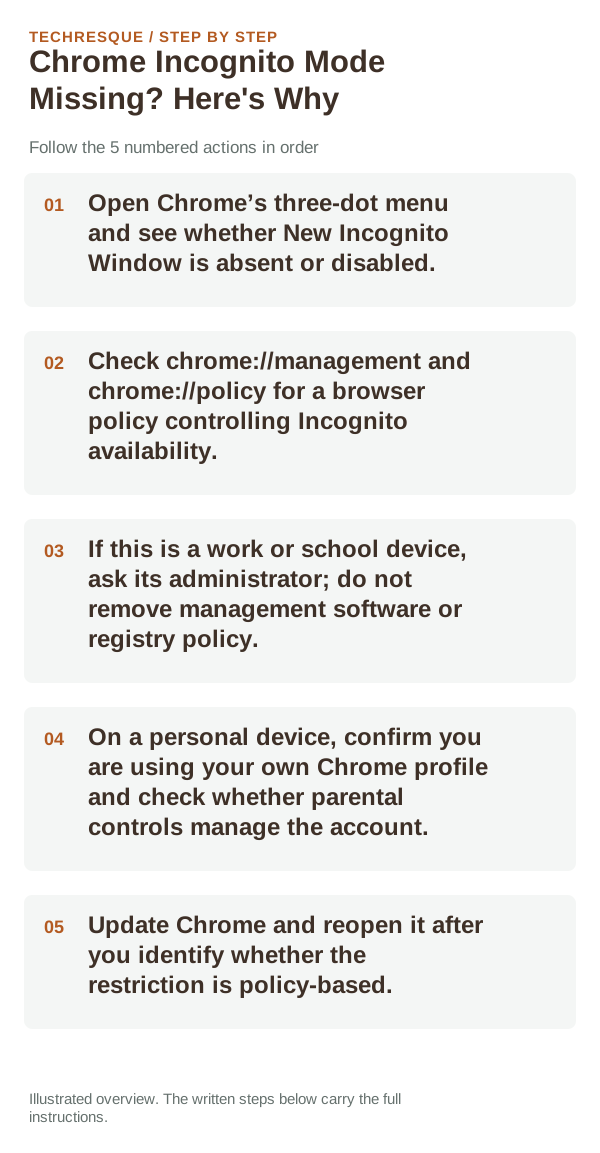
- Open Chrome’s three-dot menu and see whether New Incognito Window is absent or disabled.
- Check chrome://management and chrome://policy for a browser policy controlling Incognito availability.
- If this is a work or school device, ask its administrator; do not remove management software or registry policy.
- On a personal device, confirm you are using your own Chrome profile and check whether parental controls manage the account.
- Update Chrome and reopen it after you identify whether the restriction is policy-based.
How to tell which cause applies
A policy shown on chrome://policy explains why the menu is missing; an administrator or family-safety setting must change it. If no policy appears on a personal device, update Chrome and check the active profile before editing system settings.
What not to change first
How to confirm the fix
Check the Chrome menu and the Ctrl+Shift+N shortcut, then review whether the browser is managed or restricted by the device owner. Do not try to bypass a work, school, or family policy.
When to use support or repair
If the same page fails in another browser, contact the site or network owner; if only Chrome fails, report its version and reproduction steps.
Record Chrome version, device/OS, profile and extension state, and the affected page without private tokens or account data.
Distinguish a site problem from a browser-wide problem
If one website fails while others load, start with that site’s permissions, cookies, extensions and server availability. If many unrelated sites fail, investigate Chrome itself, the device network or system-level security software.
Incognito or a fresh profile is useful as a diagnostic because it changes extension and stored-site-data conditions without immediately deleting your normal profile. Treat it as a test, not automatically as the permanent fix.
For camera, microphone, notifications and pop-ups, Chrome has per-site permissions in addition to the operating system’s privacy controls. Both layers must allow the feature.
| What you observe | What it points to | Best next check |
|---|---|---|
| All sites fail | Network, browser state or security software | Check connection and restart Chrome |
| Feature works outside Chrome | Chrome site permission or selected device | Review Site settings and OS permission |
| One site fails | Site data, permission, extension or site outage | Test another site and an incognito window |
Frequently asked questions
Should I reset the whole device immediately?
Usually not. Compare a private window and another browser first. Reset Chrome only after checking the profile, extensions and sync.
How do I know when the fix is real?
Check the Chrome menu and the Ctrl+Shift+N shortcut, then review whether the browser is managed or restricted by the device owner. Do not try to bypass a work, school, or family policy.
Official sources and further reading
Chrome menu labels can change with releases. Search Settings for the named control if its location differs.