Open Chrome Settings > Appearance and check the selected theme or device theme option.
Start by narrowing the cause
- one extension or profile is misbehaving
- cached site data is stale
- memory pressure is forcing tabs to reload
- DNS/network problems affect only some sites
- security software or a proxy is intercepting connections
The practical troubleshooting sequence
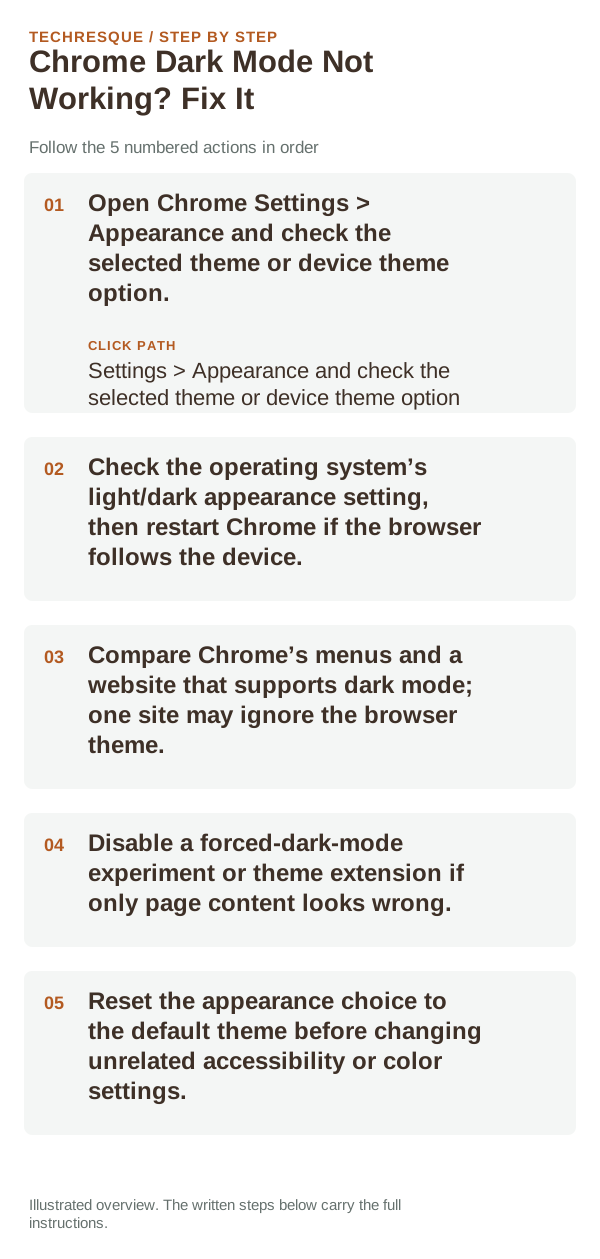
- Open Chrome Settings > Appearance and check the selected theme or device theme option.
- Check the operating system’s light/dark appearance setting, then restart Chrome if the browser follows the device.
- Compare Chrome’s menus and a website that supports dark mode; one site may ignore the browser theme.
- Disable a forced-dark-mode experiment or theme extension if only page content looks wrong.
- Reset the appearance choice to the default theme before changing unrelated accessibility or color settings.
Isolate the failing layer
If Chrome menus are dark but a page is light, the site controls its own colors. If the browser frame remains light while the operating system is dark, check Chrome’s selected theme and any theme extension. Do not assume that every website supports dark mode.
Changes to avoid until you know the cause
Verify before you move on
Reopen the same site after changing Chrome’s appearance setting and check it in a normal window. Compare a second site to tell a site-specific theme from a browser-wide setting.
When to use support or repair
If the same page fails in another browser, contact the site or network owner; if only Chrome fails, report its version and reproduction steps.
Record Chrome version, device/OS, profile and extension state, and the affected page without private tokens or account data.
Frequently asked questions
Should I reset the whole device immediately?
Usually not. Compare a private window and another browser first. Reset Chrome only after checking the profile, extensions and sync.
How do I know when the fix is real?
Reopen the same site after changing Chrome’s appearance setting and check it in a normal window. Compare a second site to tell a site-specific theme from a browser-wide setting.
Official sources and further reading
Chrome menu labels can change with releases. Search Settings for the named control if its location differs.