Check the permission for the exact website in Chrome, then check whether the operating system allows Chrome to show notifications. These are separate controls. Send a new test alert from the site after each change; an old or queued notification is not a reliable test.
Chrome website permissions and Windows, macOS, or Android notification settings are separate. Menu labels vary by platform and version.
Start with the website that should notify you
Test the site in a regular Chrome window and confirm you are signed in to the intended account. Chrome does not deliver website notifications in Incognito. Also check that the site itself has alerts enabled; a browser permission cannot make a service send an alert it never generated.
Allow that site's notifications in Chrome
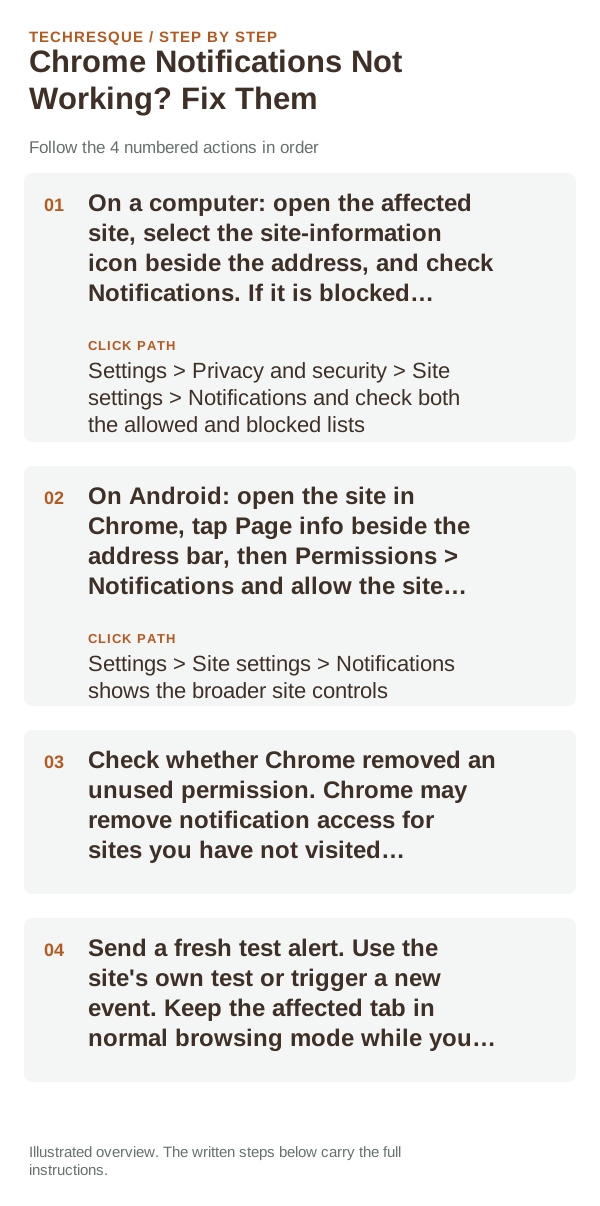
- On a computer: open the affected site, select the site-information icon beside the address, and check Notifications. If it is blocked, allow it. You can also review Chrome Settings > Privacy and security > Site settings > Notifications and check both the allowed and blocked lists.
- On Android: open the site in Chrome, tap Page info beside the address bar, then Permissions > Notifications and allow the site. Chrome's Settings > Site settings > Notifications shows the broader site controls.
- Check whether Chrome removed an unused permission. Chrome may remove notification access for sites you have not visited recently. Reopen the site and grant permission again if Chrome reports that it was removed.
- Send a fresh test alert. Use the site's own test or trigger a new event. Keep the affected tab in normal browsing mode while you test.
Check the device or computer's notification controls
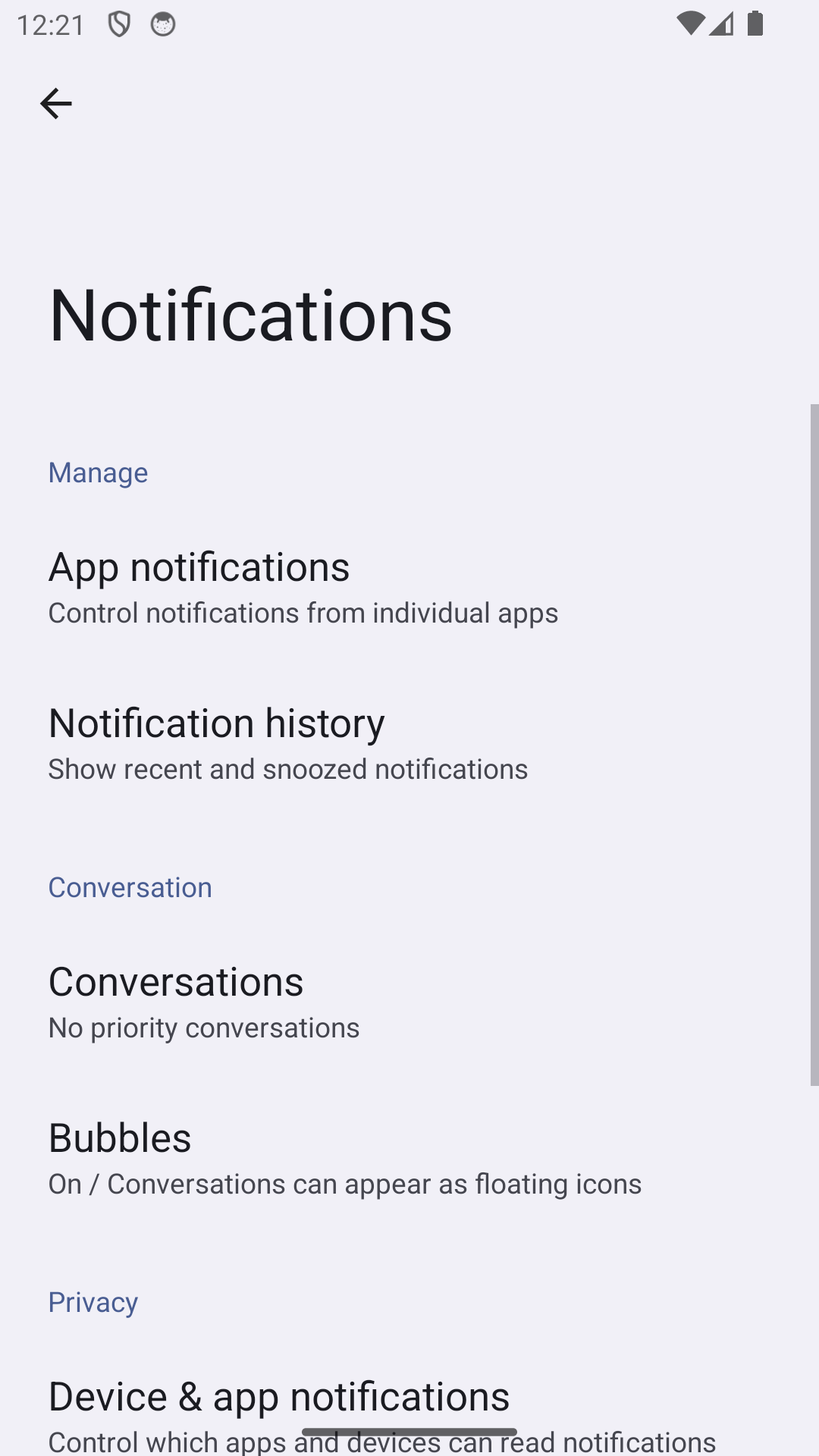
Even when the site is allowed in Chrome, the operating system can silence Chrome or hide its banners. On Android, search Settings for App notifications, open Chrome, and check its notification categories. On Windows or macOS, open the system notification settings and make sure Chrome alerts are allowed; also check Do Not Disturb or Focus. Names and locations depend on the operating-system version.
Use the result to narrow it down
- One site fails, other sites work: review that site's permission, account, and in-site alert settings.
- Every site fails in Chrome, but another browser works: review Chrome's default notification setting and its allowed/blocked list.
- Alerts arrive but are silent or hidden: check the operating system's banner, sound, Focus, and app-category controls.
- The permission keeps disappearing: revisit the site and review Chrome Safety Check or the site's permission entry.
Retest without changing unrelated settings
After changing one control, trigger one new alert from the same site and check both the Chrome permission and the operating-system notification history. Do not clear all browser data or reset Chrome until you know whether only one site or every site is affected.
When to ask the site for help
If Chrome and the operating system both allow notifications but that site's new alerts still do not arrive, check the service's status and account preferences or contact its support team. Include the operating system, Chrome version, affected site, and time of a fresh test, but leave out private message text and account tokens.
Frequently asked questions
Why does Chrome show notifications for some sites but not one specific site?
Site permissions are independent. Check that site's entry in Chrome's allowed and blocked lists, then confirm alerts are enabled in the site's own account settings.
Can Incognito receive website notifications?
No. Chrome says website notifications are not delivered while browsing privately. Retest in a regular Chrome window.
Why did a site permission disappear?
Chrome may remove notification permission from sites you have not visited for a while. Reopen the site, review the permission notice, and allow it again if you still want alerts.
Official sources and further reading
- Google Chrome Help — Use notifications to get alerts on Android
- Google Chrome Help — Use notifications to get alerts on a computer
Chrome site permissions, operating-system notifications, and the site’s own alert settings must all allow the notification. Platform menus can differ.