Open chrome://extensions and confirm the extension is enabled and has no error or update warning.
Likely causes to check first
- one extension or profile is misbehaving
- cached site data is stale
- memory pressure is forcing tabs to reload
- DNS/network problems affect only some sites
- security software or a proxy is intercepting connections
The practical troubleshooting sequence
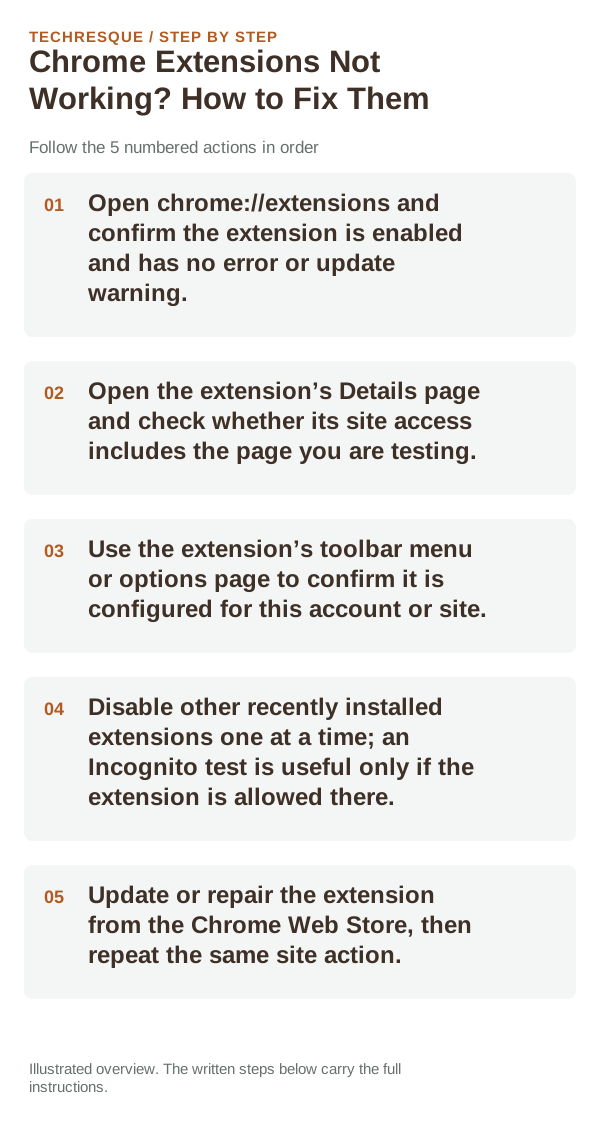
- Open chrome://extensions and confirm the extension is enabled and has no error or update warning.
- Open the extension’s Details page and check whether its site access includes the page you are testing.
- Use the extension’s toolbar menu or options page to confirm it is configured for this account or site.
- Disable other recently installed extensions one at a time; an Incognito test is useful only if the extension is allowed there.
- Update or repair the extension from the Chrome Web Store, then repeat the same site action.
A quick way to narrow it down
If the extension works on one site but not another, site access or the site’s design may explain the difference. If it fails everywhere, check the extension’s own settings, compatibility message, and conflicts before resetting Chrome.
What not to change first
How to confirm the fix
Test one extension on a page it supports, then repeat with other extensions disabled. If it works alone, another extension or site permission is interfering.
When to use support or repair
If the same page fails in another browser, contact the site or network owner; if only Chrome fails, report its version and reproduction steps.
Record Chrome version, device/OS, profile and extension state, and the affected page without private tokens or account data.
Frequently asked questions
Should I reset the whole device immediately?
Usually not. Compare a private window and another browser first. Reset Chrome only after checking the profile, extensions and sync.
How do I know when the fix is real?
Test one extension on a page it supports, then repeat with other extensions disabled. If it works alone, another extension or site permission is interfering.
Official sources and further reading
- Google Chrome Help — Install and manage extensions
- Google Chrome Help — Change site settings and permissions
Review only extensions and site permissions you recognize; management policies may be set by a school or workplace.