Record a short voice memo or system test outside the affected app. Then check microphone permission for that app.
Why this can happen
- the wrong microphone/input device is selected
- microphone permission is denied for one app
- Bluetooth or USB audio routing is taking the input
- debris or a case is blocking a microphone opening
- the microphone works in one mode but a specific app has a configuration problem
The practical troubleshooting sequence
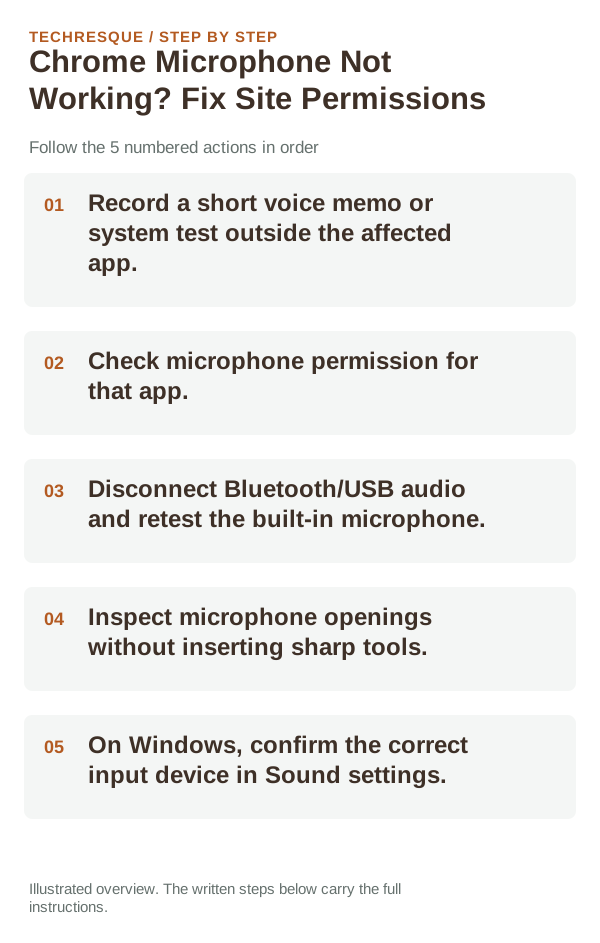
- Record a short voice memo or system test outside the affected app.
- Check microphone permission for that app.
- Disconnect Bluetooth/USB audio and retest the built-in microphone.
- Inspect microphone openings without inserting sharp tools.
- On Windows, confirm the correct input device in Sound settings.
How to tell which cause applies
Record audio with a system recorder, then test the failing app. A clean system recording with a bad app recording points toward permission, routing or app configuration—not a dead microphone.
Retest the same URL in the affected Chrome profile, then in a private window and another browser. This separates site issues from profile problems.
Verify before you move on
Compare a system recording with the failing app; that tells you whether the fault is app-specific or system-wide.
When to use support or repair
If the same page fails in another browser, contact the site or network owner; if only Chrome fails, report its version and reproduction steps.
Record Chrome version, device/OS, profile and extension state, and the affected page without private tokens or account data.
Frequently asked questions
Should I reset the whole device immediately?
Usually not. Compare a private window and another browser first. Reset Chrome only after checking the profile, extensions and sync.
How do I know when the fix is real?
Compare a system recording with the failing app; that tells you whether the fault is app-specific or system-wide.
Official sources and further reading
- Google Chrome Help — Camera and microphone permissions
- Google Chrome Help — Change site permissions
- Google Android Help — Change app permissions
Chrome labels can differ between desktop and mobile releases. Confirm the browser version and profile before resetting sync or clearing site data.