Open chrome://extensions and read the message on the extension’s card before turning it back on.
Start by narrowing the cause
- one extension or profile is misbehaving
- cached site data is stale
- memory pressure is forcing tabs to reload
- DNS/network problems affect only some sites
- security software or a proxy is intercepting connections
Troubleshoot from low-risk to high-risk
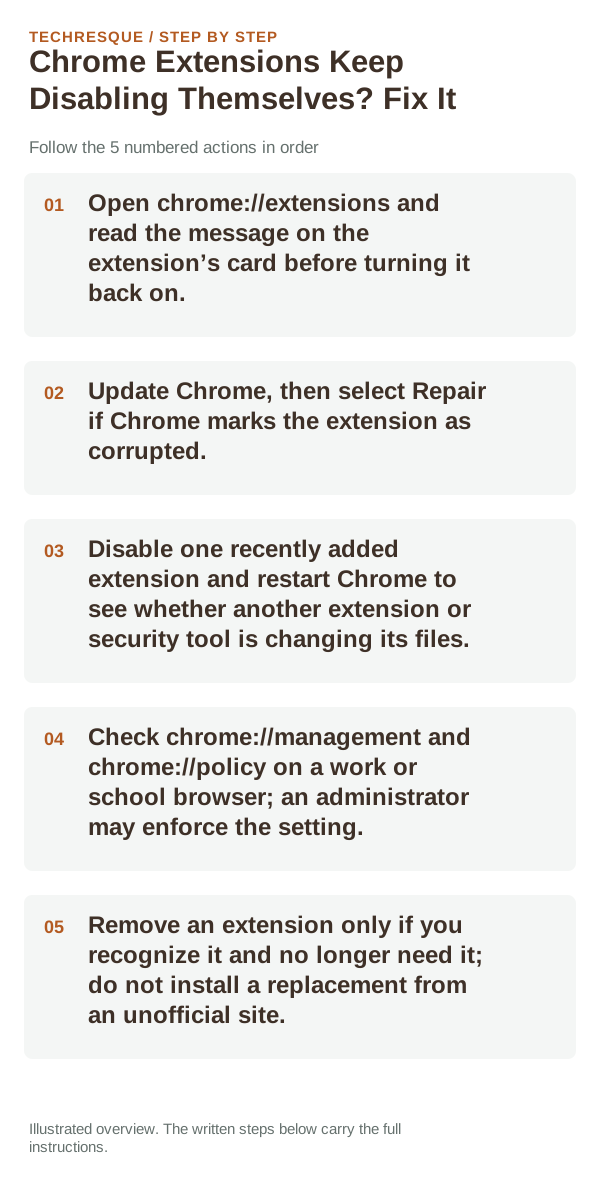
- Open chrome://extensions and read the message on the extension’s card before turning it back on.
- Update Chrome, then select Repair if Chrome marks the extension as corrupted.
- Disable one recently added extension and restart Chrome to see whether another extension or security tool is changing its files.
- Check chrome://management and chrome://policy on a work or school browser; an administrator may enforce the setting.
- Remove an extension only if you recognize it and no longer need it; do not install a replacement from an unofficial site.
How to tell which cause applies
An extension disabled with a corruption or compatibility message needs its own repair or update. If it turns off again on a managed browser, a policy may be enforcing that state. Repeatedly enabling it without reading the card hides the cause.
What not to change first
How to confirm the fix
After enabling one extension, restart Chrome and check whether that same extension stays on. If it turns off again, note its ID and whether the browser is managed before changing policy.
When to use support or repair
If the same page fails in another browser, contact the site or network owner; if only Chrome fails, report its version and reproduction steps.
Record Chrome version, device/OS, profile and extension state, and the affected page without private tokens or account data.
Frequently asked questions
Should I reset the whole device immediately?
Usually not. Compare a private window and another browser first. Reset Chrome only after checking the profile, extensions and sync.
How do I know when the fix is real?
After enabling one extension, restart Chrome and check whether that same extension stays on. If it turns off again, note its ID and whether the browser is managed before changing policy.
Official sources and further reading
- Google Chrome Help — Install and manage extensions
- Google Chrome Help — Change site settings and permissions
Review only extensions and site permissions you recognize; management policies may be set by a school or workplace.