Press Shift+Esc in Chrome and sort by Memory or CPU to find the tab or extension using the most resources.
What this symptom usually means
- one extension or profile is misbehaving
- cached site data is stale
- memory pressure is forcing tabs to reload
- DNS/network problems affect only some sites
- security software or a proxy is intercepting connections
Use this order so you can identify the cause
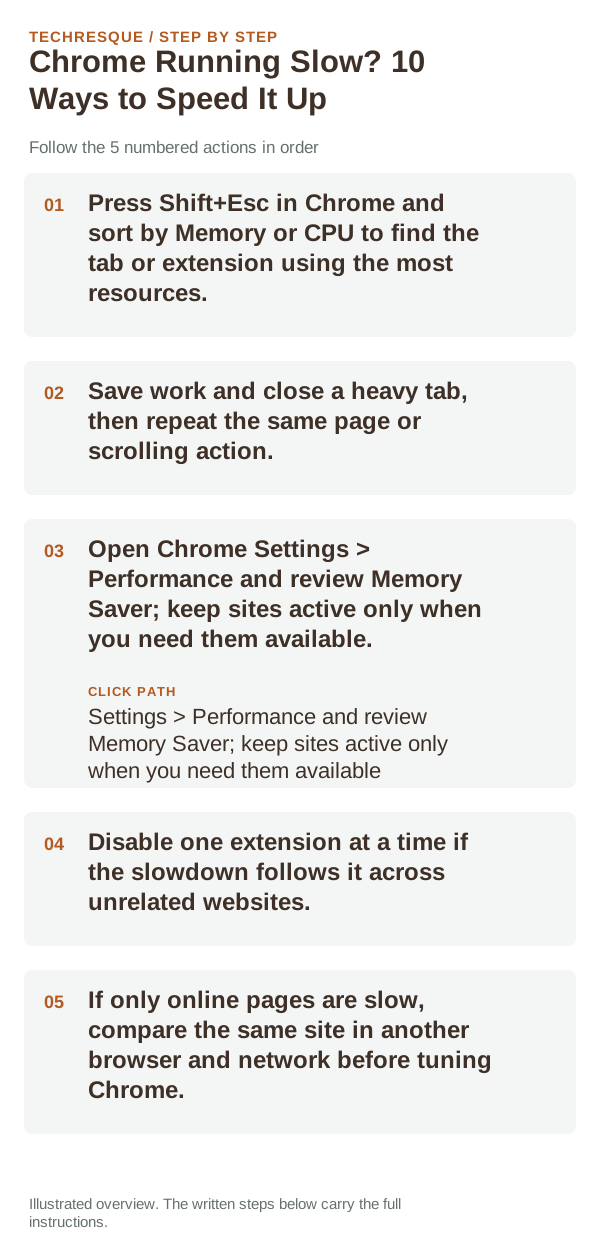
- Press Shift+Esc in Chrome and sort by Memory or CPU to find the tab or extension using the most resources.
- Save work and close a heavy tab, then repeat the same page or scrolling action.
- Open Chrome Settings > Performance and review Memory Saver; keep sites active only when you need them available.
- Disable one extension at a time if the slowdown follows it across unrelated websites.
- If only online pages are slow, compare the same site in another browser and network before tuning Chrome.
Isolate the failing layer
If local Chrome settings respond quickly but websites stall, check the network or site. If one tab or extension dominates resource use, keep the fix scoped to it. Chrome’s performance settings can discard inactive tabs to save memory, which may cause a reload when you return.
Do not make troubleshooting harder
What success should look like
Repeat the same set of tabs after changing one setting, and compare Chrome Task Manager’s CPU and memory use. Keep the change only if the same workload feels and measures better.
When to use support or repair
If the same page fails in another browser, contact the site or network owner; if only Chrome fails, report its version and reproduction steps.
Record Chrome version, device/OS, profile and extension state, and the affected page without private tokens or account data.
Frequently asked questions
Should I reset the whole device immediately?
Usually not. Compare a private window and another browser first. Reset Chrome only after checking the profile, extensions and sync.
How do I know when the fix is real?
Repeat the same set of tabs after changing one setting, and compare Chrome Task Manager’s CPU and memory use. Keep the change only if the same workload feels and measures better.
Official sources and further reading
Chrome menu labels can change with releases. Search Settings for the named control if its location differs.