Press Shift+Esc in Chrome and sort its Task Manager by CPU to find the active tab, extension, or browser process.
Start by narrowing the cause
- one extension or profile is misbehaving
- cached site data is stale
- memory pressure is forcing tabs to reload
- DNS/network problems affect only some sites
- security software or a proxy is intercepting connections
Work through these checks
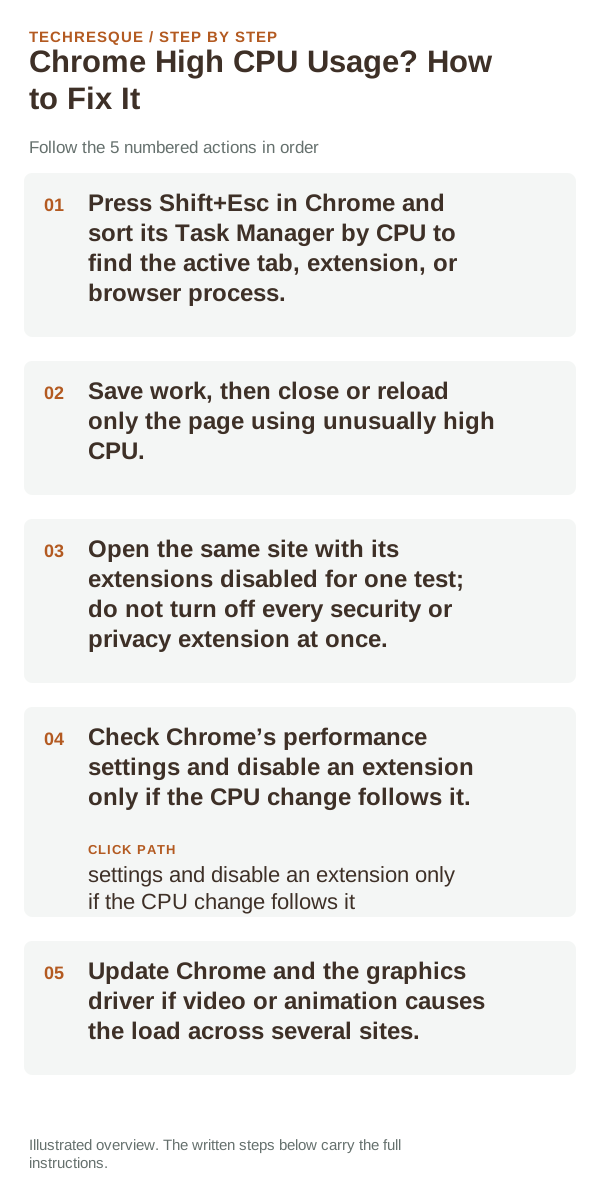
- Press Shift+Esc in Chrome and sort its Task Manager by CPU to find the active tab, extension, or browser process.
- Save work, then close or reload only the page using unusually high CPU.
- Open the same site with its extensions disabled for one test; do not turn off every security or privacy extension at once.
- Check Chrome’s performance settings and disable an extension only if the CPU change follows it.
- Update Chrome and the graphics driver if video or animation causes the load across several sites.
A quick way to narrow it down
If CPU use drops when one tab closes, the page or its script is responsible. If it follows one extension across unrelated sites, inspect that extension. High CPU across every page after a browser update may need a Chrome or graphics-driver update.
What success should look like
Open Chrome Task Manager while repeating the same browsing workload. Confirm whether one tab or extension again dominates CPU, rather than judging from a brief idle reading.
When to use support or repair
If the same page fails in another browser, contact the site or network owner; if only Chrome fails, report its version and reproduction steps.
Record Chrome version, device/OS, profile and extension state, and the affected page without private tokens or account data.
Frequently asked questions
Should I reset the whole device immediately?
Usually not. Compare a private window and another browser first. Reset Chrome only after checking the profile, extensions and sync.
How do I know when the fix is real?
Open Chrome Task Manager while repeating the same browsing workload. Confirm whether one tab or extension again dominates CPU, rather than judging from a brief idle reading.
Official sources and further reading
Chrome menu labels can change with releases. Search Settings for the named control if its location differs.