Open chrome://downloads and read the file's status before retrying. At 100%, Chrome may still be checking or saving the file; verify the destination folder and available disk space.
Why this can happen
A completed transfer can wait while Chrome checks the file or writes it to disk. A blocked security warning, duplicate filename, inaccessible folder, or nearly full drive can make 100% look like a stalled download.
The practical troubleshooting sequence
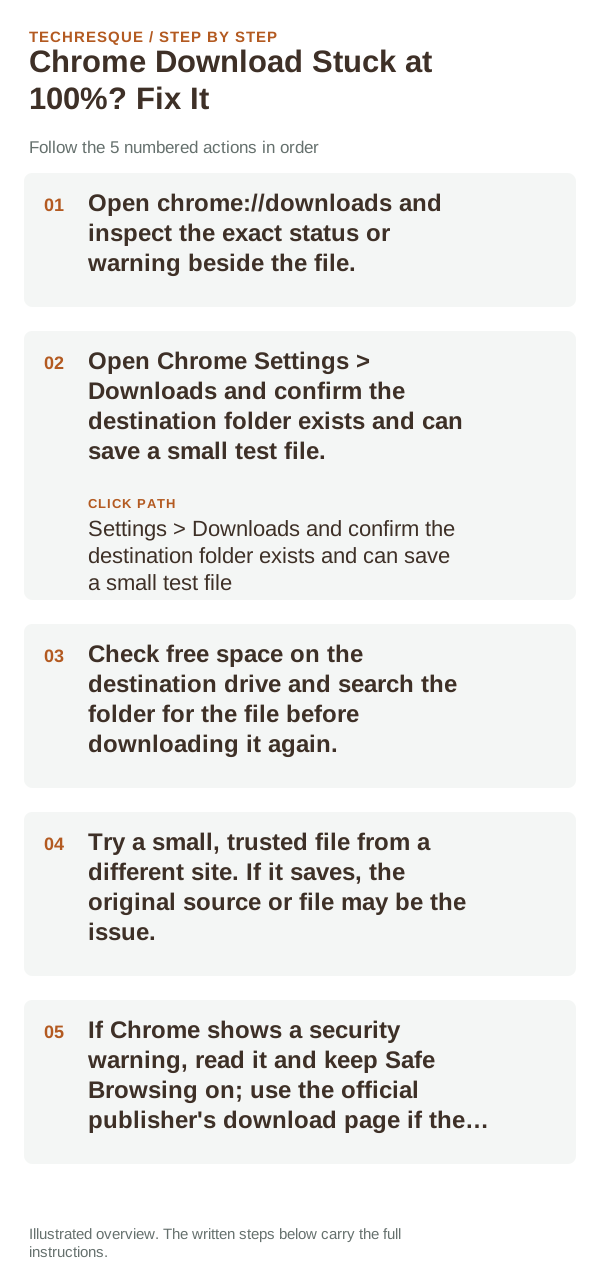
- Open chrome://downloads and inspect the exact status or warning beside the file.
- Open Chrome Settings > Downloads and confirm the destination folder exists and can save a small test file.
- Check free space on the destination drive and search the folder for the file before downloading it again.
- Try a small, trusted file from a different site. If it saves, the original source or file may be the issue.
- If Chrome shows a security warning, read it and keep Safe Browsing on; use the official publisher's download page if the file is expected.
Isolate the failing layer
Small files complete but one download sticks points to that source, filename, or file type. Every download stuck at 100% suggests the destination folder, disk space, or browser write/check stage.
Changes to avoid until you know the cause
Do not disable Safe Browsing or repeatedly download a large file that may already be saved. Avoid changing antivirus settings without a clear, verified warning.
Retest the original failure
Confirm the file opens from its saved location and that Chrome's download entry reports completion. Keep one copy and remove duplicates only after checking it.
When to use support or repair
If all downloads remain stuck after the folder and space checks, update Chrome and contact Google Chrome Help with the download status text.
Distinguish a site problem from a browser-wide problem
For camera, microphone, notifications and pop-ups, Chrome has per-site permissions in addition to the operating system’s privacy controls. Both layers must allow the feature.
If one website fails while others load, start with that site’s permissions, cookies, extensions and server availability. If many unrelated sites fail, investigate Chrome itself, the device network or system-level security software.
Incognito or a fresh profile is useful as a diagnostic because it changes extension and stored-site-data conditions without immediately deleting your normal profile. Treat it as a test, not automatically as the permanent fix.
| What you observe | What it points to | Best next check |
|---|---|---|
| One site fails | Site data, permission, extension or site outage | Test another site and an incognito window |
| All sites fail | Network, browser state or security software | Check connection and restart Chrome |
| Feature works outside Chrome | Chrome site permission or selected device | Review Site settings and OS permission |
Frequently asked questions
Should I reset the whole device immediately?
Usually not. Compare a private window and another browser first. Reset Chrome only after checking the profile, extensions and sync.
How do I know when the fix is real?
Confirm the file opens from its saved location and that Chrome's download entry reports completion. Keep one copy and remove duplicates only after checking it.