Open chrome://downloads and read the message beside the failed file; blocked, interrupted, and network errors need different fixes.
Likely causes to check first
- one extension or profile is misbehaving
- cached site data is stale
- memory pressure is forcing tabs to reload
- DNS/network problems affect only some sites
- security software or a proxy is intercepting connections
Work through these checks
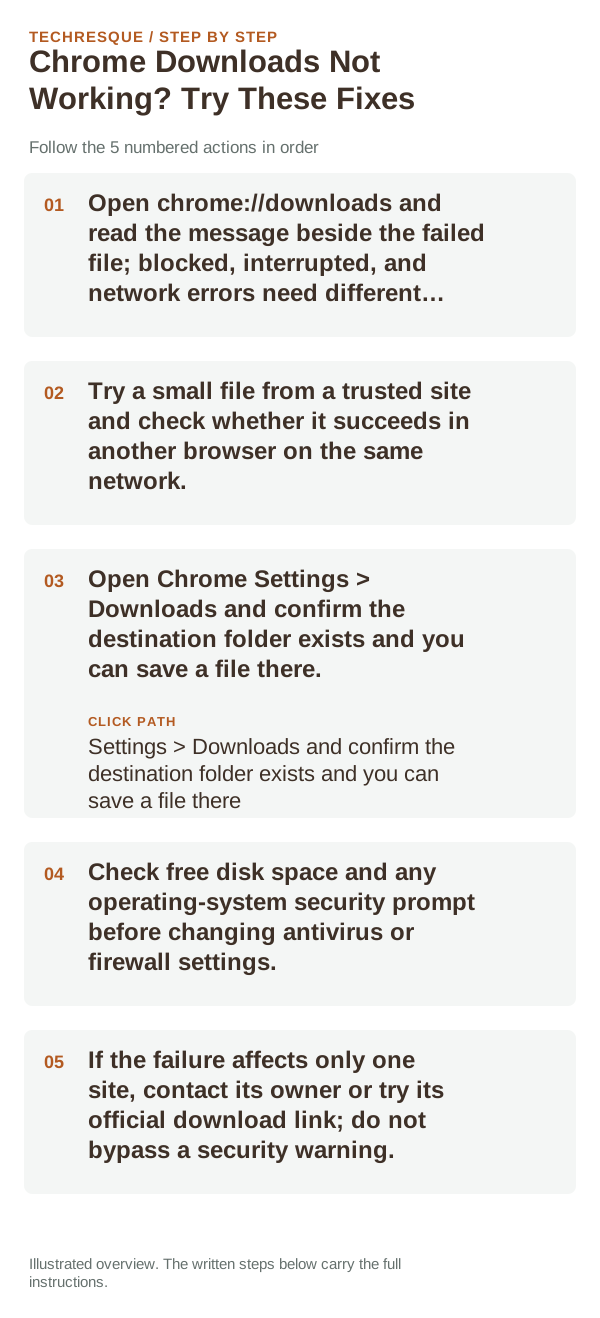
- Open chrome://downloads and read the message beside the failed file; blocked, interrupted, and network errors need different fixes.
- Try a small file from a trusted site and check whether it succeeds in another browser on the same network.
- Open Chrome Settings > Downloads and confirm the destination folder exists and you can save a file there.
- Check free disk space and any operating-system security prompt before changing antivirus or firewall settings.
- If the failure affects only one site, contact its owner or try its official download link; do not bypass a security warning.
How to tell which cause applies
A single website failing while other downloads work usually points to the source or its permissions. If every download fails, check Chrome’s destination folder, available disk space, network, and operating-system security message in that order.
What not to change first
Retest the original failure
Download a small, harmless file and confirm Chrome marks it complete, places it in the selected folder, and opens it. Check the Downloads page for a blocked or interrupted status.
When to use support or repair
If the same page fails in another browser, contact the site or network owner; if only Chrome fails, report its version and reproduction steps.
Record Chrome version, device/OS, profile and extension state, and the affected page without private tokens or account data.
Frequently asked questions
Should I reset the whole device immediately?
Usually not. Compare a private window and another browser first. Reset Chrome only after checking the profile, extensions and sync.
How do I know when the fix is real?
Download a small, harmless file and confirm Chrome marks it complete, places it in the selected folder, and opens it. Check the Downloads page for a blocked or interrupted status.
Official sources and further reading
Chrome’s download destination and PDF handling are separate settings; preserve the original file while testing.