Change Chrome's graphics acceleration setting only as a reversible comparison: record the current value, toggle it once, relaunch, and test the same page or video.
Why this can happen
Rendering glitches, black video, or crashes can involve Chrome, a graphics driver, a specific site, or an extension. Turning acceleration off can help isolate the graphics path, but may make video or animation slower.
Troubleshoot from low-risk to high-risk
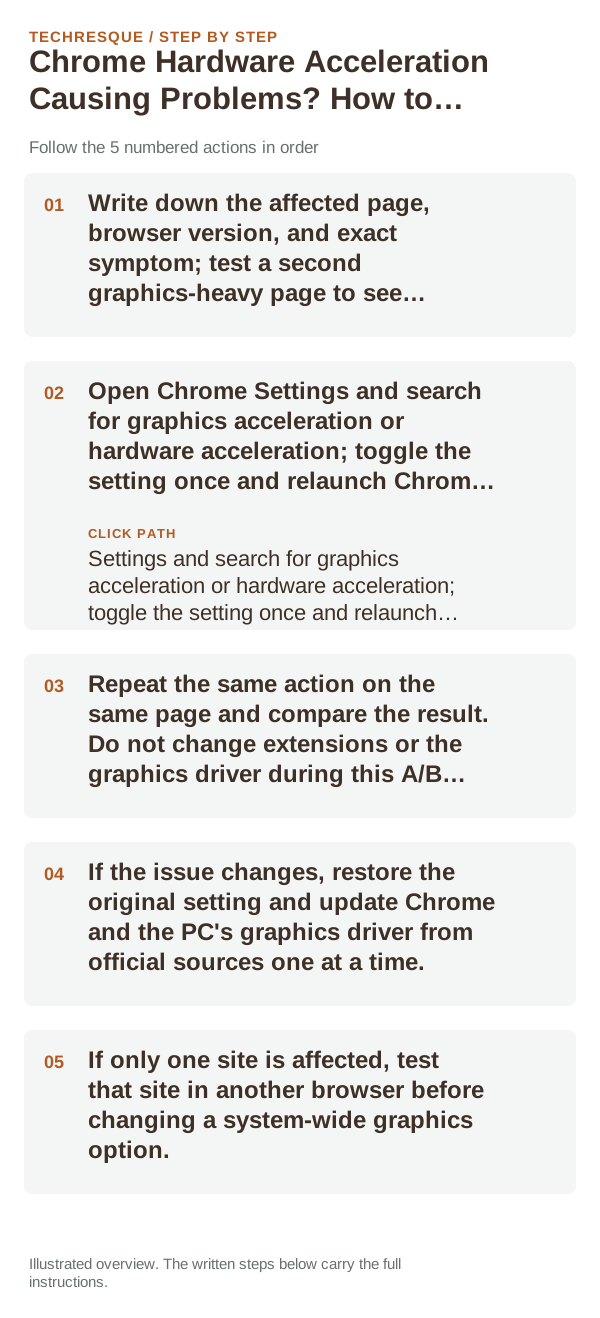
- Write down the affected page, browser version, and exact symptom; test a second graphics-heavy page to see whether the issue is site-specific.
- Open Chrome Settings and search for graphics acceleration or hardware acceleration; toggle the setting once and relaunch Chrome when prompted.
- Repeat the same action on the same page and compare the result. Do not change extensions or the graphics driver during this A/B test.
- If the issue changes, restore the original setting and update Chrome and the PC's graphics driver from official sources one at a time.
- If only one site is affected, test that site in another browser before changing a system-wide graphics option.
Use a clean A/B test
A repeatable change after the toggle suggests a Chrome graphics path or driver interaction. No change, or a failure limited to one site, points elsewhere; acceleration is not a general performance switch.
Remember the original setting so you can restore it. Do not install unofficial driver-updater tools or disable browser security features to address a rendering fault.
What success should look like
The same test page should render without the original glitch after the selected change. Check video playback and scrolling too, since disabling acceleration can trade stability for higher CPU use.
When to use support or repair
If Chrome still crashes across multiple sites after official updates, use Chrome's crash details and contact Google Chrome Help or the PC manufacturer.
Frequently asked questions
Should I reset the whole device immediately?
Usually not. Compare a private window and another browser first. Reset Chrome only after checking the profile, extensions and sync.
How do I know when the fix is real?
The same test page should render without the original glitch after the selected change. Check video playback and scrolling too, since disabling acceleration can trade stability for higher CPU use.