Check the spelling of the full domain, including its ending, and try the site’s known official address.
Why this can happen
- one extension or profile is misbehaving
- cached site data is stale
- memory pressure is forcing tabs to reload
- DNS/network problems affect only some sites
- security software or a proxy is intercepting connections
Fix it in this order
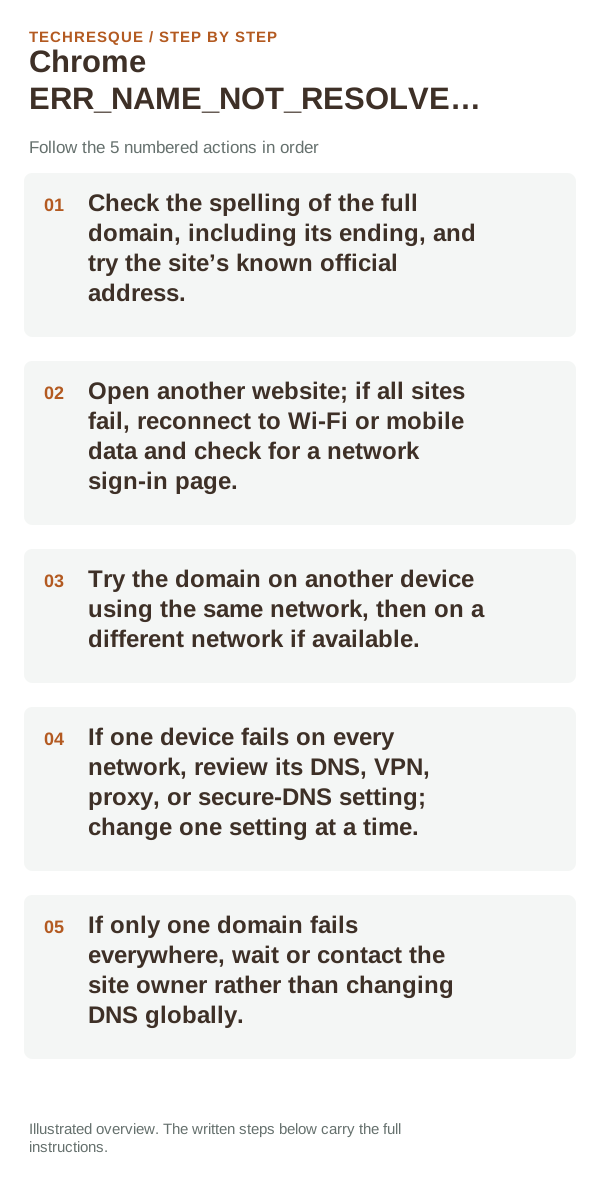
- Check the spelling of the full domain, including its ending, and try the site’s known official address.
- Open another website; if all sites fail, reconnect to Wi-Fi or mobile data and check for a network sign-in page.
- Try the domain on another device using the same network, then on a different network if available.
- If one device fails on every network, review its DNS, VPN, proxy, or secure-DNS setting; change one setting at a time.
- If only one domain fails everywhere, wait or contact the site owner rather than changing DNS globally.
What each result tells you
A single domain failing on several devices can mean the name is wrong or its DNS records are unavailable. Many domains failing on one device points to that device’s DNS or VPN settings; many devices failing together points to the router or provider.
What success should look like
Try two unrelated site names, then open the failing site on another device or network. This shows whether the lookup failure follows one domain, Chrome, or the network resolver.
When to use support or repair
If the same page fails in another browser, contact the site or network owner; if only Chrome fails, report its version and reproduction steps.
Record Chrome version, device/OS, profile and extension state, and the affected page without private tokens or account data.
Separate DNS failure from a Chrome-only problem
DNS turns a site name into the network address a browser needs. Test two unrelated sites, then try the failing site on another device or network. If several names fail only on one network, inspect that network's resolver or router; if one site fails on multiple networks, the site or its DNS records may be at fault.
If other browsers can resolve the same name but Chrome cannot, check Chrome's Secure DNS choice, extensions, and profile before changing router settings. A direct-IP test is not a reliable substitute for a normal HTTPS URL because many sites depend on the hostname for routing and certificates.
| Test result | Likely layer | Next check |
|---|---|---|
| Many domains fail on one network | Network DNS or router | Compare another device and a different network |
| One domain fails on multiple networks | That domain or its DNS records | Check the site status or contact its owner |
| Only Chrome fails | Chrome profile, Secure DNS, or extension | Compare another profile without deleting the original |
Frequently asked questions
Should I reset the whole device immediately?
Usually not. Compare a private window and another browser first. Reset Chrome only after checking the profile, extensions and sync.
How do I know when the fix is real?
Try two unrelated site names, then open the failing site on another device or network. This shows whether the lookup failure follows one domain, Chrome, or the network resolver.
Official sources and further reading
Use the exact Chrome error code to narrow the cause. Never bypass a certificate warning for sensitive sites.