Check the domain spelling and your device’s date, time, and time zone.
Why this can happen
- one extension or profile is misbehaving
- cached site data is stale
- memory pressure is forcing tabs to reload
- DNS/network problems affect only some sites
- security software or a proxy is intercepting connections
Use this order so you can identify the cause
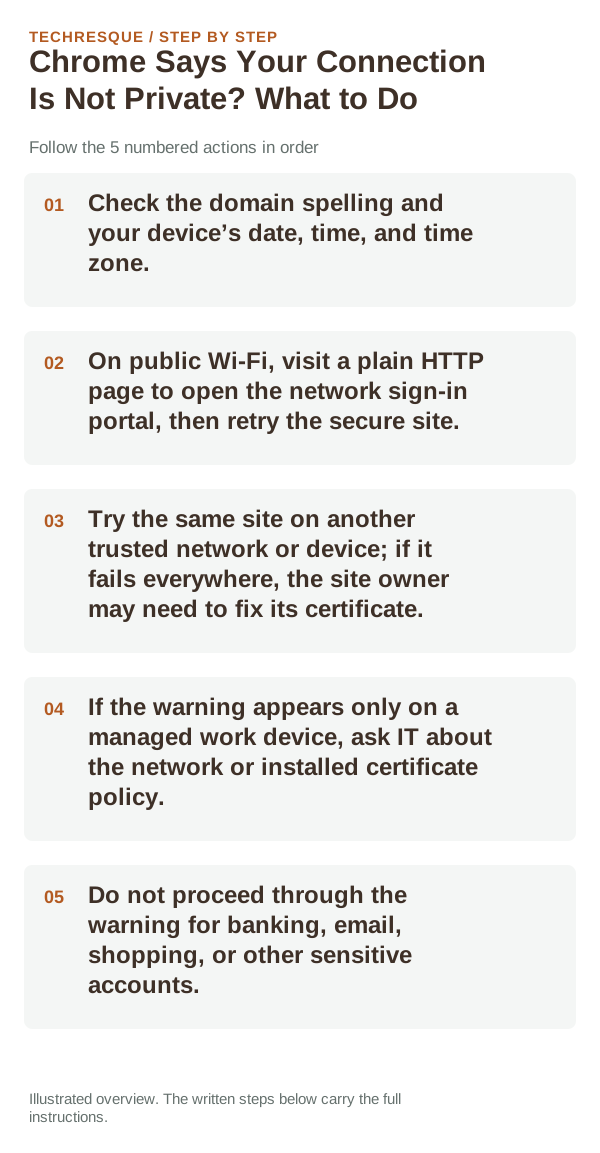
- Check the domain spelling and your device’s date, time, and time zone.
- On public Wi-Fi, visit a plain HTTP page to open the network sign-in portal, then retry the secure site.
- Try the same site on another trusted network or device; if it fails everywhere, the site owner may need to fix its certificate.
- If the warning appears only on a managed work device, ask IT about the network or installed certificate policy.
- Do not proceed through the warning for banking, email, shopping, or other sensitive accounts.
How to tell which cause applies
A wrong device clock or a public Wi-Fi sign-in page can create a local certificate-date warning. If the same domain fails on other networks, contact the site owner. Never install a certificate from an unknown source or click through a certificate warning just to reach a login page.
Retest the original failure
Check the device date and time, then test the same site on another trusted network. Do not bypass the certificate warning; the error should clear only when the certificate or connection problem is corrected.
When to use support or repair
If the same page fails in another browser, contact the site or network owner; if only Chrome fails, report its version and reproduction steps.
Record Chrome version, device/OS, profile and extension state, and the affected page without private tokens or account data.
Frequently asked questions
Should I reset the whole device immediately?
Usually not. Compare a private window and another browser first. Reset Chrome only after checking the profile, extensions and sync.
How do I know when the fix is real?
Check the device date and time, then test the same site on another trusted network. Do not bypass the certificate warning; the error should clear only when the certificate or connection problem is corrected.
Official sources and further reading
Use the exact Chrome error code to narrow the cause. Never bypass a certificate warning for sensitive sites.