Installing a launcher does not automatically give it access to SMS or your photo library. Access depends on Android permissions, special access such as notification access, and what you choose in a system picker. A launcher that only needs a Home-screen feature should explain any broader request clearly.
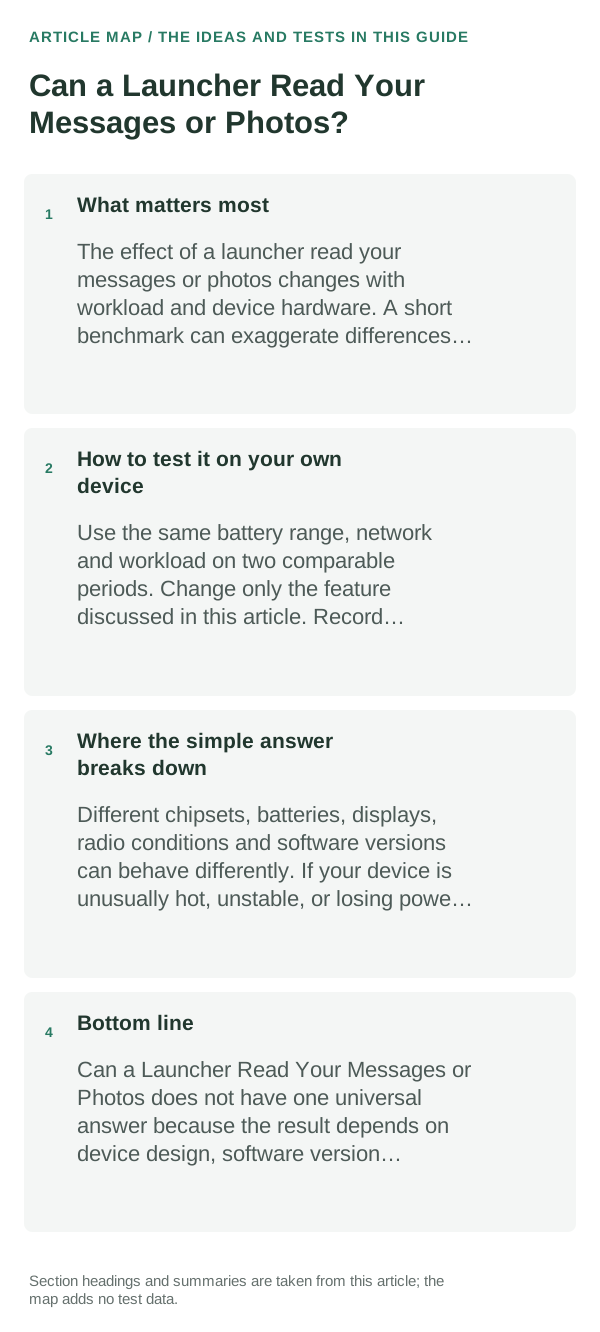
What matters most
Being the default Home app lets a launcher provide the Home screen and app drawer; it is not the same permission as reading SMS or photos. Notification access can expose notification content, while photo access can be broad or limited depending on the Android version and the way access was granted.
A practical way to use this
- Open Settings → Apps → the launcher → Permissions. Review Photos and videos, Contacts, SMS and any other access; revoke permissions the feature does not need.
- Also inspect Settings → Security & privacy → Privacy → Permission manager and Special app access. Notification access is separate from ordinary app permissions on many phones.
- If a feature needs one picture, prefer Android’s Photo Picker and select only that item where the app supports it.
- Review the launcher’s current Play Store Data safety section and privacy policy as separate evidence; Android’s permission screen does not describe every network or account data practice.
How to test it on your own device
After changing one permission, reopen the launcher feature that prompted for it. Confirm the Home screen still works and only the feature that needs the permission is affected. Do not share private messages or photos as a test.
Where the simple answer breaks down
Permission names, notification access and photo-selection behavior vary by Android release and phone maker. A permissions list shows operating-system access, not a full audit of the app’s data handling.
Bottom line
A launcher does not get message or photo access just by becoming the Home app. Check app permissions and notification access separately, grant only what a feature needs, and use the system picker for one-off photo sharing.
Check permissions separately from the Home screen
A launcher supplies the Home screen, app drawer, icons, widgets, and shortcuts. Becoming the default Home app does not by itself grant access to messages, photos, contacts, or the microphone; Android still controls those permissions.
Review the launcher's regular permissions and any special access separately in Android Settings. Match each permission to a feature you use, and check the app's Play Store privacy details and developer policy for data handling that Android's permission screen does not show.
| What you notice | What it means | What to check |
|---|---|---|
| An app icon is hidden | The launcher may hide a shortcut without uninstalling the app | Check the app drawer and the launcher's hidden-app list |
| The launcher requests a permission | A feature may need access, but the request alone does not explain data use | Match it to the feature and deny it if the feature does not need it |
| Special access is enabled | Accessibility, notifications, or usage access can do more than a basic permission | Review Android's special app access screen and turn off access you do not use |
Frequently asked questions
Can a launcher read my SMS messages by default?
A launcher does not get SMS access just because it is the default Home app. Check its app permissions and any special access you enabled, such as notification access or Accessibility.
Can it see my photos?
Only if you grant a relevant permission or share items through a picker or file chooser. Review Photos and videos access in Android Settings and revoke access that is no longer needed.
Official sources and further reading
Android permission behavior changes by release. Google’s Photo Picker documentation describes user-selected media access; it does not certify the privacy practices of a particular launcher.