Restart once, then check Settings > Storage and Settings > Battery > Battery usage. If one app dominates, update or limit that app; if every task is slow, test after freeing space and installing available system updates.
On Android, menu names vary by maker, so use Settings search when a path in a guide does not match your phone exactly.
Likely causes to check first
A slow phone can come from low free storage, one app doing heavy background work, a weak network that makes online apps feel sluggish, or a temporary job after an update. Separate those cases before installing an optimizer; Android already exposes storage and battery-use information.
- Free storage is nearly exhausted, leaving less room for temporary files.
- One app is using unusual battery or background activity.
- The phone feels slow only online, while local settings and saved files open normally.
- The slowdown began after installing an app or finishing a system update.
- Heat or a worn battery may reduce performance during demanding use.
The practical troubleshooting sequence
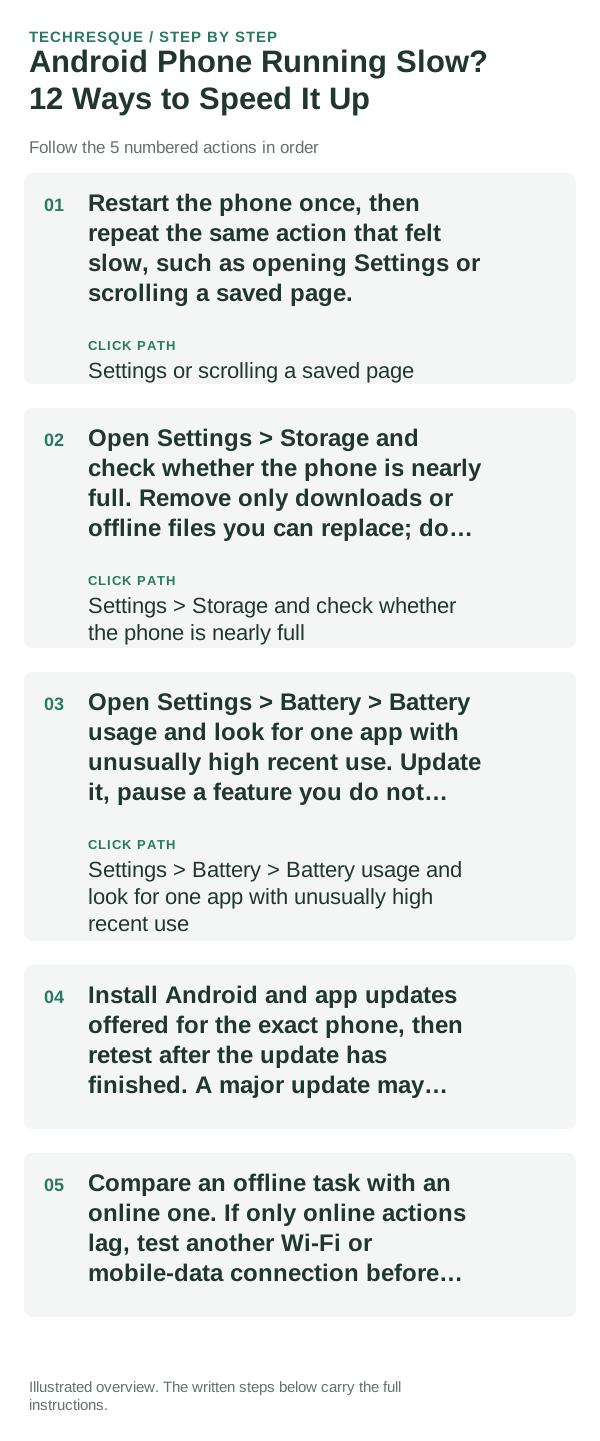
- Restart the phone once, then repeat the same action that felt slow, such as opening Settings or scrolling a saved page.
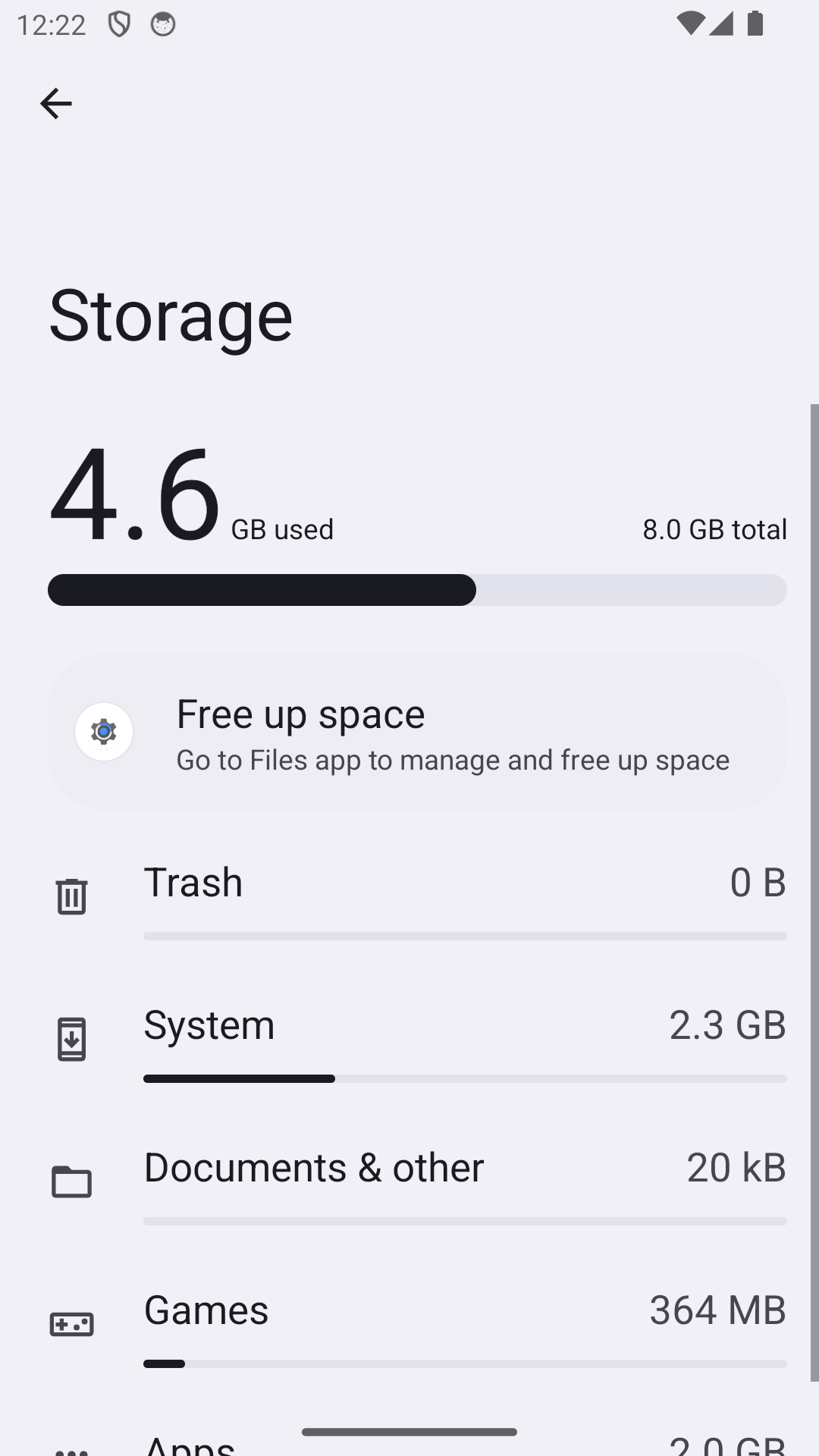
- Open Settings > Storage and check whether the phone is nearly full. Remove only downloads or offline files you can replace; do not delete unknown system folders.
- Open Settings > Battery > Battery usage and look for one app with unusually high recent use. Update it, pause a feature you do not need, or uninstall it if the slowdown began after installation.
- Install Android and app updates offered for the exact phone, then retest after the update has finished. A major update may perform background work for a while.
- Compare an offline task with an online one. If only online actions lag, test another Wi-Fi or mobile-data connection before changing phone settings.
A quick way to narrow it down
If Settings and saved files respond normally but websites stall, investigate the connection. If every local screen stutters, check storage, heat, and recent app activity. If the slowdown follows one app, keep the repair scoped to that app instead of changing the whole phone.
Changes to avoid until you know the cause
- Avoid task-killer and ‘RAM cleaner’ apps; they can close work Android will reopen and add more background activity.
- Do not disable system apps or change developer options based on a speed-up list.
- Do not delete app storage until you know whether it holds drafts, downloads, or unsynced files.
- Do not factory-reset a phone just because one app or website feels slow.
Retest the original failure
Use the same local task and the same online task you tested before. If only the web task changes when you switch networks, the phone was not the bottleneck. If local screens improve after freeing space or removing one app, keep that single change and stop there.
When to use support or repair
If the phone remains slow in Settings and built-in apps after updates, with adequate free space and no unusually hot app, contact the phone maker with the model, Android version, and when the slowdown began. Back up important files before any repair or reset.
Frequently asked questions
What should I check first on a slow Android phone?
Check free space and Battery usage, then repeat one local task. That separates storage or app load from a slow network.
Do cleaner apps make Android faster?
Usually not. Android manages memory itself, while cleaner apps can add background work or remove data you wanted to keep.
Should I factory-reset the phone?
Only after app, storage, update, and network checks fail and you have a verified backup. A reset will not fix a damaged battery or network problem.
Official sources and further reading
Storage use, Battery settings, and menu names vary by Android brand. Compare the same task and avoid deleting files you have not backed up.