A phone that will not turn on may have a depleted battery, a display problem, or a hardware fault. Distinguish no power from a black screen before trying recovery steps. Use a known-good compatible charger and outlet, then leave the phone connected for at least 30 minutes if the battery may be empty. Check gently for a charging indicator or vibration and try a model-specific force-restart button combination from the manufacturer.
Android Settings labels differ across Pixel, Samsung, and other brands; search Settings for the named control and change one item at a time.
What this symptom usually means
A phone that will not turn on may have a depleted battery, a display problem, or a hardware fault. Distinguish no power from a black screen before trying recovery steps.
- The battery is deeply discharged or the charger/outlet is not supplying power.
- A cable or port makes an intermittent connection.
- The phone is on but the display is not showing an image.
- A thermal or moisture protection state is delaying startup.
- The battery, screen, or main board needs service.
The practical troubleshooting sequence
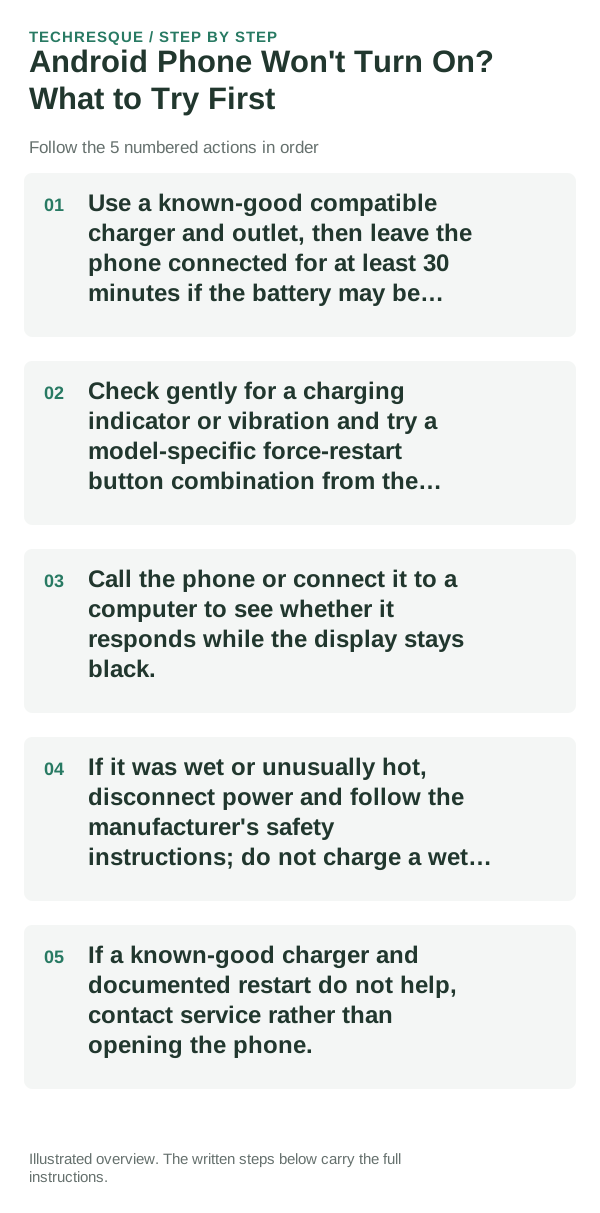
- Use a known-good compatible charger and outlet, then leave the phone connected for at least 30 minutes if the battery may be empty.
- Check gently for a charging indicator or vibration and try a model-specific force-restart button combination from the manufacturer.
- Call the phone or connect it to a computer to see whether it responds while the display stays black.
- If it was wet or unusually hot, disconnect power and follow the manufacturer's safety instructions; do not charge a wet device.
- If a known-good charger and documented restart do not help, contact service rather than opening the phone.
What each result tells you
Try one known-good charging setup and one model-specific restart, then note lights, sounds, vibration, or computer detection.
Try one known-good charging setup and one model-specific restart, then note lights, sounds, vibration, or computer detection.
What not to change first
- Do not repeatedly force restart while the device is hot or wet.
- Do not pry the battery or open a sealed phone.
Retest the original failure
Try one known-good charging setup and one model-specific restart, then note lights, sounds, vibration, or computer detection.
When to use support or repair
If several apps fail after updates and a restart, compare Safe Mode if supported. Swelling, unusual heat, damaged ports or shutdowns need service.
Note the phone model, Android version, affected app or setting, exact message and whether restarting or Safe Mode changes the result.
Frequently asked questions
What should I check first?
Use a known-good compatible charger and outlet, then leave the phone connected for at least 30 minutes if the battery may be empty. Check gently for a charging indicator or vibration and try a model-specific force-restart button combination from the manufacturer. Call the phone or connect it to a computer to see whether it responds while the display stays black.
Should I reset the whole device immediately?
Usually not. Test the affected feature with a built-in tool or second app first. Back up local-only files before clearing app storage or considering a factory reset.
How do I know when the fix is real?
Try one known-good charging setup and one model-specific restart, then note lights, sounds, vibration, or computer detection.
Official sources and further reading
Android labels differ across Pixel, Samsung and other brands. Use Settings search for the named control if a menu path does not match your phone.