Use a known data-capable USB cable and connect directly to the computer/device. Then unlock the phone and choose File transfer, USB tethering or the required USB mode.
On Android, menu names vary by maker, so use Settings search when a path in a guide does not match your phone exactly.
What this symptom usually means
- the cable supports charging but not data
- the phone is in charge-only USB mode
- the computer lacks the correct device driver or trust permission
- the USB port, hub or adapter is unstable
- the accessory requires a USB feature or analog-audio support the phone does not provide
The practical troubleshooting sequence
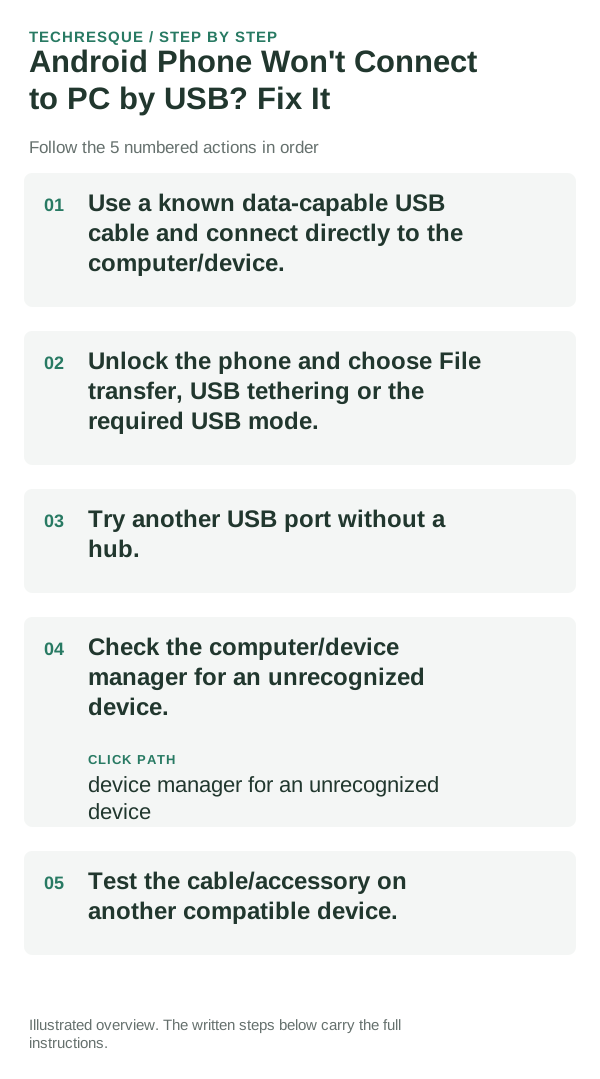
- Use a known data-capable USB cable and connect directly to the computer/device.
- Unlock the phone and choose File transfer, USB tethering or the required USB mode.
- Try another USB port without a hub.
- Check the computer/device manager for an unrecognized device.
- Test the cable/accessory on another compatible device.
Isolate the failing layer
Shortcuts that usually waste time
Retest the original failure
Confirm the exact function works—file transfer, tethering, microphone input or audio—not merely that the device charges.
When to use support or repair
If several apps fail after updates and a restart, compare Safe Mode if supported. Swelling, unusual heat, damaged ports or shutdowns need service.
Note the phone model, Android version, affected app or setting, exact message and whether restarting or Safe Mode changes the result.
Frequently asked questions
Should I reset the whole device immediately?
Usually not. Test the affected feature with a built-in tool or second app first. Back up local-only files before clearing app storage or considering a factory reset.
How do I know when the fix is real?
Confirm the exact function works—file transfer, tethering, microphone input or audio—not merely that the device charges.
Official sources and further reading
Android labels differ across Pixel, Samsung and other brands. Use Settings search for the named control if a menu path does not match your phone.