Android's package installer can reject an APK for version, signature, architecture, storage, or security reasons. The exact wording matters; repeating the install cannot resolve a package mismatch. Read the full installer message and check the app's minimum Android version and device requirements. Download again only from the developer's official source; compare file size and package/version information.
Android Settings labels differ across Pixel, Samsung, and other brands; search Settings for the named control and change one item at a time.
Likely causes to check first
Android's package installer can reject an APK for version, signature, architecture, storage, or security reasons. The exact wording matters; repeating the install cannot resolve a package mismatch.
- The APK requires a newer Android version or different CPU architecture.
- An installed app signed by another developer conflicts with this package.
- The download is incomplete, corrupted, or split into packages the installer cannot handle.
- Storage is low or the installer lacks access to the file.
- Play Protect flags the source or the app is not trusted.
Use this order so you can identify the cause
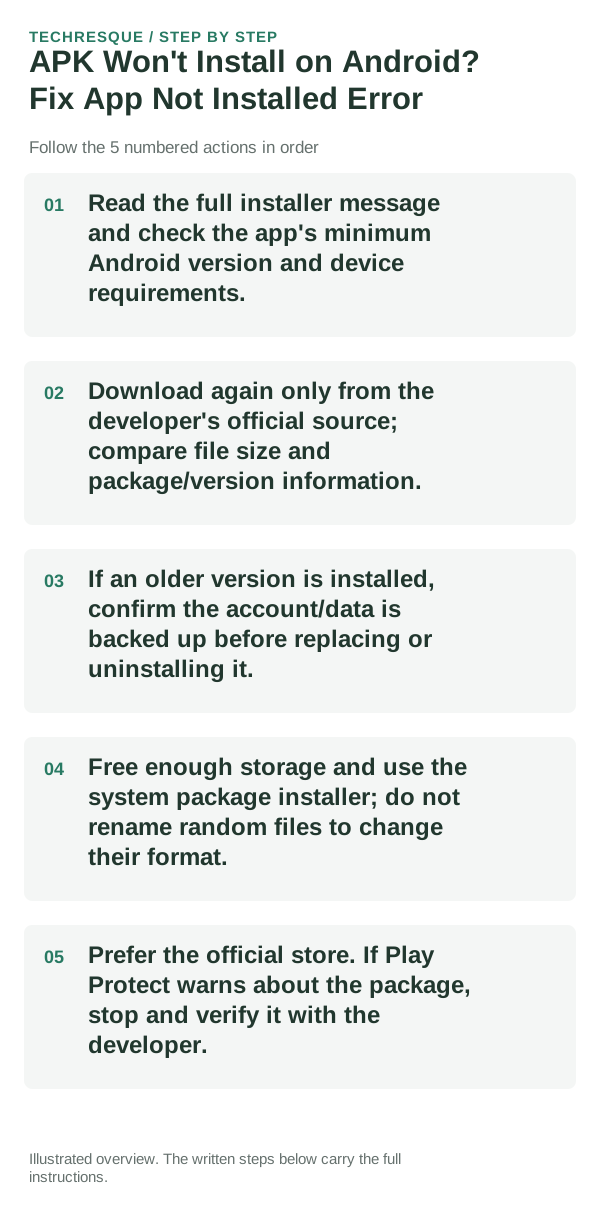
- Read the full installer message and check the app's minimum Android version and device requirements.
- Download again only from the developer's official source; compare file size and package/version information.
- If an older version is installed, confirm the account/data is backed up before replacing or uninstalling it.
- Free enough storage and use the system package installer; do not rename random files to change their format.
- Prefer the official store. If Play Protect warns about the package, stop and verify it with the developer.
How to tell which cause applies
Try one verified official package on a compatible device and retain the complete installer error. Different package formats require different installers.
Try one verified official package on a compatible device and retain the complete installer error. Different package formats require different installers.
What not to change first
- Do not disable Play Protect or remove an existing app containing unsynced data just to force installation.
Confirm that the problem is actually gone
Try one verified official package on a compatible device and retain the complete installer error. Different package formats require different installers.
When to use support or repair
If several apps fail after updates and a restart, compare Safe Mode if supported. Swelling, unusual heat, damaged ports or shutdowns need service.
Note the phone model, Android version, affected app or setting, exact message and whether restarting or Safe Mode changes the result.
Frequently asked questions
What should I check first?
Read the full installer message and check the app's minimum Android version and device requirements. Download again only from the developer's official source; compare file size and package/version information. If an older version is installed, confirm the account/data is backed up before replacing or uninstalling it.
Should I reset the whole device immediately?
Usually not. Test the affected feature with a built-in tool or second app first. Back up local-only files before clearing app storage or considering a factory reset.
How do I know when the fix is real?
Try one verified official package on a compatible device and retain the complete installer error. Different package formats require different installers.
Official sources and further reading
Android labels differ across Pixel, Samsung and other brands. Use Settings search for the named control if a menu path does not match your phone.