An incompatibility message may reflect the app's minimum Android version, device hardware, region, or developer rollout rules rather than a broken phone. Read the Play Store listing's Android requirement and device notes; compare them with Settings > About phone. Check Play Store country/account and Play Protect certification in Play Store settings.
Android Settings labels differ across Pixel, Samsung, and other brands; search Settings for the named control and change one item at a time.
Start by narrowing the cause
An incompatibility message may reflect the app's minimum Android version, device hardware, region, or developer rollout rules rather than a broken phone.
- The app requires a newer Android release or a hardware feature the device lacks.
- The app is unavailable for the Play country, device certification, or account age settings.
- The phone is running an unsupported CPU architecture or a manufacturer build the developer excluded.
- The listing is in a staged release or the app has temporarily been withdrawn.
- An old app build or a managed-device policy blocks installation.
Troubleshoot from low-risk to high-risk
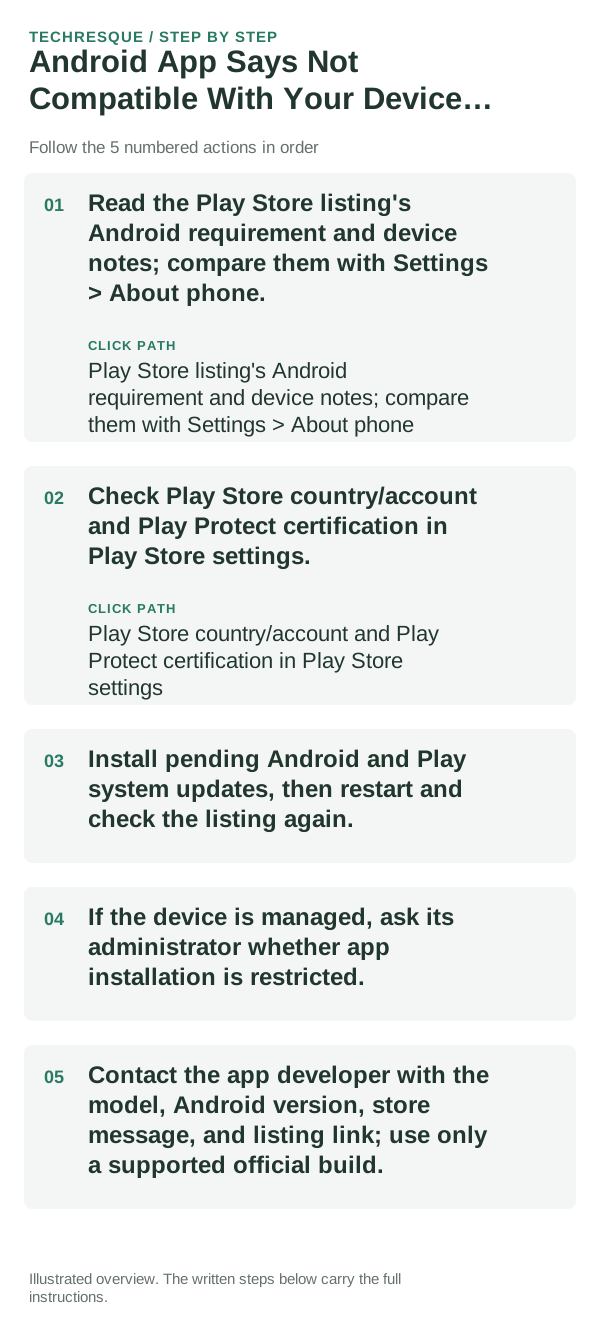
- Read the Play Store listing's Android requirement and device notes; compare them with Settings > About phone.
- Check Play Store country/account and Play Protect certification in Play Store settings.
- Install pending Android and Play system updates, then restart and check the listing again.
- If the device is managed, ask its administrator whether app installation is restricted.
- Contact the app developer with the model, Android version, store message, and listing link; use only a supported official build.
A quick way to narrow it down
Repeat the Play Store check after updates and confirm whether the same message appears on another supported device. Compatibility is set by the app developer and can change between releases.
Repeat the Play Store check after updates and confirm whether the same message appears on another supported device. Compatibility is set by the app developer and can change between releases.
What not to change first
- Do not sideload random APKs or bypass device security to force an install.
- Do not assume a newer phone is automatically supported.
Confirm that the problem is actually gone
Repeat the Play Store check after updates and confirm whether the same message appears on another supported device. Compatibility is set by the app developer and can change between releases.
When to use support or repair
If several apps fail after updates and a restart, compare Safe Mode if supported. Swelling, unusual heat, damaged ports or shutdowns need service.
Note the phone model, Android version, affected app or setting, exact message and whether restarting or Safe Mode changes the result.
Frequently asked questions
What should I check first?
Read the Play Store listing's Android requirement and device notes; compare them with Settings > About phone. Check Play Store country/account and Play Protect certification in Play Store settings. Install pending Android and Play system updates, then restart and check the listing again.
Should I reset the whole device immediately?
Usually not. Test the affected feature with a built-in tool or second app first. Back up local-only files before clearing app storage or considering a factory reset.
How do I know when the fix is real?
Repeat the Play Store check after updates and confirm whether the same message appears on another supported device. Compatibility is set by the app developer and can change between releases.
Official sources and further reading
Android labels differ across Pixel, Samsung and other brands. Use Settings search for the named control if a menu path does not match your phone.