The flashlight shares camera hardware and can be unavailable while the camera is in use or when the phone is too hot. Check the built-in quick setting before a third-party flashlight app. Close Camera and any scanning/video apps, wait briefly, then try the built-in Flashlight tile. Check whether the phone is hot; let it cool naturally before retesting.
Android Settings labels differ across Pixel, Samsung, and other brands; search Settings for the named control and change one item at a time.
Start by narrowing the cause
The flashlight shares camera hardware and can be unavailable while the camera is in use or when the phone is too hot. Check the built-in quick setting before a third-party flashlight app.
- The camera or another app currently holds the flash hardware.
- The phone is hot and temporarily disables the LED.
- Quick Settings flashlight is off or the lock-screen shortcut is unavailable.
- A camera/OS process is stuck after a recent app session.
- The LED or camera module has a hardware fault.
The practical troubleshooting sequence
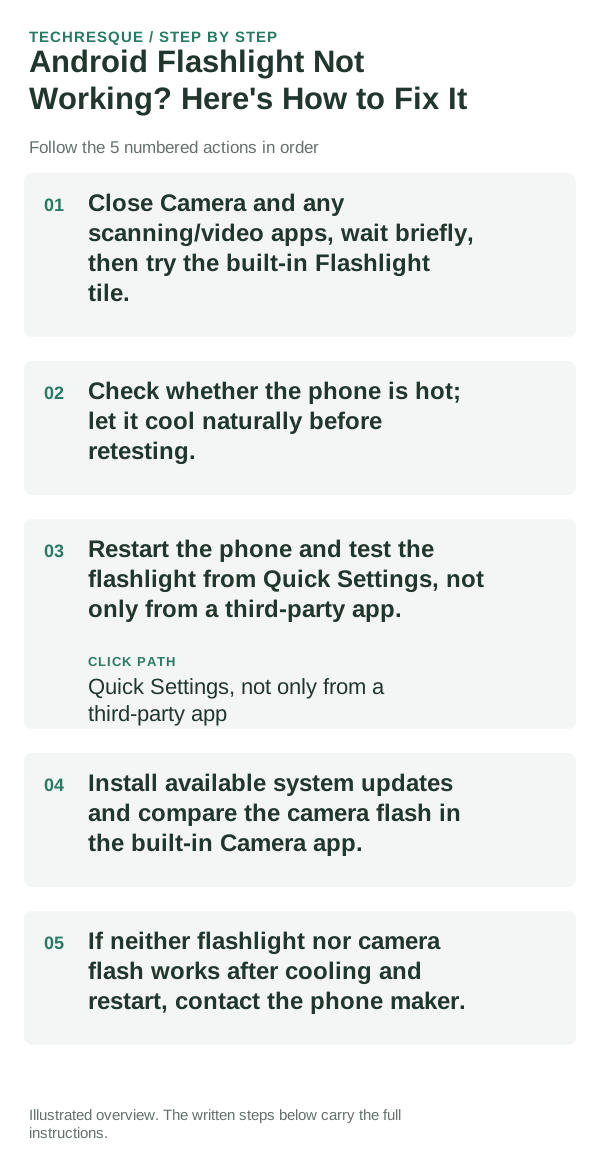
- Close Camera and any scanning/video apps, wait briefly, then try the built-in Flashlight tile.
- Check whether the phone is hot; let it cool naturally before retesting.
- Restart the phone and test the flashlight from Quick Settings, not only from a third-party app.
- Install available system updates and compare the camera flash in the built-in Camera app.
- If neither flashlight nor camera flash works after cooling and restart, contact the phone maker.
Isolate the failing layer
Test the built-in flashlight when the phone is cool, then compare the camera flash. Some models disable the LED temporarily to protect hardware.
Test the built-in flashlight when the phone is cool, then compare the camera flash. Some models disable the LED temporarily to protect hardware.
Do not make troubleshooting harder
- Do not use an unofficial flashlight app as a hardware test.
- Do not cool the phone with ice or place it in a freezer.
Confirm that the problem is actually gone
Test the built-in flashlight when the phone is cool, then compare the camera flash. Some models disable the LED temporarily to protect hardware.
When to use support or repair
If several apps fail after updates and a restart, compare Safe Mode if supported. Swelling, unusual heat, damaged ports or shutdowns need service.
Note the phone model, Android version, affected app or setting, exact message and whether restarting or Safe Mode changes the result.
Frequently asked questions
What should I check first?
Close Camera and any scanning/video apps, wait briefly, then try the built-in Flashlight tile. Check whether the phone is hot; let it cool naturally before retesting. Restart the phone and test the flashlight from Quick Settings, not only from a third-party app.
Should I reset the whole device immediately?
Usually not. Test the affected feature with a built-in tool or second app first. Back up local-only files before clearing app storage or considering a factory reset.
How do I know when the fix is real?
Test the built-in flashlight when the phone is cool, then compare the camera flash. Some models disable the LED temporarily to protect hardware.