A completed download can be saved outside the folder you expect, while an interrupted download may leave a temporary entry. Check the downloading app and file manager separately. Open the app that started the download and check its Downloads/history screen for status and destination. In Files, search the exact filename and check Downloads, Documents, Recent, and the active work profile.
Android Settings labels differ across Pixel, Samsung, and other brands; search Settings for the named control and change one item at a time.
Likely causes to check first
A completed download can be saved outside the folder you expect, while an interrupted download may leave a temporary entry. Check the downloading app and file manager separately.
- The browser or app saved the file to a different folder or account.
- The download is still paused, failed, or has a temporary filename.
- The file manager is filtering by category or recent date.
- A cloud/offline provider has not finished syncing the file locally.
- Low storage or a restricted work profile prevented the save.
Troubleshoot from low-risk to high-risk
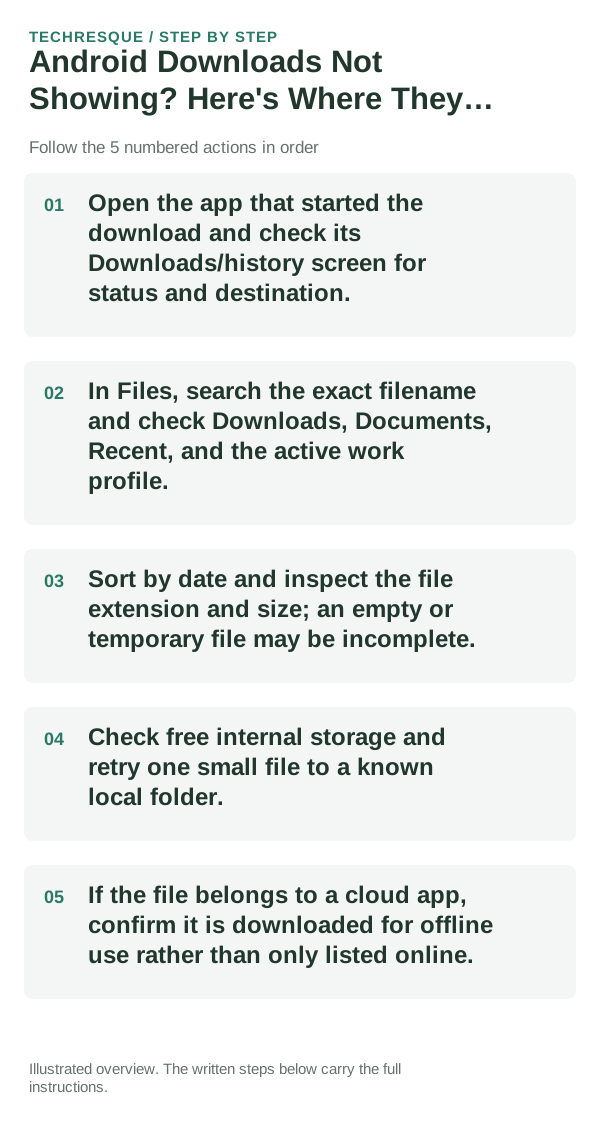
- Open the app that started the download and check its Downloads/history screen for status and destination.
- In Files, search the exact filename and check Downloads, Documents, Recent, and the active work profile.
- Sort by date and inspect the file extension and size; an empty or temporary file may be incomplete.
- Check free internal storage and retry one small file to a known local folder.
- If the file belongs to a cloud app, confirm it is downloaded for offline use rather than only listed online.
How to tell which cause applies
Download a small harmless test file and confirm its exact folder in both the source app and Files. Storage labels vary by manufacturer.
Download a small harmless test file and confirm its exact folder in both the source app and Files. Storage labels vary by manufacturer.
Do not make troubleshooting harder
- Do not delete unfamiliar system folders or assume a cloud placeholder is a complete local copy.
- Avoid opening files from unknown sources.
What success should look like
Download a small harmless test file and confirm its exact folder in both the source app and Files. Storage labels vary by manufacturer.
When to use support or repair
If several apps fail after updates and a restart, compare Safe Mode if supported. Swelling, unusual heat, damaged ports or shutdowns need service.
Note the phone model, Android version, affected app or setting, exact message and whether restarting or Safe Mode changes the result.
Frequently asked questions
What should I check first?
Open the app that started the download and check its Downloads/history screen for status and destination. In Files, search the exact filename and check Downloads, Documents, Recent, and the active work profile. Sort by date and inspect the file extension and size; an empty or temporary file may be incomplete.
Should I reset the whole device immediately?
Usually not. Test the affected feature with a built-in tool or second app first. Back up local-only files before clearing app storage or considering a factory reset.
How do I know when the fix is real?
Download a small harmless test file and confirm its exact folder in both the source app and Files. Storage labels vary by manufacturer.
Official sources and further reading
Android labels differ across Pixel, Samsung and other brands. Use Settings search for the named control if a menu path does not match your phone.