When an Android app crashes or will not open, first separate an app-only failure from a wider Android or storage problem. A crash after a specific screen can point to different causes than a launch crash. Restart the phone and check free storage; leave enough room for the app to save temporary data. Update the app and Android System WebView/Chrome only if the affected app uses embedded web content; install OS updates offered for the model.
Android Settings labels differ across Pixel, Samsung, and other brands; search Settings for the named control and change one item at a time.
Likely causes to check first
When an Android app crashes or will not open, first separate an app-only failure from a wider Android or storage problem. A crash after a specific screen can point to different causes than a launch crash.
- The app's local state or downloaded content is damaged.
- The app version conflicts with the current Android release or a required system component.
- Very low free storage prevents the app from creating temporary files.
- A sign-in, network, or server problem looks like a launch failure.
- The crash follows a recent app/OS update or occurs only on one account.
Troubleshoot from low-risk to high-risk
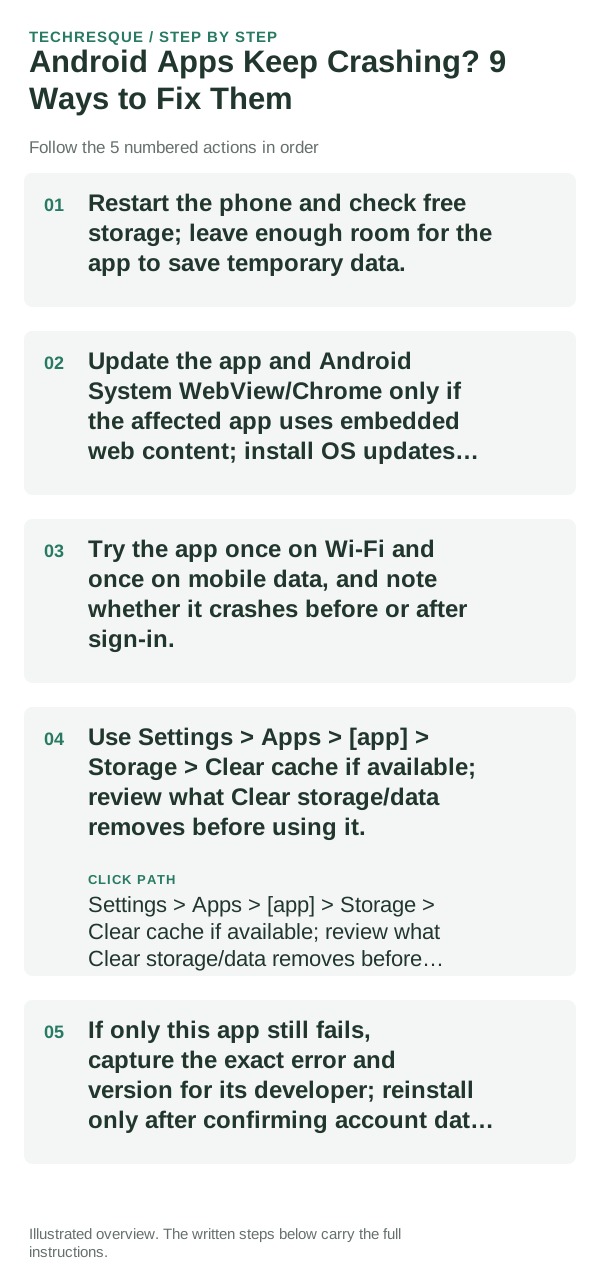
- Restart the phone and check free storage; leave enough room for the app to save temporary data.
- Update the app and Android System WebView/Chrome only if the affected app uses embedded web content; install OS updates offered for the model.
- Try the app once on Wi-Fi and once on mobile data, and note whether it crashes before or after sign-in.
- Use Settings > Apps > [app] > Storage > Clear cache if available; review what Clear storage/data removes before using it.
- If only this app still fails, capture the exact error and version for its developer; reinstall only after confirming account data is synced.
How to tell which cause applies
Repeat the same launch path after each single change and compare with another app that uses the same network or account. App settings and cache controls vary by Android build.
Repeat the same launch path after each single change and compare with another app that uses the same network or account. App settings and cache controls vary by Android build.
What not to change first
- Do not clear app storage before checking unsynced files or drafts.
- Do not install unofficial APKs as a first fix.
Confirm that the problem is actually gone
Repeat the same launch path after each single change and compare with another app that uses the same network or account. App settings and cache controls vary by Android build.
When to use support or repair
If several apps fail after updates and a restart, compare Safe Mode if supported. Swelling, unusual heat, damaged ports or shutdowns need service.
Note the phone model, Android version, affected app or setting, exact message and whether restarting or Safe Mode changes the result.
Frequently asked questions
What should I check first?
Restart the phone and check free storage; leave enough room for the app to save temporary data. Update the app and Android System WebView/Chrome only if the affected app uses embedded web content; install OS updates offered for the model. Try the app once on Wi-Fi and once on mobile data, and note whether it crashes before or after sign-in.
Should I reset the whole device immediately?
Usually not. Test the affected feature with a built-in tool or second app first. Back up local-only files before clearing app storage or considering a factory reset.
How do I know when the fix is real?
Repeat the same launch path after each single change and compare with another app that uses the same network or account. App settings and cache controls vary by Android build.
Official sources and further reading
- Google Android Help — Fix an installed app that isn’t working
- Google Android Help — Fix restarts and crashes
Android labels differ across Pixel, Samsung and other brands. Use Settings search for the named control if a menu path does not match your phone.