Open Google Play Store > profile picture > Settings > Network preferences > Auto-update apps, then choose Don’t auto-update apps. If only one app updates, turn off Enable auto update on that app’s store page too.
On Android, menu names vary by maker, so use Settings search when a path in a guide does not match your phone exactly.
What this symptom usually means
Google Play has a store-wide auto-update choice and a separate setting on each app’s listing. A managed work or school device may also follow an administrator’s update policy. Google notes that it can still deliver certain updates that fix critical security issues.
- The Play Store setting allows updates over Wi-Fi, mobile data, or both.
- One app has Enable auto update turned on even though the global preference is different.
- A work profile or device-management policy controls app updates.
- Google Play has already queued an update, so changing the preference may not cancel that download.
Fix it in this order
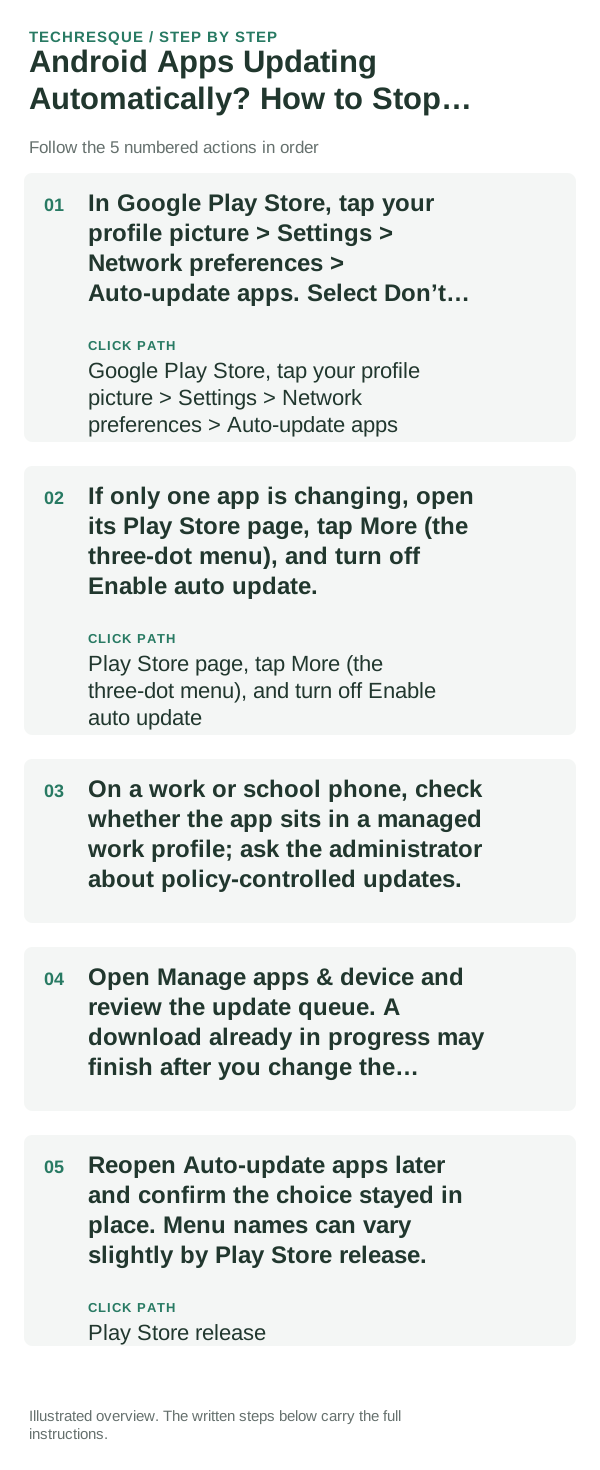
- In Google Play Store, tap your profile picture > Settings > Network preferences > Auto-update apps. Select Don’t auto-update apps.
- If only one app is changing, open its Play Store page, tap More (the three-dot menu), and turn off Enable auto update.
- On a work or school phone, check whether the app sits in a managed work profile; ask the administrator about policy-controlled updates.
- Open Manage apps & device and review the update queue. A download already in progress may finish after you change the setting.
- Reopen Auto-update apps later and confirm the choice stayed in place. Menu names can vary slightly by Play Store release.
A quick way to narrow it down
If only one app changes, inspect that app’s Enable auto update control first. If several personal apps update, check the global Network preferences setting. If the control is unavailable or keeps reverting on a managed device, the administrator may set it.
What not to change first
- Do not disable Google Play Services or remove your Google account to stop updates.
- Do not clear Play Store storage before recording its settings; that can reset saved preferences.
- Do not assume turning off auto-updates cancels a download that has already started.
- Keep security updates in mind: Google can deliver some critical fixes regardless of the chosen setting.
Verify before you move on
Return to Settings > Network preferences > Auto-update apps and confirm Don’t auto-update apps is selected. For a single app, check its listing’s More menu as well. A pending update can remain in the queue, and critical security fixes may still be applied.
When to use support or repair
If the Play Store setting is locked or changes back on a work device, ask the device administrator; the phone may be enrolled in managed Google Play. If a personal device ignores the preference after you confirm both controls, contact Google Play support with the Play Store version and app name.
Frequently asked questions
Can I stop every app from updating automatically?
Yes. Choose Don’t auto-update apps under Google Play Store > profile picture > Settings > Network preferences. Some critical security updates or managed-device policies can be exceptions.
Why does only one app keep updating?
That app may have Enable auto update turned on individually. Open its Play Store listing, tap More, and check that option.
Does switching the setting cancel an update already downloading?
Not necessarily. Check Manage apps & device for its status; changing the preference mainly controls future automatic updates.
Official sources and further reading
Google Play documents both a store-wide auto-update preference and a separate per-app control. Critical security updates and managed-device policies can behave differently.