Raise the media volume while audio is playing, compare another app, and check whether both AirPods are equally quiet. On iPhone, review Headphone Safety > Reduce Loud Audio and Accessibility > Audio & Visual > Balance. Do not raise volume beyond a comfortable listening level.
iPhone volume limits, hearing features, and AirPods sound controls vary by iOS version and model.
Check the source and both earbuds
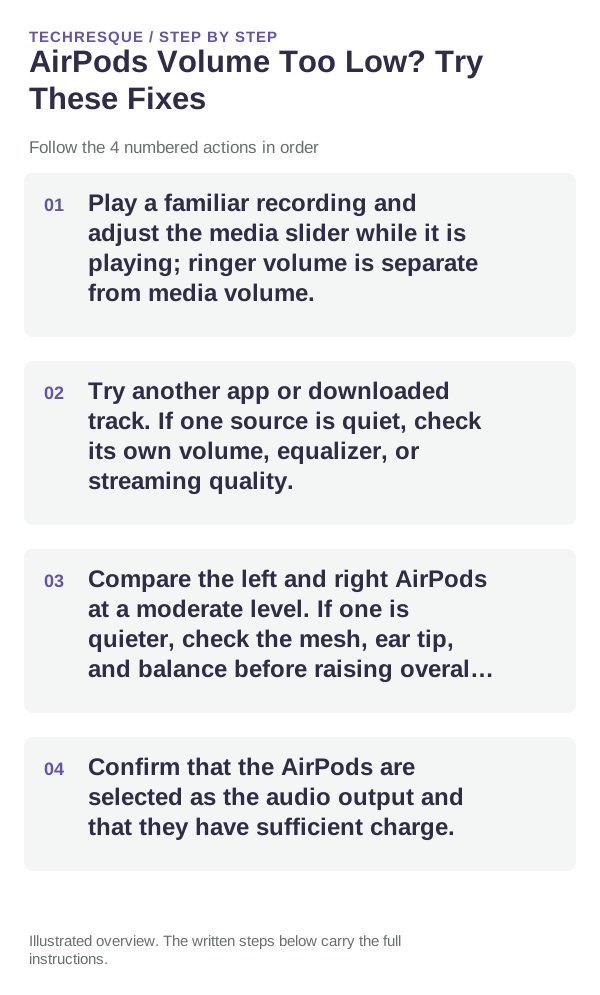
- Play a familiar recording and adjust the media slider while it is playing; ringer volume is separate from media volume.
- Try another app or downloaded track. If one source is quiet, check its own volume, equalizer, or streaming quality.
- Compare the left and right AirPods at a moderate level. If one is quieter, check the mesh, ear tip, and balance before raising overall volume.
- Confirm that the AirPods are selected as the audio output and that they have sufficient charge.
Check iPhone listening limits
Open Settings > Sounds & Haptics > Headphone Safety and review Reduce Loud Audio. If it is on, it can lower headphone output above the selected level. In Settings > Accessibility > Audio & Visual, confirm the Balance slider is centered. Menu names may differ by iOS version.
Check fit and cleanliness
For AirPods Pro, an ear-tip fit test can help identify a poor seal. For all models, inspect visible speaker mesh and clean according to Apple's guidance. Do not use sharp tools or push debris into openings.
Test safely and know when to stop
Compare at a comfortable level; prolonged loud headphone use can harm hearing. If both AirPods remain quiet across sources after checking output, limits, balance, and mesh, restart or reset them using the correct model steps. Contact Apple if sound remains abnormal.
Frequently asked questions
Why are AirPods quieter after an iPhone warning?
Headphone Safety may automatically lower volume after a loud-audio notification. Review Reduce Loud Audio and the Health app's Headphone Notifications record.
What if only one AirPod is quiet?
Check the audio balance, earbud fit, mesh, and battery reading for that side. Compare with the same track before changing the overall volume.
Should I disable hearing protection?
Keep listening comfortable and use the controls to understand the limit. Do not compensate by turning audio up to an unsafe level.
Official sources and further reading
- Apple Support — Adjust the volume on iPhone
- Apple Support — Headphone notifications and Reduce Loud Audio
- Apple Support — If your left or right AirPod is not working
- Apple Support — How to clean your AirPods
Check the iPhone controls and both AirPods separately. Listening level should remain comfortable; do not override hearing safety to mask a fault.