Adjust volume while the relevant sound is playing, then check the output route, app volume, and headphone safety settings. Ringer buttons may not change media volume.
On iPhone, prefer Apple’s built-in Settings and reset options; use “Reset All Settings” or a full erase only when a narrower fix has failed and you have a backup.
Likely causes to check first
iPhone buttons control media volume during playback and ringer/alert volume at other times. Headphone audio can also have its own limit, while Bluetooth or AirPlay changes the active output.
Fix it in this order
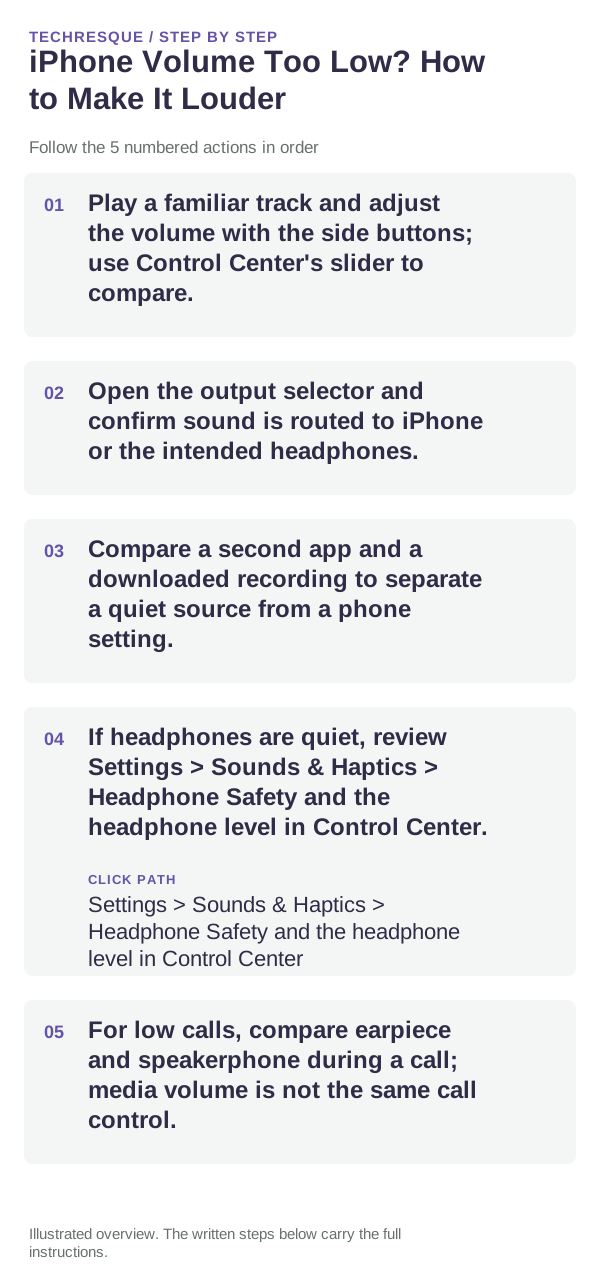
- Play a familiar track and adjust the volume with the side buttons; use Control Center's slider to compare.
- Open the output selector and confirm sound is routed to iPhone or the intended headphones.
- Compare a second app and a downloaded recording to separate a quiet source from a phone setting.
- If headphones are quiet, review Settings > Sounds & Haptics > Headphone Safety and the headphone level in Control Center.
- For low calls, compare earpiece and speakerphone during a call; media volume is not the same call control.
Isolate the failing layer
Only one recording quiet suggests its source level; all media quiet suggests output or volume controls. Headphones quiet while speaker is normal points to headphone level or the accessory.
Do not make troubleshooting harder
Do not use unofficial sound boosters or raise audio to an uncomfortable level. Headphone exposure can harm hearing; keep tests brief and comfortable.
Confirm that the problem is actually gone
Repeat the same recording and compare the same output after one setting change. Restore the original route if the problem follows the accessory rather than the phone.
When to use support or repair
If the built-in speaker and multiple known-good headphones remain quiet at normal settings, contact Apple Support with the iPhone model and iOS version.
Frequently asked questions
Should I reset the whole device immediately?
Usually not. Check the affected app, accessory or setting first. Reset All Settings or erase the phone only after a backup.
How do I know when the fix is real?
Repeat the same recording and compare the same output after one setting change. Restore the original route if the problem follows the accessory rather than the phone.