
Check Settings > General > iPhone Storage, wait for its recommendations to load, and compare System Data after a restart. Avoid erase-and-restore steps until you have a verified backup.
On iPhone, prefer Apple’s built-in Settings and reset options; use “Reset All Settings” or a full erase only when a narrower fix has failed and you have a backup.
Where this problem usually comes from
System Data can include caches, logs, and temporary files that iOS manages. Its size can change after streaming, browsing, updates, or storage recalculation, and Apple does not provide a simple manual System Data delete button.
Work through these checks
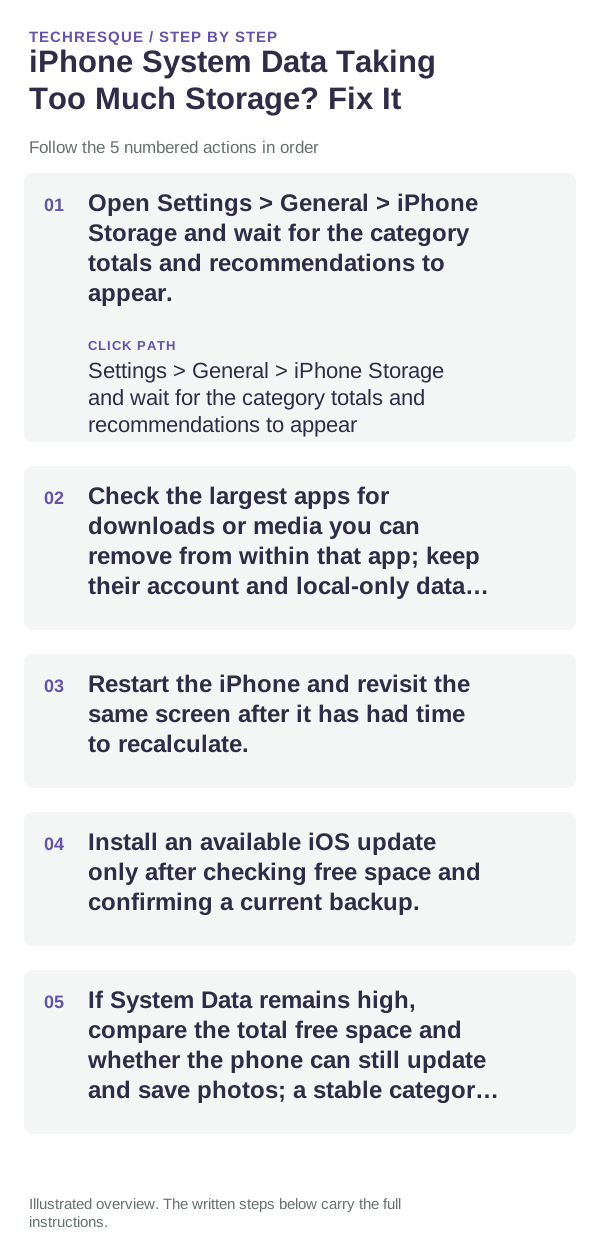
- Open Settings > General > iPhone Storage and wait for the category totals and recommendations to appear.
- Check the largest apps for downloads or media you can remove from within that app; keep their account and local-only data in mind.
- Restart the iPhone and revisit the same screen after it has had time to recalculate.
- Install an available iOS update only after checking free space and confirming a current backup.
- If System Data remains high, compare the total free space and whether the phone can still update and save photos; a stable category alone may not need repair.
What each result tells you
A number that falls after a restart suggests temporary data or recalculation. If the entire phone is nearly full, target visible app downloads first. A single high System Data value is not by itself proof of corruption.
Do not make troubleshooting harder
Do not delete unknown files through a computer, install profile-based cleaners, or erase the iPhone solely to reduce this category. Back up before any recovery operation.
Verify before you move on
Confirm iPhone Storage has enough room for your actual use and that photos, messages, and apps remain available. Check the category again later rather than repeatedly restarting.
When to use support or repair
If the phone cannot install updates or System Data keeps consuming the remaining space, contact Apple Support with the iOS version and storage breakdown.
Frequently asked questions
Should I reset the whole device immediately?
Usually not. Check the affected app, accessory or setting first. Reset All Settings or erase the phone only after a backup.
How do I know when the fix is real?
Confirm iPhone Storage has enough room for your actual use and that photos, messages, and apps remain available. Check the category again later rather than repeatedly restarting.