
Play a familiar track, compare each AirPod, and check whether one side or both sound muffled. Inspect the speaker mesh and ear tips for visible buildup, then clean using Apple's instructions for your exact model. Also check audio balance and ear-tip fit before changing Bluetooth settings.
Cleaning steps depend on AirPods generation. Avoid liquids or tools in speaker meshes unless Apple’s model-specific instructions explicitly call for them.
Separate a source problem from an AirPods problem
Replay a downloaded or familiar track in another app at a moderate volume. If only one recording or streaming app sounds muffled, compare its quality and equalizer settings. If every source is affected, compare the left and right AirPods at the same volume.
Check fit, mesh, and balance
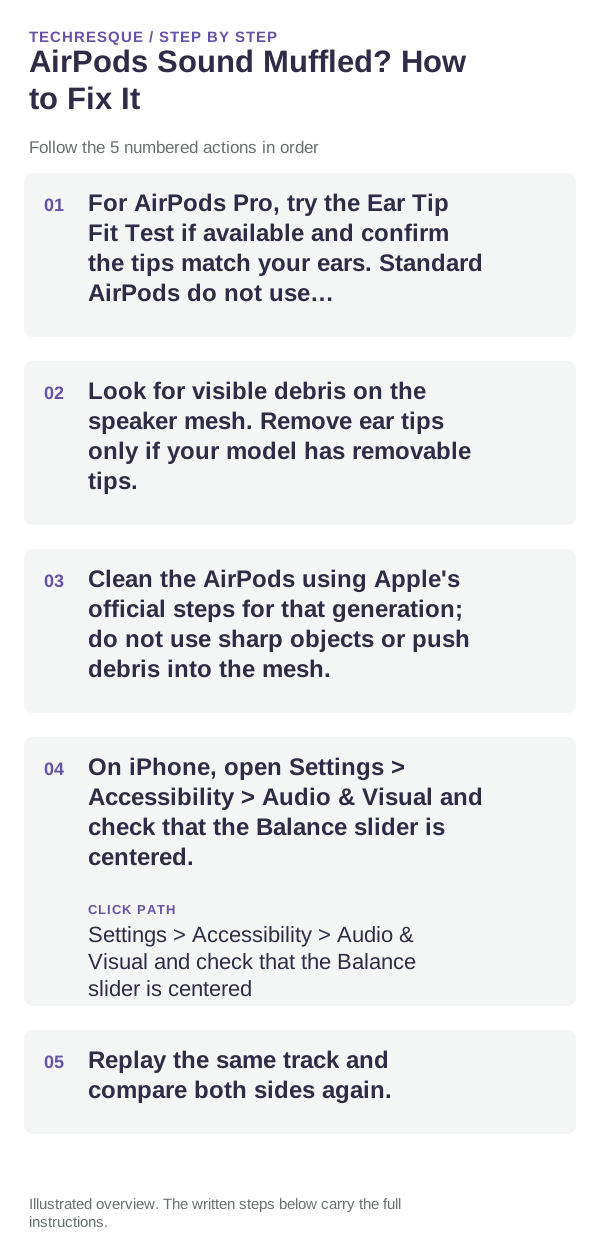
- For AirPods Pro, try the Ear Tip Fit Test if available and confirm the tips match your ears. Standard AirPods do not use interchangeable ear tips.
- Look for visible debris on the speaker mesh. Remove ear tips only if your model has removable tips.
- Clean the AirPods using Apple's official steps for that generation; do not use sharp objects or push debris into the mesh.
- On iPhone, open Settings > Accessibility > Audio & Visual and check that the Balance slider is centered.
- Replay the same track and compare both sides again.
Check listening and headphone settings
Turn off any custom equalizer or headphone accommodation temporarily for one comparison. If the muffled sound happens only in Transparency or Noise Cancellation, check the listening mode, ear-tip seal, and microphone openings separately.
Reset after the simple checks
If both sides remain muffled across apps after cleaning and balance checks, restart the AirPods by placing them in the case and closing the lid briefly. Reset only if restarting does not help; a reset clears custom settings.
When to arrange service
Seek Apple Support if one side stays muffled after the mesh is clean, the device has been exposed to liquid, or sound changes after physical damage. Stop cleaning if a mesh or ear tip is torn.
Frequently asked questions
Why does only one AirPod sound muffled?
Check that side's fit, mesh, charge, and ear tip, then compare it with the other AirPod using the same track and volume.
Can I use a cotton swab inside the speaker mesh?
Do not push anything into the mesh. Use Apple's cleaning instructions for the exact AirPods generation.
Does ear-tip fit affect sound?
Yes, for AirPods Pro. A poor seal can change bass and noise control. Use the fit test if available and choose a comfortable tip size.
Official sources and further reading
- Apple Support — How to clean your AirPods
- Apple Support — If your left or right AirPod is not working
- Apple Support — Set up an Ear Tip Fit Test
Mesh cleaning and ear-tip tests depend on AirPods model. Use only the procedure Apple lists for your generation.