Confirm your model supports Transparency, wear both connected AirPods, and select Transparency directly in Control Center by holding the volume slider. If the mode is selected but outside sound still seems wrong, check custom Transparency settings, ear fit, and microphone openings.
Transparency controls and custom features are available only on supported AirPods models and software versions.
Make sure Transparency is supported and selected
Transparency is available on supported AirPods 4 ANC, AirPods 5, AirPods Pro, and AirPods Max models. With the AirPods connected, open Control Center, touch and hold the volume slider, and choose Transparency. If the option is missing, confirm the exact model before changing settings.
Check customization and fit
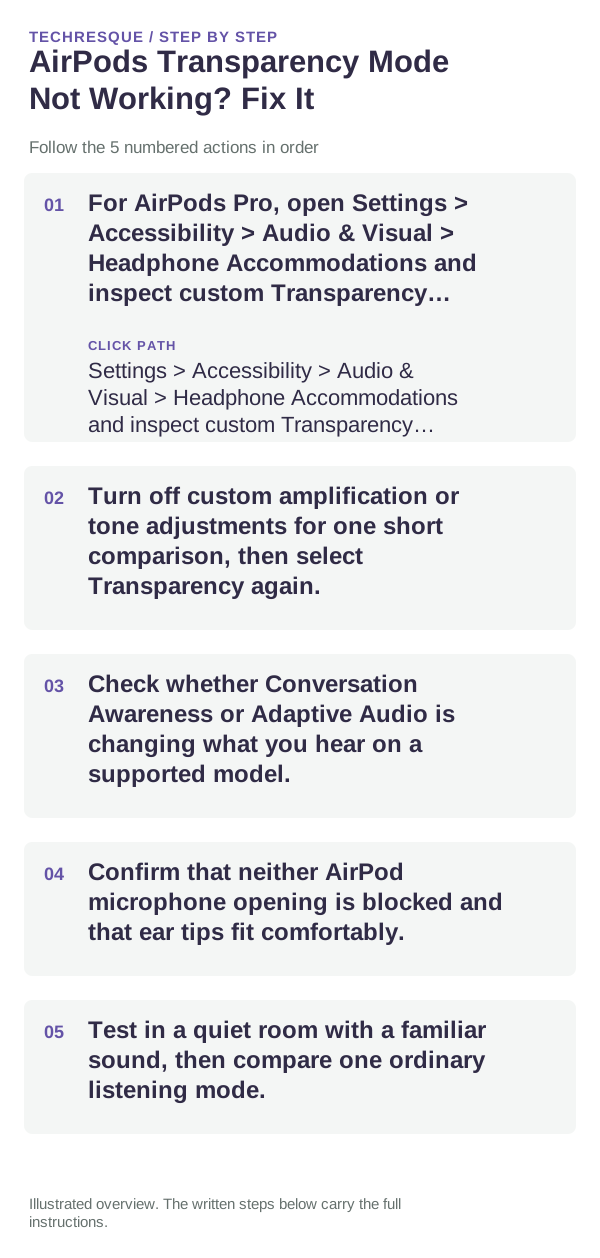
- For AirPods Pro, open Settings > Accessibility > Audio & Visual > Headphone Accommodations and inspect custom Transparency controls.
- Turn off custom amplification or tone adjustments for one short comparison, then select Transparency again.
- Check whether Conversation Awareness or Adaptive Audio is changing what you hear on a supported model.
- Confirm that neither AirPod microphone opening is blocked and that ear tips fit comfortably.
- Test in a quiet room with a familiar sound, then compare one ordinary listening mode.
Restore the control if it is missing
Open AirPods settings and check which modes are included in the press-and-hold cycle. Transparency may have been removed from the modes that the stem cycles through even though the feature still works in Control Center.
When one side behaves differently
Test with both earbuds in place, then check each side for debris or physical damage. If the issue is only in one ear, compare the microphone and fit before resetting the whole pair.
When to reset or seek support
Restart the AirPods and update the connected device before a reset. If Transparency remains distorted or unavailable after model, mode, and customization checks, follow Apple's reset steps for the exact model or contact Apple Support.
Frequently asked questions
Do all AirPods include Transparency mode?
No. It is limited to supported AirPods 4 ANC, AirPods 5, AirPods Pro, and AirPods Max models. Check your model's feature list.
Why does the stem not switch to Transparency?
Transparency may not be included in the press-and-hold cycle. Select it in Control Center or update the listening modes in AirPods settings.
Can accessibility settings change Transparency?
Yes. Headphone Accommodations can customize amplification, balance, and tone on supported models. Temporarily switch off custom adjustments to compare.
Official sources and further reading
- Apple Support — Active Noise Cancellation and Transparency modes
- Apple Support — Customize Transparency mode for AirPods Pro
- Apple Support — Set headphone accommodations for AirPods
Listening and accessibility features vary by AirPods model and connected-device software.