Make a short Voice Memos recording, then test a call or the app that fails. If only one app has a problem, check its microphone permission and input selection. If every app sounds muffled, inspect the AirPods microphones and check whether Settings is set to use only the other earbud.
AirPods microphone options differ by model, iOS version, and the app making the recording or call.
Find out whether the issue follows one app or one AirPod
Record a short sample in Voice Memos with both AirPods connected. Then make one brief call or use the affected app. Compare the sound and ask whether the other person hears silence, low volume, or distortion. This separates an app/input selection issue from a problem that appears across the device.
Check the selected microphone
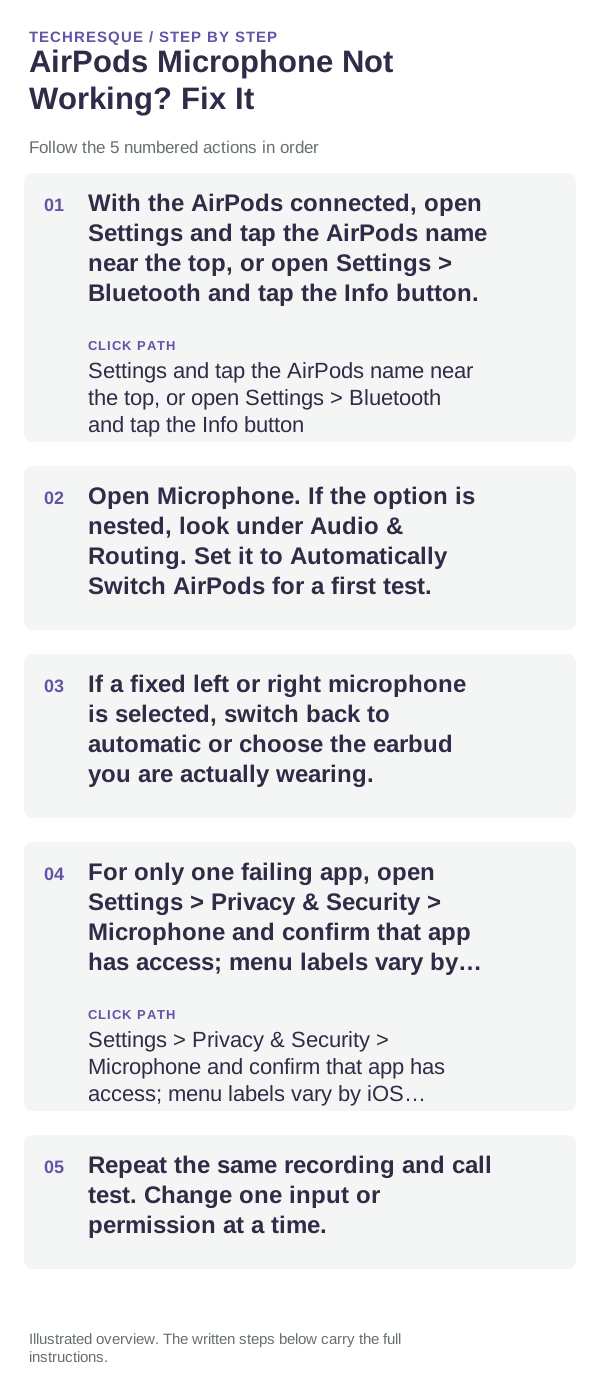
- With the AirPods connected, open Settings and tap the AirPods name near the top, or open Settings > Bluetooth and tap the Info button.
- Open Microphone. If the option is nested, look under Audio & Routing. Set it to Automatically Switch AirPods for a first test.
- If a fixed left or right microphone is selected, switch back to automatic or choose the earbud you are actually wearing.
- For only one failing app, open Settings > Privacy & Security > Microphone and confirm that app has access; menu labels vary by iOS version.
- Repeat the same recording and call test. Change one input or permission at a time.
Check for a blocked or dirty microphone opening
Look for visible debris and clean the AirPods only using Apple's guidance for the exact model. Do not push a pin into a microphone opening or use liquid on the mesh. If the problem began after moisture exposure, let the AirPods dry completely before using or charging them.
Use the test result to choose the next step
- If Voice Memos is clear but one app is not, focus on that app's permission, call mode, or selected input.
- If one AirPod is consistently unclear, compare left and right separately and check the fixed Microphone setting.
- If both AirPods sound poor across apps after cleaning and a restart, reset them using Apple's model-specific steps.
When to contact Apple
Seek support if the microphone is silent or distorted in multiple apps after the input setting and cleaning checks, or if an AirPod has visible damage. Note which side and test apps fail; avoid sharing private recordings.
Frequently asked questions
Can I choose which AirPod microphone is used?
On supported models, open the AirPods settings and choose Microphone, then Automatic, Always Left, or Always Right. Exact options vary by model.
Why does only one app fail?
That app may lack microphone permission or may be using a different audio input. Compare a Voice Memos recording and the affected app before resetting the AirPods.
Should I clean the microphone with a needle?
No. Use only Apple's model-specific cleaning instructions. Sharp objects can damage the microphone mesh.
Official sources and further reading
- Apple Support — Change settings for AirPods, including microphone selection
- Apple Support — How to clean your AirPods
Microphone controls and cleaning methods vary by AirPods model. Check the exact model before following a procedure.