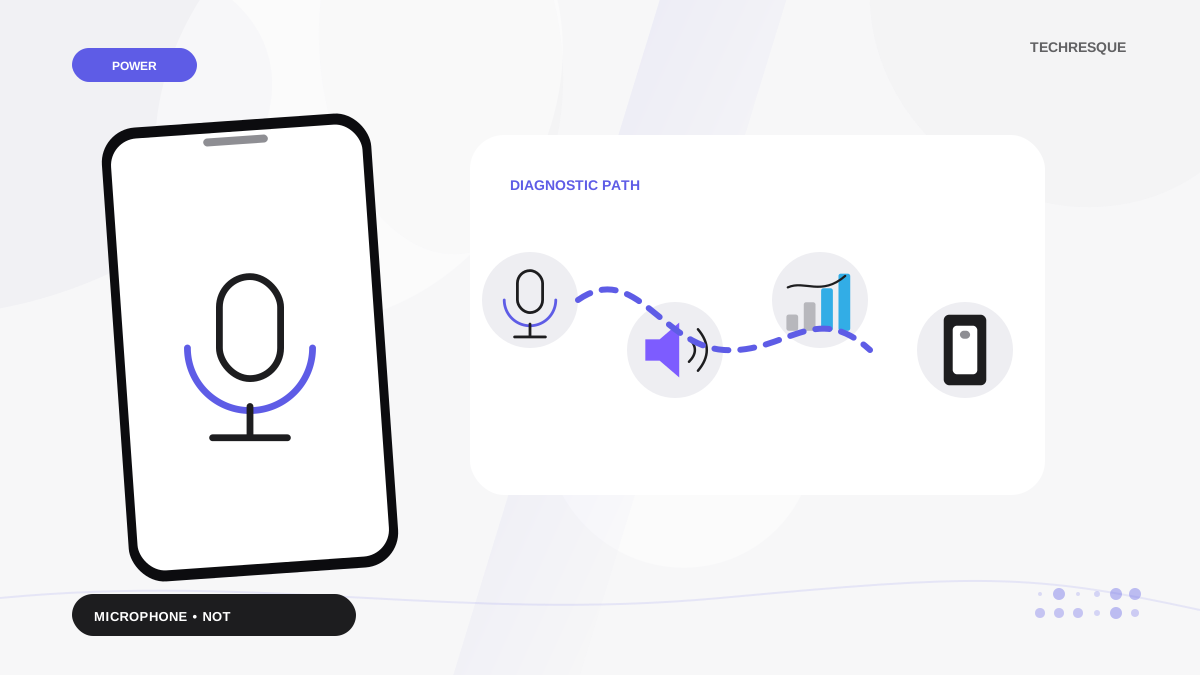
Record a short clip in Voice Memos. If it sounds clear but one app cannot record, open Settings > Privacy & Security > Microphone and allow that app. If every test is unclear, remove a covering case and follow Apple’s microphone checks.
On iPhone, prefer Apple’s built-in Settings and reset options; use “Reset All Settings” or a full erase only when a narrower fix has failed and you have a backup.
Likely causes to check first
iPhone has several microphone openings, and different tasks may use them differently. A Voice Memos clip, a call, and a camera recording can help show whether the trouble is limited to one app or follows the phone across tasks.
- The affected app does not have Microphone permission.
- A case, film, or debris covers one microphone opening.
- Bluetooth or a wired accessory is selected as the audio input.
- One recording mode is affected while calls or another app work.
- The microphone needs Apple service after the simple checks fail.
The practical troubleshooting sequence
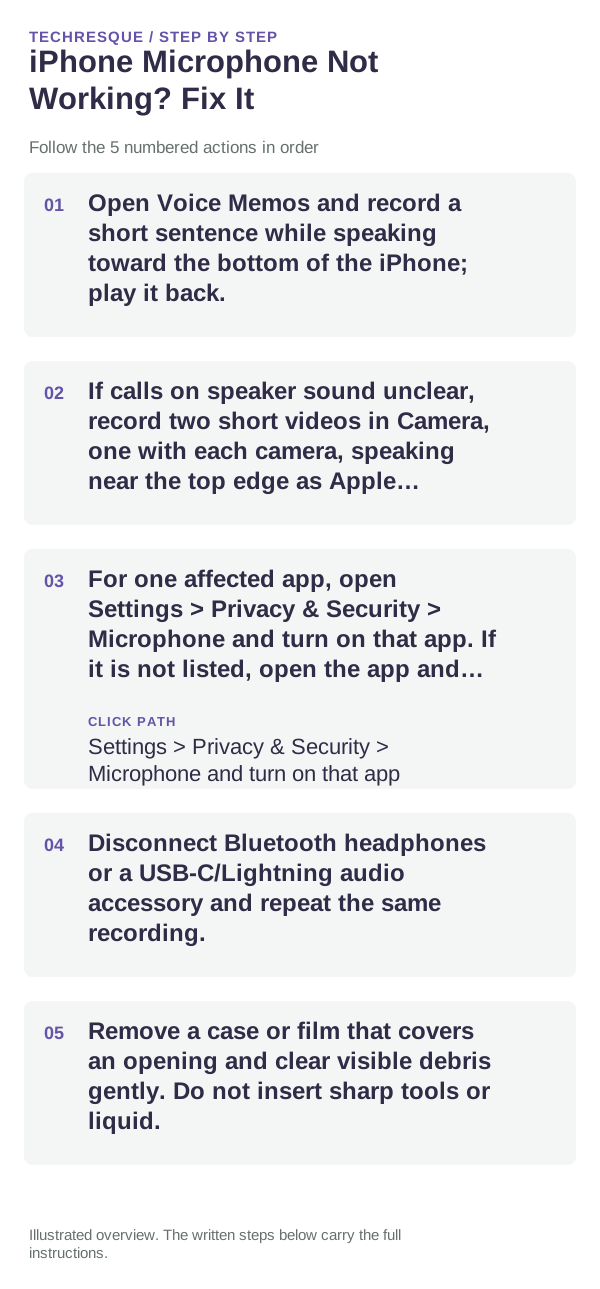
- Open Voice Memos and record a short sentence while speaking toward the bottom of the iPhone; play it back.
- If calls on speaker sound unclear, record two short videos in Camera, one with each camera, speaking near the top edge as Apple recommends.
- For one affected app, open Settings > Privacy & Security > Microphone and turn on that app. If it is not listed, open the app and try its microphone feature again.
- Disconnect Bluetooth headphones or a USB-C/Lightning audio accessory and repeat the same recording.
- Remove a case or film that covers an opening and clear visible debris gently. Do not insert sharp tools or liquid.
How to tell which cause applies
If Voice Memos works but one app does not, check that app’s permission or contact its developer. If only speakerphone or video audio sounds unclear, use Apple’s separate tests for those microphone positions. If every test fails, hardware service is more likely than an app setting.
What not to change first
- Do not reset network settings for a microphone problem.
- Do not grant microphone access to apps that do not need it.
- Do not scrape or push material into the microphone openings.
- Do not erase the iPhone before testing Voice Memos and the affected app separately.
How to confirm the fix
Record a fresh Voice Memos clip and repeat the original call, video, or app action. Compare playback rather than relying on the microphone icon alone.
When to use support or repair
If Voice Memos, calls, and camera recordings remain unclear after you remove a covering case and check app permission, follow Apple’s microphone service guidance. Tell support which recording tests failed and the iPhone model.
Frequently asked questions
Why does the microphone work in calls but not apps?
The app may lack permission or may use a different recording path. Check Settings > Privacy & Security > Microphone and compare it with Voice Memos.
How can I test more than one iPhone microphone?
Use Voice Memos for a short recording, then record videos with both cameras while speaking near the top edge of the phone.
When should I contact Apple?
If the recordings and calls stay unclear after the case and permission checks, follow Apple’s service guidance for your model.
Official sources and further reading
Apple recommends separate tests for calls, speakerphone, video, and app permissions. Remove coverings gently and do not push tools into microphone openings.