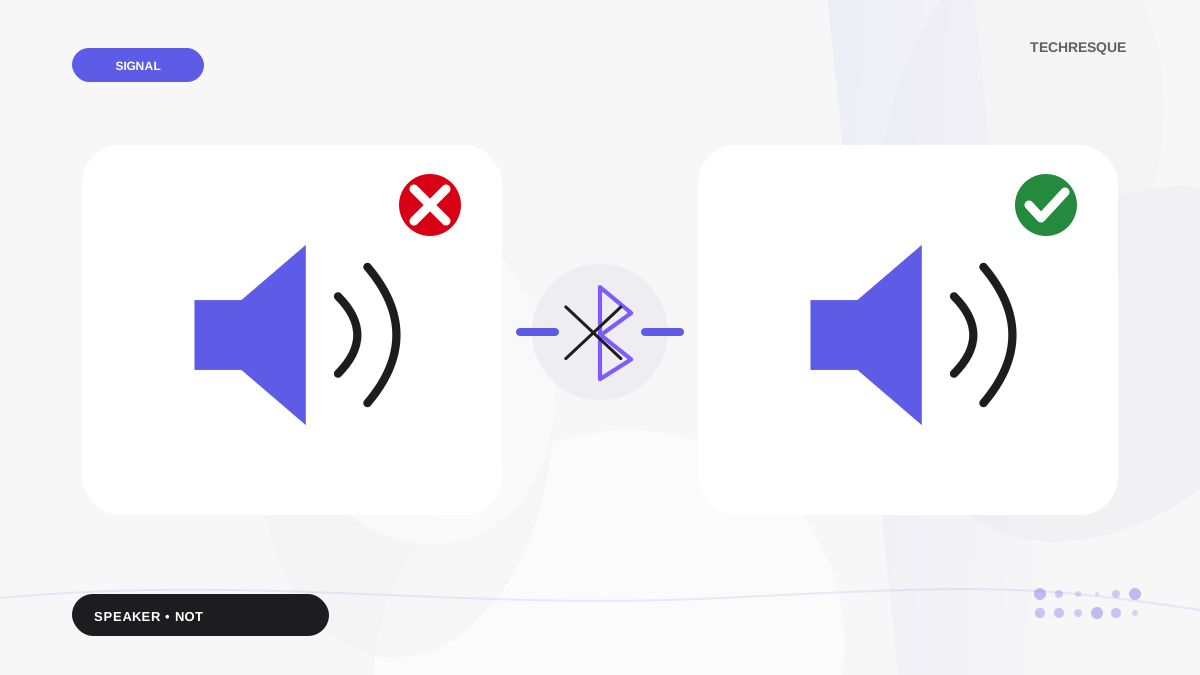
Play a familiar recording, turn Silent mode off, and confirm audio is not routed to headphones or Bluetooth. Test media, ringtone, and speakerphone separately before seeking repair.
On iPhone, prefer Apple’s built-in Settings and reset options; use “Reset All Settings” or a full erase only when a narrower fix has failed and you have a backup.
What this symptom usually means
The iPhone can route audio to a paired device, while media, alerts, and calls use different controls. A blocked speaker opening, a muted app, or a software issue can also make one sound path seem broken.
Fix it in this order
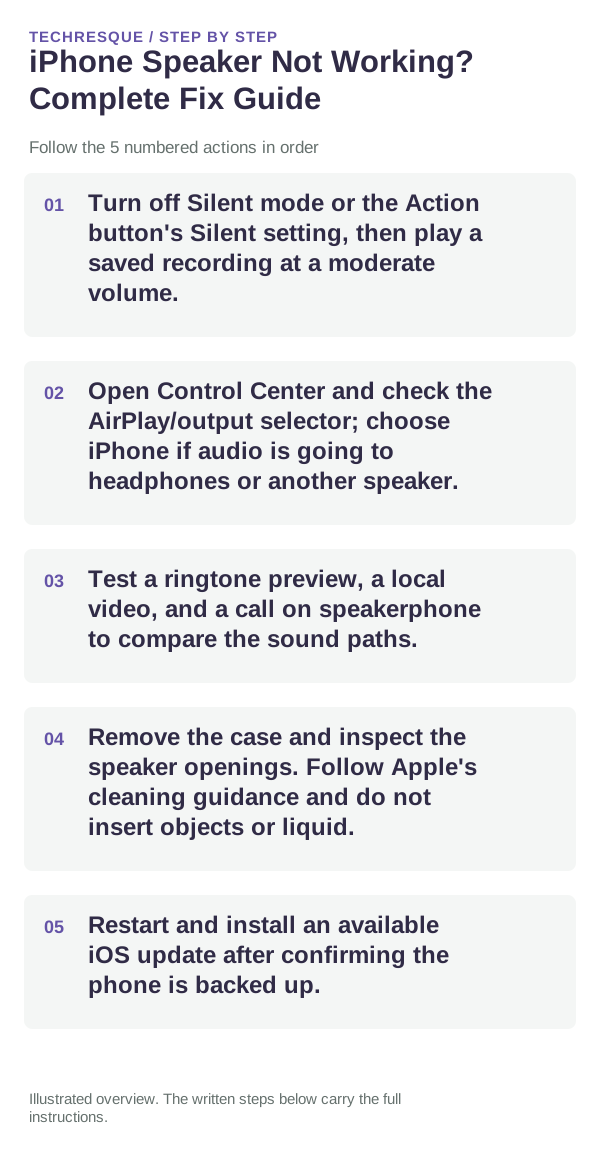
- Turn off Silent mode or the Action button's Silent setting, then play a saved recording at a moderate volume.
- Open Control Center and check the AirPlay/output selector; choose iPhone if audio is going to headphones or another speaker.
- Test a ringtone preview, a local video, and a call on speakerphone to compare the sound paths.
- Remove the case and inspect the speaker openings. Follow Apple's cleaning guidance and do not insert objects or liquid.
- Restart and install an available iOS update after confirming the phone is backed up.
Isolate the failing layer
If media, ringtone, and speakerphone all fail from the built-in output, the speaker or system audio path may need service. If only one app or call mode fails, focus on that app or route.
What not to change first
Do not push metal tools into the grille or use maximum volume for extended tests. Stop and seek service if the iPhone was wet or physically damaged.
How to confirm the fix
Confirm a local recording, ringtone preview, and speakerphone can be heard at a normal level; test Bluetooth again only after the built-in speaker works.
When to use support or repair
If no built-in sound returns after checking output and app controls, contact Apple Support and report which of media, alerts, and speakerphone still fail.
Frequently asked questions
Should I reset the whole device immediately?
Usually not. Check the affected app, accessory or setting first. Reset All Settings or erase the phone only after a backup.
How do I know when the fix is real?
Confirm a local recording, ringtone preview, and speakerphone can be heard at a normal level; test Bluetooth again only after the built-in speaker works.