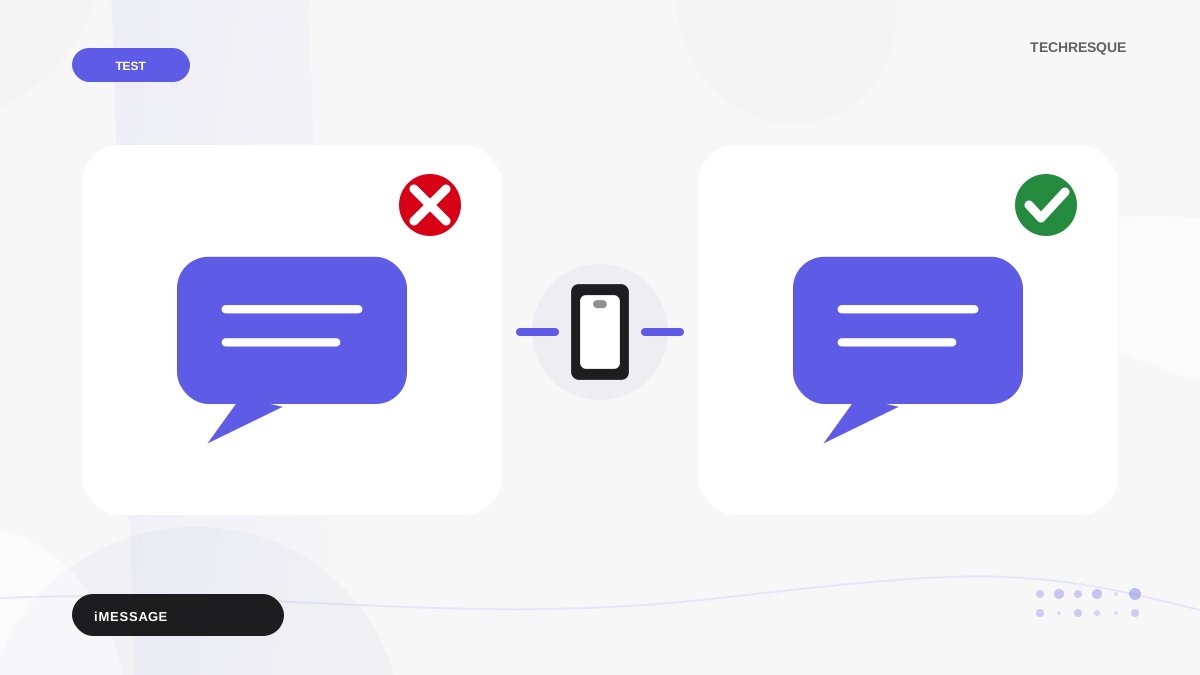
iMessage uses Apple's activation and internet service, while green-bubble SMS/MMS uses the carrier. Check the message color, recipient, and whether the issue affects one thread or everyone. Check Apple's System Status and confirm the iPhone has internet and automatic date/time. Open Settings > Apps > Messages (or Settings > Messages on older iOS) and check iMessage and Send & Receive addresses.
iOS and macOS menu names can change by release; use Settings search and confirm whether the issue affects one app, one contact, or the entire device.
Where this problem usually comes from
iMessage uses Apple's activation and internet service, while green-bubble SMS/MMS uses the carrier. Check the message color, recipient, and whether the issue affects one thread or everyone.
- iMessage is off, still activating, or using the wrong Send & Receive address.
- The iPhone has no usable Wi-Fi/mobile data or automatic date/time.
- The recipient's number/email is not selected or is no longer registered for iMessage.
- SMS fallback or carrier messaging is unavailable.
- An Apple service issue or recent SIM/number change interrupts registration.
The practical troubleshooting sequence
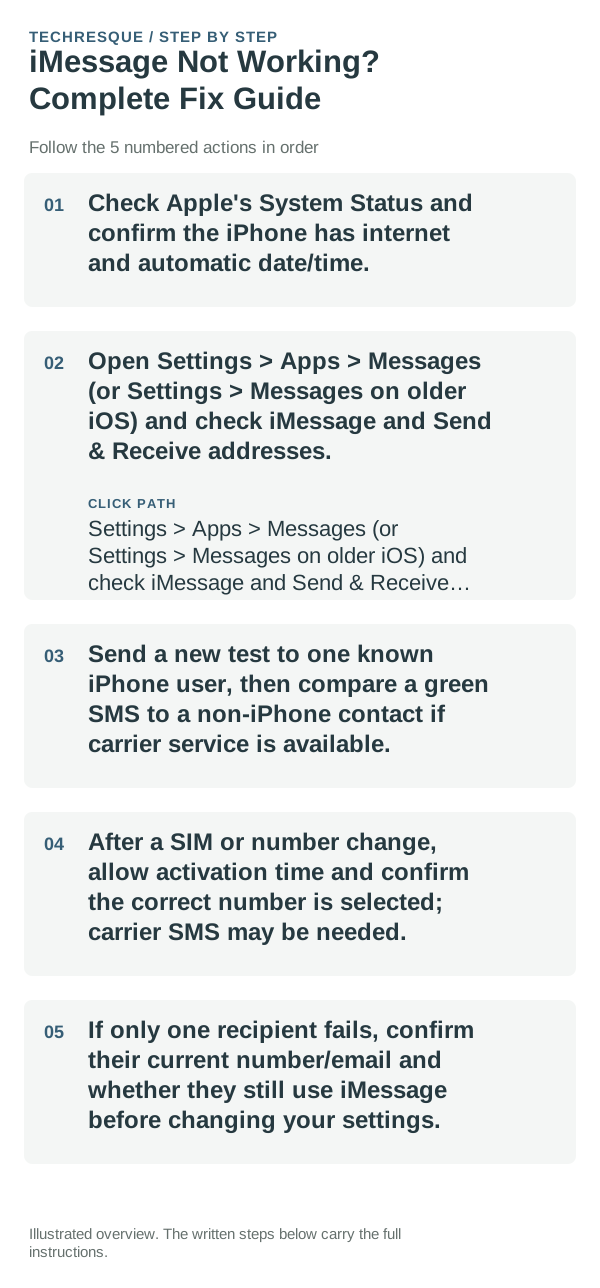
- Check Apple's System Status and confirm the iPhone has internet and automatic date/time.
- Open Settings > Apps > Messages (or Settings > Messages on older iOS) and check iMessage and Send & Receive addresses.
- Send a new test to one known iPhone user, then compare a green SMS to a non-iPhone contact if carrier service is available.
- After a SIM or number change, allow activation time and confirm the correct number is selected; carrier SMS may be needed.
- If only one recipient fails, confirm their current number/email and whether they still use iMessage before changing your settings.
Isolate the failing layer
Test one Apple recipient and one SMS recipient separately; blue/green status indicates different delivery paths.
Test one Apple recipient and one SMS recipient separately; blue/green status indicates different delivery paths.
What not to change first
- Do not repeatedly sign out of Apple Account or delete message history.
- Ensure you can receive carrier SMS before changing activation settings.
Verify before you move on
Test one Apple recipient and one SMS recipient separately; blue/green status indicates different delivery paths.
When to use support or repair
If the issue persists across apps or networks after updates and model-specific checks, contact Apple Support with the model and iOS version.
Record iPhone model, iOS version, affected app or setting, exact message and whether it follows one network. Hide personal details in screenshots.
Frequently asked questions
What should I check first?
Check Apple's System Status and confirm the iPhone has internet and automatic date/time. Open Settings > Apps > Messages (or Settings > Messages on older iOS) and check iMessage and Send & Receive addresses. Send a new test to one known iPhone user, then compare a green SMS to a non-iPhone contact if carrier service is available.
Should I reset the whole device immediately?
Usually not. Check the affected app, accessory or setting first. Reset All Settings or erase the phone only after a backup.
How do I know when the fix is real?
Test one Apple recipient and one SMS recipient separately; blue/green status indicates different delivery paths.
Official sources and further reading
iPhone settings labels can move between iOS versions. Use Settings search if a path differs, and check whether the symptom affects one app or the whole device.