First confirm your AirPods model supports Active Noise Cancellation. While they are connected and in your ears, open Control Center, hold the volume slider, and select Noise Cancellation. Check the fit and any ear tips, then retest with the same steady background sound.
Active Noise Cancellation is available only on supported AirPods models; fit, mode names, and controls vary by generation.
Make sure you are testing the right feature
Transparency lets outside sound in, while Active Noise Cancellation uses microphones and anti-noise to reduce external sound. Some AirPods support Adaptive Audio, which changes noise control as surroundings change. A mode that adjusts automatically may not sound like full cancellation.
Check the listening mode and fit
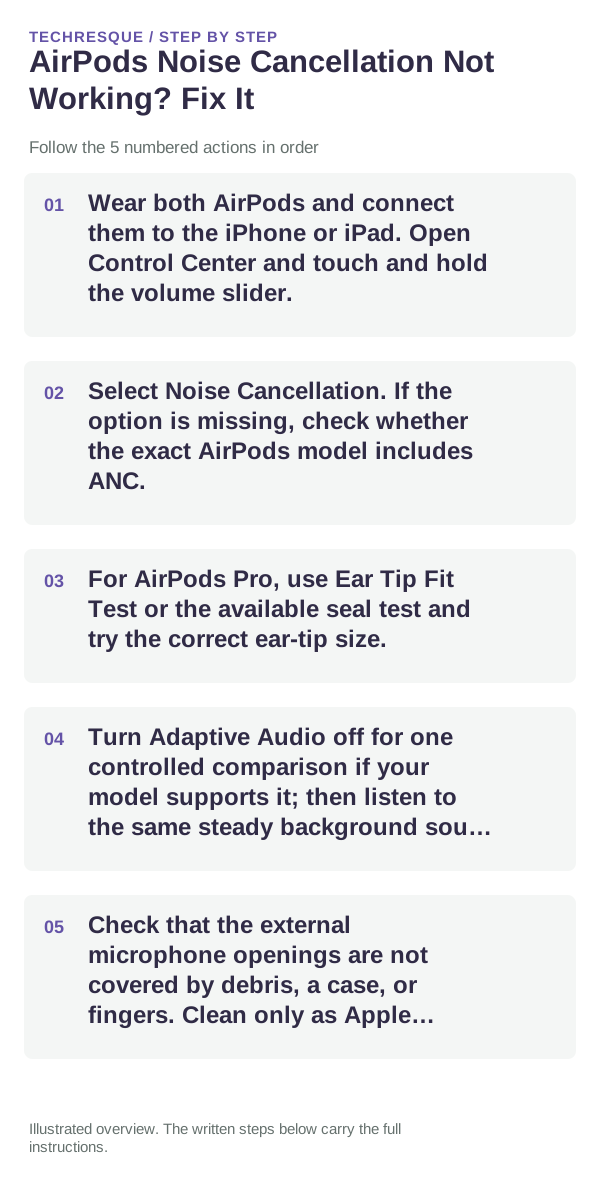
- Wear both AirPods and connect them to the iPhone or iPad. Open Control Center and touch and hold the volume slider.
- Select Noise Cancellation. If the option is missing, check whether the exact AirPods model includes ANC.
- For AirPods Pro, use Ear Tip Fit Test or the available seal test and try the correct ear-tip size.
- Turn Adaptive Audio off for one controlled comparison if your model supports it; then listen to the same steady background sound again.
- Check that the external microphone openings are not covered by debris, a case, or fingers. Clean only as Apple recommends for the model.
Check settings that can change what you hear
Review which listening modes the stem or button cycles through; Noise Cancellation may have been removed from that short list. Also check Headphone Accommodations and custom Transparency settings if the sound changed after accessibility adjustments.
When noise control changes suddenly
Update the connected device and AirPods firmware when updates are available, reconnect, and repeat the same test. If the setting is selected but cancellation remains weak, test another steady environment; wind, voices, and changing noises are harder comparisons than a consistent fan or room hum.
Reset or arrange service
Reset only after checking model support, mode selection, fit, and microphone openings. Use the reset steps for the exact generation. If ANC remains unavailable or unusually weak afterward, contact Apple Support; do not keep resetting between every test.
Frequently asked questions
Do all AirPods have noise cancellation?
No. Active Noise Cancellation is limited to specific AirPods 4 ANC, AirPods 5, AirPods Pro, and AirPods Max models. Confirm your exact model.
Why does Noise Cancellation feel weaker with one earbud?
Fit, ear-tip seal, mode selection, and model support affect the result. Check the fit and compare with both earbuds in before changing other settings.
Should Adaptive Audio be on during the test?
For a clear comparison, temporarily select Noise Cancellation directly. Adaptive Audio intentionally changes noise control with the environment on supported models.
Official sources and further reading
- Apple Support — If Active Noise Cancellation is not working as expected
- Apple Support — Switch between listening modes on AirPods
ANC and Adaptive Audio features depend on AirPods generation and connected-device software.