Check that you have the right cable for the case, connect it to a known-working power source, and leave it charging for at least 15 minutes. If your case supports wireless charging, reposition it with the status light facing up. Check the case and earbud charge separately before resetting anything.
AirPods case connectors and wireless-charging features differ by generation. Identify the case model before choosing a cable or charger.
First confirm what is not charging
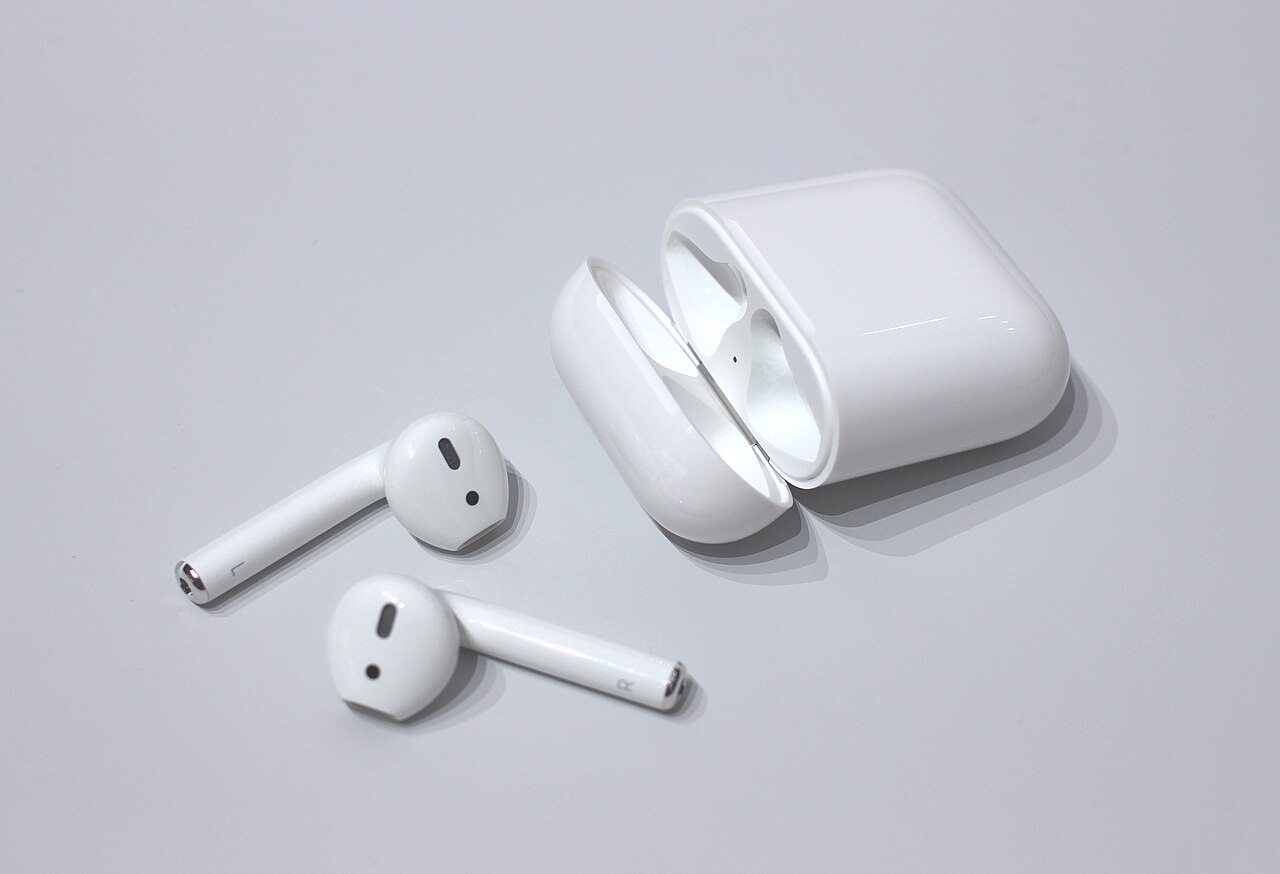
The case can charge while an earbud fails to make contact, and an earbud can charge from a case that is not currently connected to power. On a paired iPhone or iPad, check the AirPods battery card or Bluetooth details and look for separate readings for the left earbud, right earbud, and case. The indicator light location and meaning depend on the case generation.
If the case has no light, that alone does not prove the case is dead. It may need power, the light may be inside the lid on an older model, or the charge state may be easier to check from a paired device.
Try these checks in order
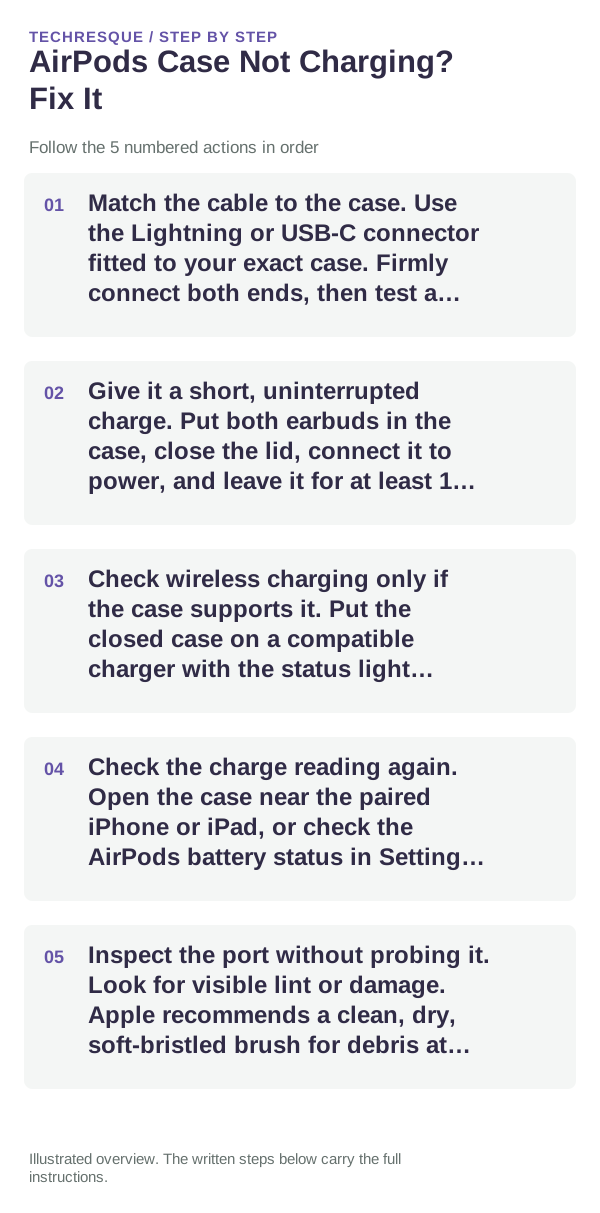
- Match the cable to the case. Use the Lightning or USB-C connector fitted to your exact case. Firmly connect both ends, then test a different known-working USB power adapter or outlet if the first source is uncertain.
- Give it a short, uninterrupted charge. Put both earbuds in the case, close the lid, connect it to power, and leave it for at least 15 minutes. Avoid repeatedly unplugging it while checking the indicator.
- Check wireless charging only if the case supports it. Put the closed case on a compatible charger with the status light facing up. Reposition it if the light does not appear; if there is still no response, use a cable to test the case.
- Check the charge reading again. Open the case near the paired iPhone or iPad, or check the AirPods battery status in Settings. Compare the case reading with each earbud instead of treating them as one battery.
- Inspect the port without probing it. Look for visible lint or damage. Apple recommends a clean, dry, soft-bristled brush for debris at the case port; do not push tools into the port or let liquid enter it. Let the case dry before charging.
When a reset is worth trying
Resetting cannot supply power to a case with a bad cable, blocked connector, or failed battery. Try it only after a known-good charging setup has had time to work. Follow Apple's reset instructions for the exact AirPods generation; newer cases can use a different reset sequence. A reset also clears custom AirPods settings, so note anything you may want to restore.
What a successful test looks like
After the charge interval, check the case and each earbud's status again. If their readings rise, test the case with the earbuds seated and confirm that the case can charge them. If the case reading stays unchanged, repeat once with a second compatible power source rather than cycling through several settings.
- If a cable works but wireless charging does not, verify the case supports wireless charging and reposition it on the compatible pad.
- If the case charges but one earbud does not, check that it sits correctly and inspect the case contacts for visible debris; do not scrape them.
- If neither a known-good cable nor a supported wireless charger produces a charge, the case or its battery may need service.
When to contact Apple
Arrange support if the case remains unresponsive after the model-correct cable, a second power source, and the supported wireless test, or if the port is loose or visibly damaged. Stop charging if the case becomes unusually hot, appears swollen, or has liquid damage. Note the AirPods generation, case connector, indicator behavior, and chargers tested; do not share a serial number publicly.
Frequently asked questions
How long should I charge a case that appears empty?
Apple recommends charging AirPods and their case for at least 15 minutes before checking again. Use the cable type that matches the case.
Can every AirPods case charge wirelessly?
No. Wireless charging depends on the case model. Check the exact model before using a Qi, MagSafe, or Apple Watch charger; wired charging is available for AirPods cases with the matching cable.
Should I clean inside the charging port with a pin?
No. Apple recommends a clean, dry, soft-bristled brush for debris and warns against putting objects into the charging ports. Do not use liquid in the port.
Official sources and further reading
- Apple Support — If your AirPods won’t charge
- Apple Support — Charge your AirPods and check charge status
- Apple Support — How to clean your AirPods and charging case
- Apple Support — Reset your AirPods and AirPods Pro
Use the steps for your exact AirPods and charging-case model. Apple’s menu names and charging features vary by generation.