Confirm the client adapter supports 5 GHz and the router is broadcasting a compatible channel in the correct region. A device that sees 2.4 GHz only may have a hardware or channel limitation.
What this symptom usually means
The 5 GHz band is not supported by every older adapter, and some devices cannot see certain channels. A combined network name may also hide the band choice behind router steering.
Use this order so you can identify the cause
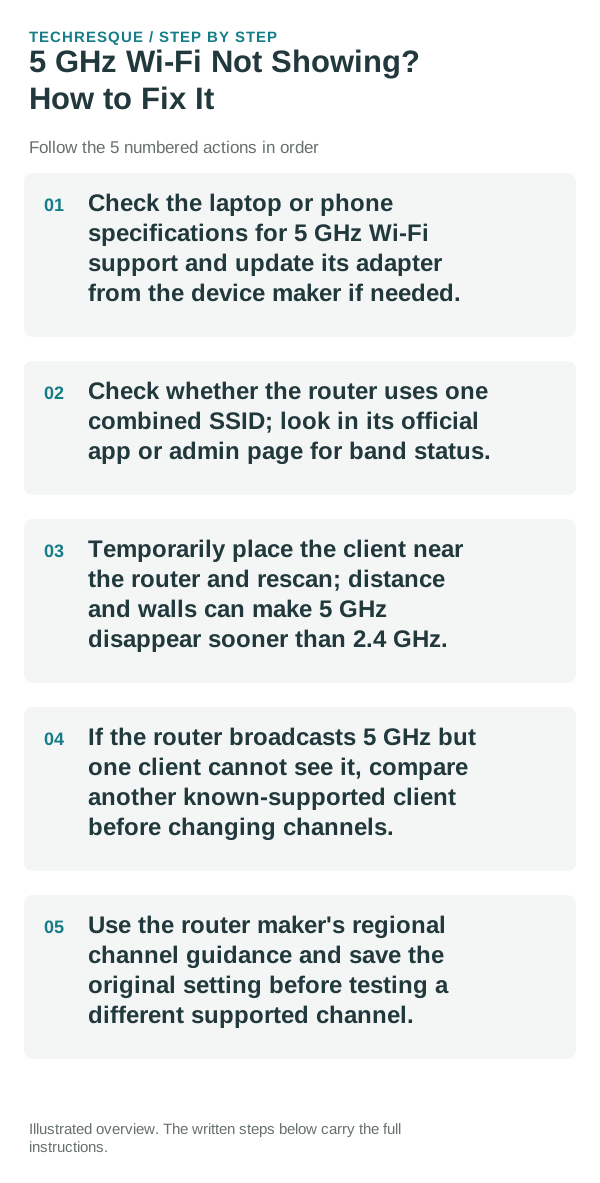
- Check the laptop or phone specifications for 5 GHz Wi-Fi support and update its adapter from the device maker if needed.
- Check whether the router uses one combined SSID; look in its official app or admin page for band status.
- Temporarily place the client near the router and rescan; distance and walls can make 5 GHz disappear sooner than 2.4 GHz.
- If the router broadcasts 5 GHz but one client cannot see it, compare another known-supported client before changing channels.
- Use the router maker's regional channel guidance and save the original setting before testing a different supported channel.
Isolate the failing layer
If multiple supported devices cannot see the band, check whether the router has 5 GHz enabled. If only one device misses it, investigate its adapter, driver, and channel compatibility.
Shortcuts that usually waste time
Do not choose a channel based on a generic internet list; allowed channels vary by region and device. Avoid disabling Wi-Fi security to make the SSID appear.
Verify before you move on
Confirm the 5 GHz SSID appears on a nearby compatible client and that the client can reconnect after a restart.
When to use support or repair
If the router broadcasts no 5 GHz network despite being enabled, contact its manufacturer with model, region, firmware, and channel.
A useful network split test
Test the affected device on a second known-good Wi-Fi network, such as a trusted hotspot. Then test another device on the original Wi-Fi. Those two checks quickly separate device problems from router/ISP problems.
5 GHz-specific checks
A device can support Wi-Fi but still fail to see one 5 GHz channel. Confirm the client supports 5 GHz, then check the router’s 5 GHz radio, SSID visibility and channel. Some clients do not support every regulatory/DFS channel. Temporarily choosing a common non-DFS 5 GHz channel is a useful compatibility test; it is different from troubleshooting a 6 GHz network.
Frequently asked questions
What should I check first for 5 ghz wi-fi not showing? how to fix it?
First find the scope: if every device fails, focus on the router/ISP; if only one device fails, forget and reconnect that network on the affected device.
Should I reset the whole device immediately?
Usually not. Compare another device on the same network and this device on a second network before resetting equipment.
How do I know when the fix is real?
Confirm the 5 GHz SSID appears on a nearby compatible client and that the client can reconnect after a restart.