Open Windows sound output and select the Bluetooth headphones/speaker explicitly. Then unpair/re-pair, restart Bluetooth, install updates and refresh the Bluetooth driver if needed.
Start with the simplest reversible checks before moving to resets or repair.
Why this happens
Do not assume the most expensive failure first. This problem usually becomes much easier once you separate a settings problem from a connection, app, accessory or hardware problem.
- Windows selected laptop speakers or another audio device as the current output.
- The Bluetooth pairing is connected but the audio profile did not initialize correctly.
- The device may be using an incompatible or low-quality audio mode.
- A Bluetooth driver became outdated or unstable after an update.
- The headset is connected to another device through multipoint.
Fix it in this order
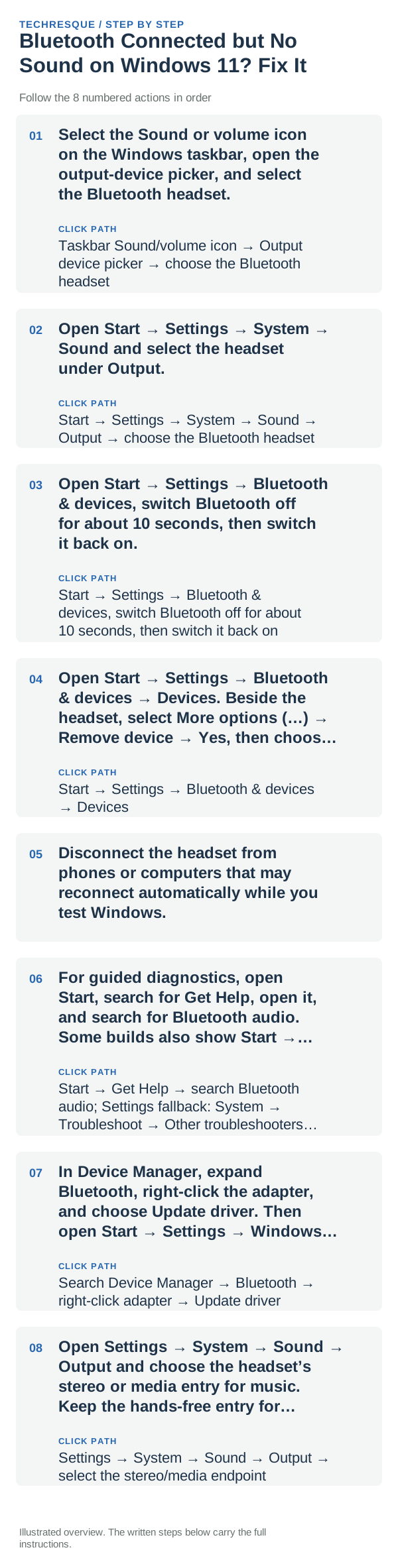
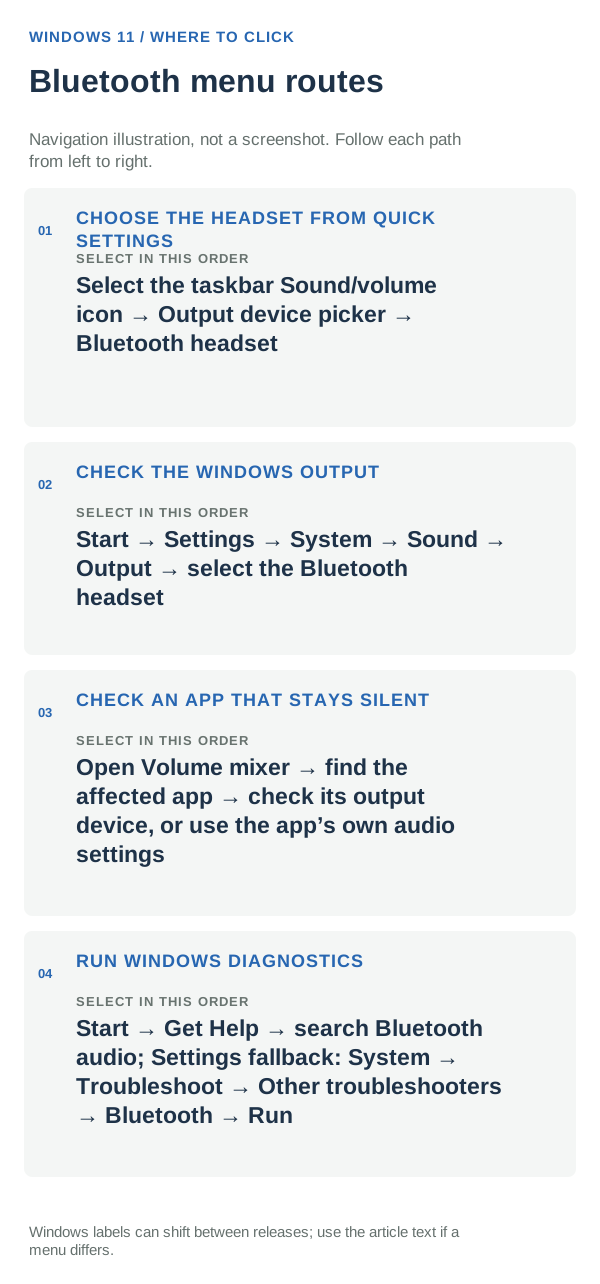
- Select the Sound or volume icon on the Windows taskbar, open the output-device picker, and select the Bluetooth headset.
- Open Start → Settings → System → Sound and select the headset under Output.
- Open Start → Settings → Bluetooth & devices, switch Bluetooth off for about 10 seconds, then switch it back on.
- Open Start → Settings → Bluetooth & devices → Devices. Beside the headset, select More options (…) → Remove device → Yes, then choose Add device and pair it again.
- Disconnect the headset from phones or computers that may reconnect automatically while you test Windows.
- For guided diagnostics, open Start, search for Get Help, open it, and search for Bluetooth audio. Some builds also show Start → Settings → System → Troubleshoot → Other troubleshooters → Bluetooth → Run.
- In Device Manager, expand Bluetooth, right-click the adapter, and choose Update driver. Then open Start → Settings → Windows Update, check for updates, and restart if prompted.
- Open Settings → System → Sound → Output and choose the headset’s stereo or media entry for music. Keep the hands-free entry for calls when you need its microphone.
How to identify the real cause
If Windows audio meters move but nothing is heard, confirm the selected output and the headset's own volume. If the Bluetooth device repeatedly disconnects, focus on pairing, driver and radio stability rather than app volume.
Common mistakes that waste time
- Changing app volume without checking the Windows output device.
- Re-pairing while the headset is still connected to another host.
- Downloading drivers from unofficial driver sites.
- Assuming a headset supports high-quality music audio just because it supports Bluetooth.
When this is probably not a settings problem
If multiple Bluetooth audio devices fail on the PC but work elsewhere, investigate the PC's Bluetooth adapter/driver. If only one headset fails across several computers, the headset is the likely problem.
If you need repair or manufacturer support, write down what you already tested. A short list of known-good cables, devices, networks or apps you tried is much more useful than saying only that the feature “doesn't work.”
Check app-level output too
Windows can have the correct system output while a music, game or meeting app is pinned to a different device. Open Volume mixer or the app's audio settings and make sure it follows the Bluetooth output. This is especially common after reconnecting headsets with built-in microphones.
Stereo versus headset modes
Some Bluetooth headsets expose different audio paths for high-quality stereo playback and two-way voice. Meeting apps can switch profiles when the microphone is active. If quality changes only during calls, that can be profile behavior rather than a failing headset.
Once one step appears to work, stop and reproduce the original problem under the same conditions. If it stays fixed, leave unrelated settings alone. That preserves a clear cause-and-effect trail and avoids creating a second problem while trying to solve the first.
If the symptom returns, write down the trigger, time, network, battery level, connected accessories and app in use. Those details make the next diagnostic step much more precise and are useful if you eventually need manufacturer or developer support.
Frequently asked questions
Why does Windows say connected but play sound through speakers?
Windows can maintain the Bluetooth connection while another device remains selected as the audio output.
Should I remove and pair the headset again?
Yes, if selecting the correct output does not help.
Can drivers cause Bluetooth audio problems?
Yes. Microsoft recommends updating Bluetooth drivers when connection/audio issues persist.
What is A2DP?
It is the Bluetooth profile commonly used for higher-quality stereo audio streaming.