An Ethernet link can be active while Windows still has no route to the internet. Separate the physical link, local router connection, DNS, and wider ISP connection. Check Ethernet link lights and try a known-good cable and a different router port. See whether another device on the same router has internet; this separates ISP/router from PC.
Windows menu names and power controls vary by build and PC maker; note the exact Windows version and error before changing drivers or system settings.
Where this problem usually comes from
An Ethernet link can be active while Windows still has no route to the internet. Separate the physical link, local router connection, DNS, and wider ISP connection.
- The cable, router port, or network adapter has no stable link.
- The router has no internet service even though Ethernet is connected.
- Windows has a stale IP/DNS configuration or a manual address conflict.
- VPN, proxy, security software, or a managed network changes routing.
- The issue is isolated to one PC, cable, or router port.
Fix it in this order
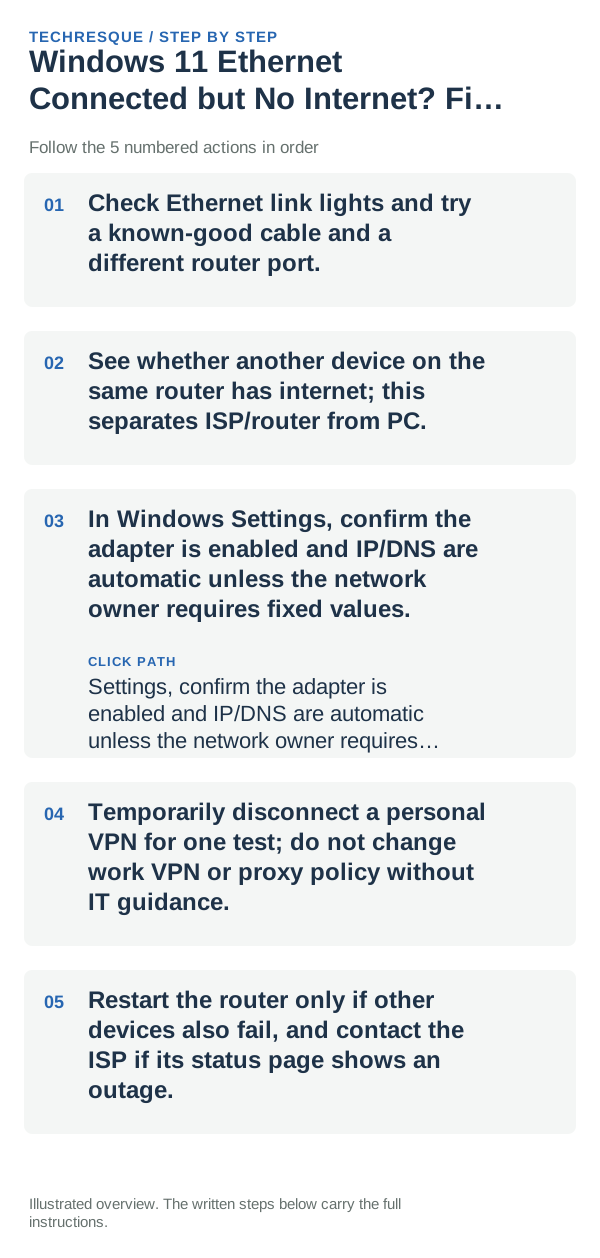
- Check Ethernet link lights and try a known-good cable and a different router port.
- See whether another device on the same router has internet; this separates ISP/router from PC.
- In Windows Settings, confirm the adapter is enabled and IP/DNS are automatic unless the network owner requires fixed values.
- Temporarily disconnect a personal VPN for one test; do not change work VPN or proxy policy without IT guidance.
- Restart the router only if other devices also fail, and contact the ISP if its status page shows an outage.
How to tell which cause applies
Compare the PC on the same cable/port with another device, then compare another cable on the PC.
Open a new webpage and a second network-dependent app over Ethernet, then check whether Wi-Fi and other devices still have internet on the same router.
What not to change first
- Do not factory-reset the router or change managed network settings before checking whether other devices work.
Confirm that the problem is actually gone
Compare the PC on the same cable/port with another device, then compare another cable on the PC.
When to use support or repair
If Ethernet still has no internet after testing another cable or router port, check whether Wi-Fi on the same PC and other devices can reach the internet. Record the adapter status, Windows network error, and whether the router is online; contact your ISP if other devices also lose access, or the PC maker if only this adapter fails.
Frequently asked questions
What should I check first?
Check Ethernet link lights and try a known-good cable and a different router port. See whether another device on the same router has internet; this separates ISP/router from PC. In Windows Settings, confirm the adapter is enabled and IP/DNS are automatic unless the network owner requires fixed values.
Should I reset the whole device immediately?
Usually not. Try the guide’s reversible checks first and confirm whether the problem is limited to one app, file, device, or Windows component. Back up important files before considering Reset this PC.
How do I know when the fix is real?
Compare the PC on the same cable/port with another device, then compare another cable on the PC.
Official sources and further reading
Windows Settings paths can shift between releases. Search for the named control and note your Windows build if an option is missing.