Check the charger, outlet, charging port, battery message, and manufacturer charge limit. Some laptops intentionally pause charging near a configured threshold to preserve battery life.
On Windows 11, menu names vary by build. Use built-in Settings and Microsoft Support guidance before registry edits or third-party repair tools.
Start by narrowing the cause
A plugged-in laptop may show charging on hold, a smart-charge limit, a weak adapter, or a battery fault. USB-C charging also depends on the port and adapter supplying enough power.
Use this order so you can identify the cause
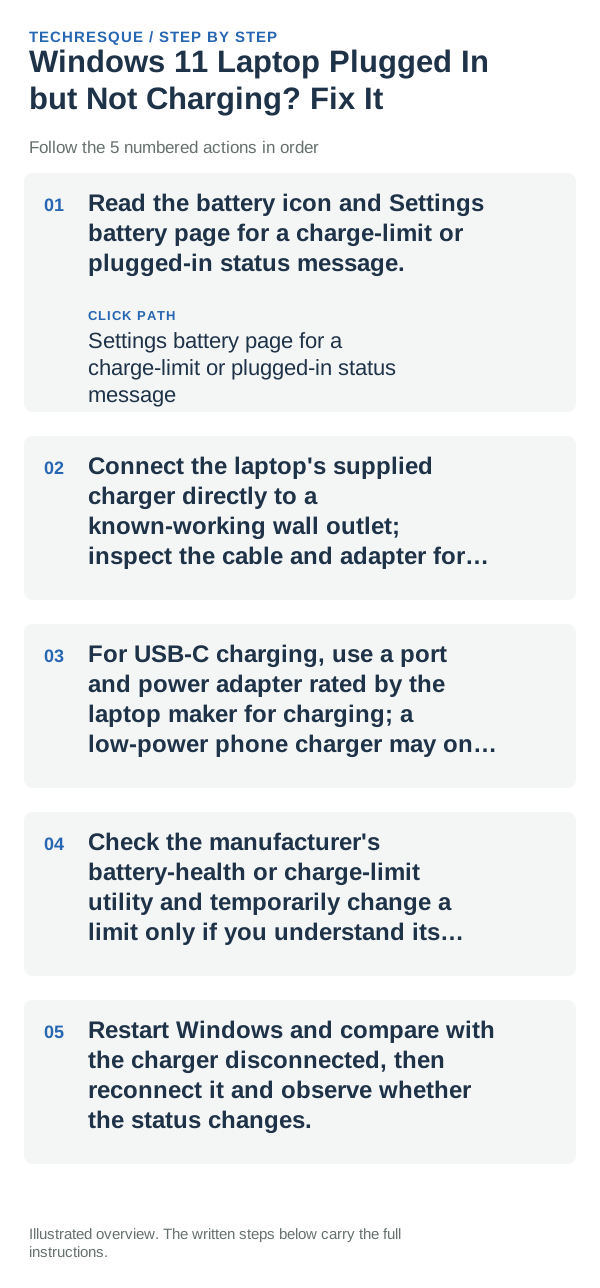
- Read the battery icon and Settings battery page for a charge-limit or plugged-in status message.
- Connect the laptop's supplied charger directly to a known-working wall outlet; inspect the cable and adapter for damage.
- For USB-C charging, use a port and power adapter rated by the laptop maker for charging; a low-power phone charger may only slow battery drain.
- Check the manufacturer's battery-health or charge-limit utility and temporarily change a limit only if you understand its effect.
- Restart Windows and compare with the charger disconnected, then reconnect it and observe whether the status changes.
Isolate the failing layer
A stable percentage near a configured limit can be normal battery care. No charging with the supplied adapter, a loose port, or an adapter warning points to hardware or insufficient power.
Do not make troubleshooting harder
Stop using a damaged, hot, swollen, or sparking charger or battery. Do not open the laptop or use an adapter with mismatched voltage or connector.
Verify before you move on
Confirm Windows recognizes the supplied charger and the battery percentage behaves as expected for the configured limit. Re-enable a charge cap after a short diagnostic if appropriate.
When to use support or repair
If the laptop reports an adapter error or never charges with its correct charger, contact the manufacturer with the model, adapter rating, and battery status.
Control temperature during the test
For a clean comparison, start at a similar battery percentage, let the device cool, use the same charger and keep the screen off for a short interval. Temperature and foreground use can otherwise hide the effect of the change you made.
Frequently asked questions
What should I check first for windows 11 laptop plugged in but not charging? fix it?
Test the power path first: known-good charger, cable and outlet, then check port debris, temperature and any charge-limit setting before assuming the battery is bad.
Should I reset the whole device immediately?
Usually not. Try the guide’s reversible checks first and confirm whether the problem is limited to one app, file, device, or Windows component. Back up important files before considering Reset this PC.
How do I know when the fix is real?
Confirm Windows recognizes the supplied charger and the battery percentage behaves as expected for the configured limit. Re-enable a charge cap after a short diagnostic if appropriate.