
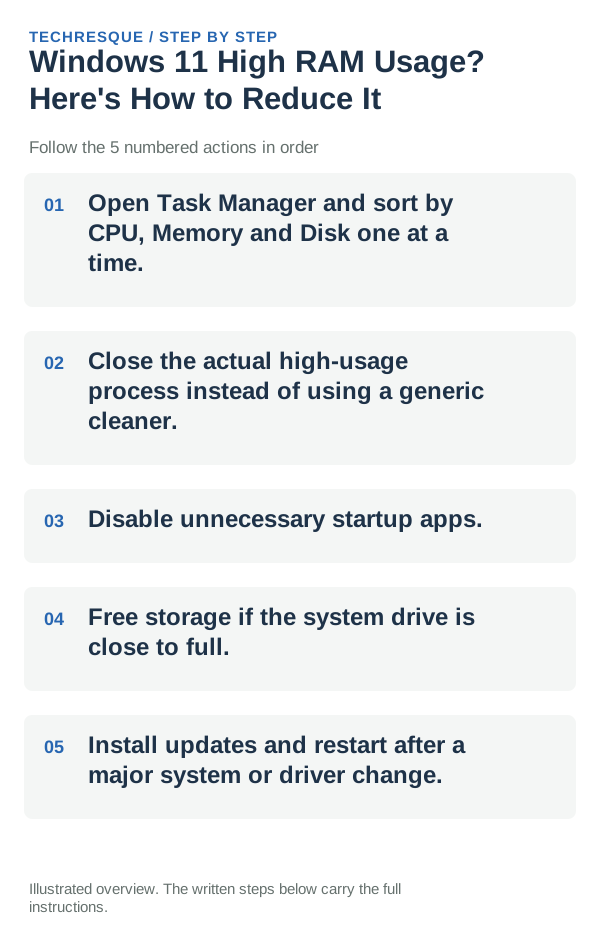
Open Task Manager and sort by CPU, Memory and Disk one at a time. Then close the actual high-usage process instead of using a generic cleaner.
On Windows 11, menu names vary by build. Use built-in Settings and Microsoft Support guidance before registry edits or third-party repair tools.
Where this problem usually comes from
- a background process is using CPU, RAM or disk continuously
- too many startup apps are running
- storage is almost full
- a browser/app workload exceeds available memory
- an update, driver or security scan is temporarily using resources
Use this order so you can identify the cause
- Open Task Manager and sort by CPU, Memory and Disk one at a time.
- Close the actual high-usage process instead of using a generic cleaner.
- Disable unnecessary startup apps.
- Free storage if the system drive is close to full.
- Install updates and restart after a major system or driver change.
What each result tells you
Repeat the same work session and check Task Manager’s memory and commit values; verify the apps you need stay responsive instead of judging by one idle reading.
Do not make troubleshooting harder
What success should look like
Measure idle usage and the same workload before and after the change; “feels faster” is less useful than a repeatable difference.
When to use support or repair
If memory pressure returns with the same workload, note the apps and memory use in Task Manager, available memory, and whether the slowdown occurs before or after sign-in. Include the Windows build and installed memory when contacting the app publisher or PC maker; avoid disabling security or system services to free RAM.
Frequently asked questions
Should I reset the whole device immediately?
Usually not. Try the guide’s reversible checks first and confirm whether the problem is limited to one app, file, device, or Windows component. Back up important files before considering Reset this PC.
How do I know when the fix is real?
Measure idle usage and the same workload before and after the change; “feels faster” is less useful than a repeatable difference.
Official sources and further reading
Windows Settings paths can shift between releases. Search for the named control and note your Windows build if an option is missing.