
In Task Manager, identify which process is driving 100% active disk time before changing services. Disk usage at 100% is not the same as the drive being full.
On Windows 11, menu names vary by build. Use built-in Settings and Microsoft Support guidance before registry edits or third-party repair tools.
Start by narrowing the cause
Windows reports active time separately from free capacity. Updates, indexing, antivirus scans, a busy application, paging, or a struggling drive can keep the disk active even when plenty of storage remains.
The practical troubleshooting sequence
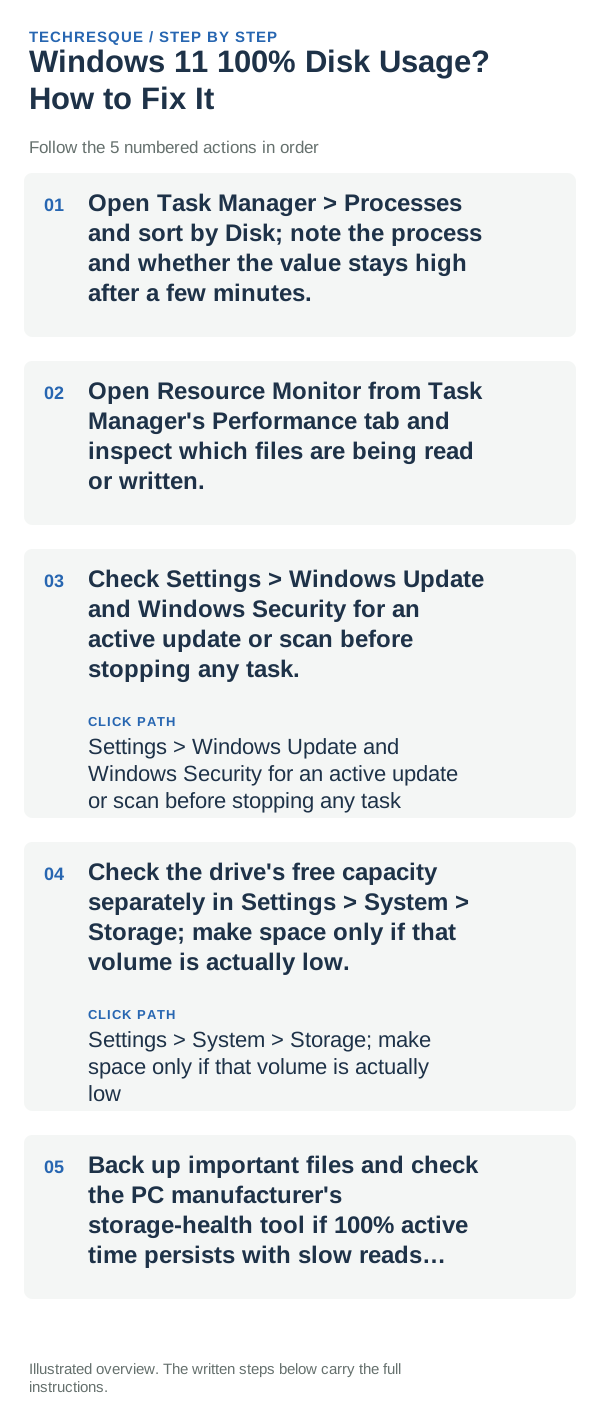
- Open Task Manager > Processes and sort by Disk; note the process and whether the value stays high after a few minutes.
- Open Resource Monitor from Task Manager's Performance tab and inspect which files are being read or written.
- Check Settings > Windows Update and Windows Security for an active update or scan before stopping any task.
- Check the drive's free capacity separately in Settings > System > Storage; make space only if that volume is actually low.
- Back up important files and check the PC manufacturer's storage-health tool if 100% active time persists with slow reads, errors, or unusual noises.
Isolate the failing layer
A named updater, search indexer, or antivirus scan may settle when its work completes. Sustained activity with no obvious process, read errors, or repeated freezes can indicate a driver or drive-health problem.
What not to change first
Do not disable SysMain, Windows Search, antivirus, or other services based on a generic checklist. Do not run drive repair commands before backing up data that may be at risk.
Retest the original failure
After the identified task settles, repeat the same action and check active time again. Confirm free capacity separately; a lower active-time value and a healthy storage report answer different questions.
When to use support or repair
If disk activity remains high or Windows reports errors, contact the PC or drive maker. Back up first and include the model, drive type, Task Manager process, and any SMART or event message.
Frequently asked questions
Should I reset the whole device immediately?
Usually not. Try the guide’s reversible checks first and confirm whether the problem is limited to one app, file, device, or Windows component. Back up important files before considering Reset this PC.
How do I know when the fix is real?
After the identified task settles, repeat the same action and check active time again. Confirm free capacity separately; a lower active-time value and a healthy storage report answer different questions.