Record a short voice memo or system test outside the affected app. Then check microphone permission for that app.
On Android, menu names vary by maker, so use Settings search when a path in a guide does not match your phone exactly.
Start by narrowing the cause
- the wrong microphone/input device is selected
- microphone permission is denied for one app
- Bluetooth or USB audio routing is taking the input
- debris or a case is blocking a microphone opening
- the microphone works in one mode but a specific app has a configuration problem
Work through these checks
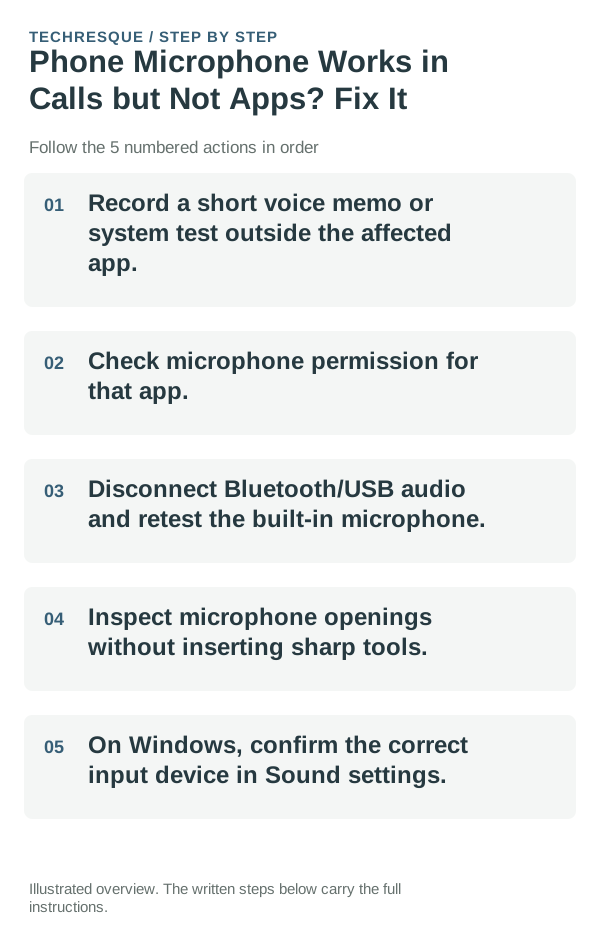
- Record a short voice memo or system test outside the affected app.
- Check microphone permission for that app.
- Disconnect Bluetooth/USB audio and retest the built-in microphone.
- Inspect microphone openings without inserting sharp tools.
- On Windows, confirm the correct input device in Sound settings.
Isolate the failing layer
Record audio with a system recorder, then test the failing app. A clean system recording with a bad app recording points toward permission, routing or app configuration—not a dead microphone.
Use the same app, output device and audio clip for each check. Switch only one permission or audio route at a time.
What not to change first
Confirm that the problem is actually gone
Compare a system recording with the failing app; that tells you whether the fault is app-specific or system-wide.
When to use support or repair
If one accessory fails with multiple hosts, contact its maker; if several accessories fail in one app, report the app version and audio route.
Record accessory and host model, app/version, selected microphone/output and whether another app works. Hide account identifiers.
Frequently asked questions
Should I reset the whole device immediately?
Usually not. Check the active audio route, app permission and one known-good accessory before resetting the device.
How do I know when the fix is real?
Compare a system recording with the failing app; that tells you whether the fault is app-specific or system-wide.
Official sources and further reading
Audio routing and privacy controls vary by app, accessory and operating system. Check the active output and microphone permission first.