Microsoft Store download problems can come from the queue, account, network, Windows Update components, or app cache. Check whether one app or every Store download is affected. Open Library > Get updates and cancel/retry only the stuck item after checking the queue. Confirm Store sign-in, date/time, region, and free space on the target drive.
Windows menu names and power controls vary by build and PC maker; note the exact Windows version and error before changing drivers or system settings.
Where this problem usually comes from
Microsoft Store download problems can come from the queue, account, network, Windows Update components, or app cache. Check whether one app or every Store download is affected.
- Another download/update is holding the queue.
- The Store account, region, or licensing state is not current.
- Windows Update or the Store cache has a pending repair.
- A metered/unstable connection or low disk space blocks download.
- The app is unavailable for this Windows build or device.
Fix it in this order
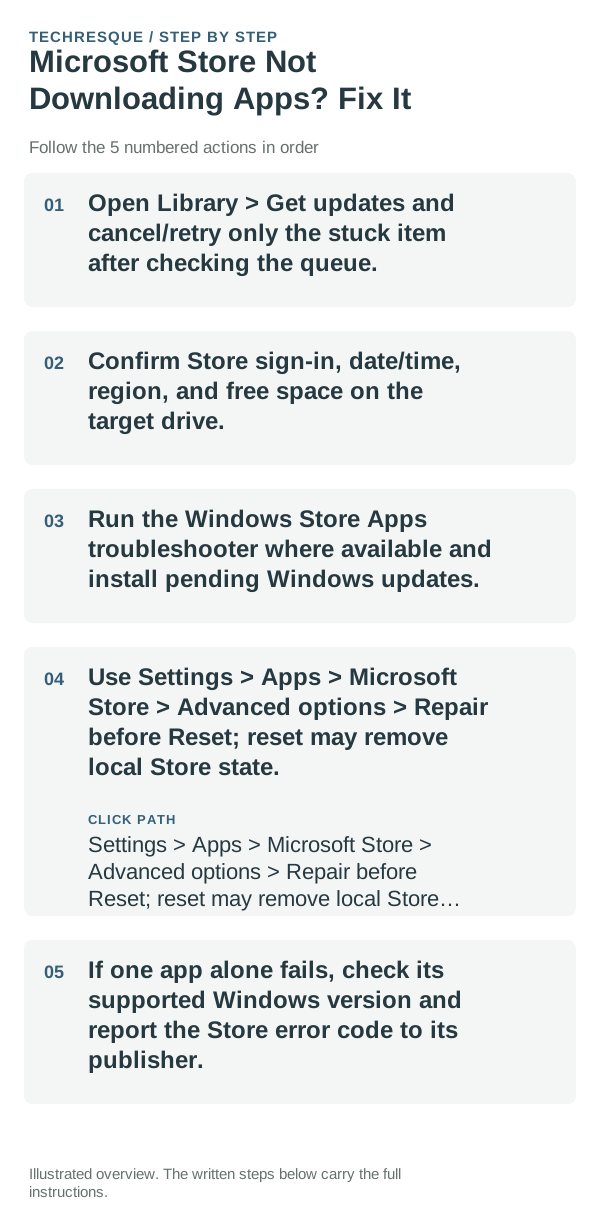
- Open Library > Get updates and cancel/retry only the stuck item after checking the queue.
- Confirm Store sign-in, date/time, region, and free space on the target drive.
- Run the Windows Store Apps troubleshooter where available and install pending Windows updates.
- Use Settings > Apps > Microsoft Store > Advanced options > Repair before Reset; reset may remove local Store state.
- If one app alone fails, check its supported Windows version and report the Store error code to its publisher.
Isolate the failing layer
Try one small Store download and note whether the Store opens, the queue advances, and the same account is signed in.
Check Library for the same app and one other update; this shows whether the problem follows one app or the Store download queue as a whole.
Do not make troubleshooting harder
- Do not reset the whole PC for one Store app.
- Do not run registry scripts from unofficial repair sites.
Verify before you move on
Try one small Store download and note whether the Store opens, the queue advances, and the same account is signed in.
When to use support or repair
If multiple Store apps still will not download after checking the connection, date and time, and Library updates, record the exact Store error code and Windows build. If only one app fails, include its name and publisher when contacting Microsoft Support.
Frequently asked questions
What should I check first?
Open Library > Get updates and cancel/retry only the stuck item after checking the queue. Confirm Store sign-in, date/time, region, and free space on the target drive. Run the Windows Store Apps troubleshooter where available and install pending Windows updates.
Should I reset the whole device immediately?
Usually not. Try the guide’s reversible checks first and confirm whether the problem is limited to one app, file, device, or Windows component. Back up important files before considering Reset this PC.
How do I know when the fix is real?
Try one small Store download and note whether the Store opens, the queue advances, and the same account is signed in.
Official sources and further reading
Windows Settings paths can shift between releases. Search for the named control and note your Windows build if an option is missing.