If the progress bar is moving, leave the iPhone connected to power. If it has not moved for more than an hour, connect it to a computer, enter recovery mode for the exact model, and choose Update before Restore.
On iPhone, prefer Apple’s built-in Settings and reset options; use “Reset All Settings” or a full erase only when a narrower fix has failed and you have a backup.
Where this problem usually comes from
An Apple logo during startup or an update is not enough to tell whether the phone is frozen. Apple says a progress bar that has not moved for more than an hour after restore or migration needs a recovery-mode update attempt.
Work through these checks
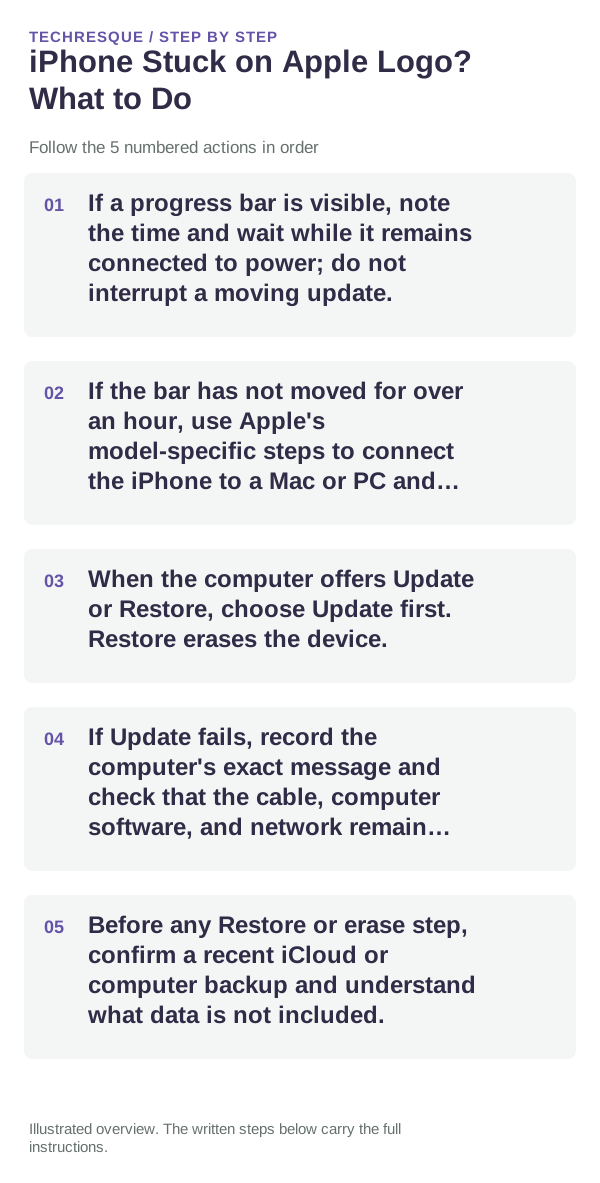
- If a progress bar is visible, note the time and wait while it remains connected to power; do not interrupt a moving update.
- If the bar has not moved for over an hour, use Apple's model-specific steps to connect the iPhone to a Mac or PC and enter recovery mode.
- When the computer offers Update or Restore, choose Update first. Restore erases the device.
- If Update fails, record the computer's exact message and check that the cable, computer software, and network remain connected.
- Before any Restore or erase step, confirm a recent iCloud or computer backup and understand what data is not included.
Isolate the failing layer
A moving bar or an update message means the process may still be working. A bar unchanged for the documented hour is the point to follow Apple's recovery instructions; repeated forced restarts are not a substitute.
Shortcuts that usually waste time
Do not choose Restore as the first option: Apple states it erases the iPhone. Keep the computer and phone connected during an update attempt and do not disconnect on a progress screen.
Confirm that the problem is actually gone
The Apple logo should advance to the lock screen and the iPhone should complete one normal restart. Confirm photos and other important data are present before deleting any backup.
When to use support or repair
If Update fails or the device is not recognized in recovery mode, contact Apple Support. Provide the model, time the progress bar stopped, computer app used, and exact error.
Frequently asked questions
Should I reset the whole device immediately?
Usually not. Check the affected app, accessory or setting first. Reset All Settings or erase the phone only after a backup.
How do I know when the fix is real?
The Apple logo should advance to the lock screen and the iPhone should complete one normal restart. Confirm photos and other important data are present before deleting any backup.